One of the biggest bottlenecks in agency client onboarding is getting access to the accounts you need to do your work.
Leadsie is a client onboarding platform that helps agencies collect access to clients’ marketing, advertising, and social media accounts through a single secure link.
Instead of sending complicated instructions or scheduling calls to walk clients through the process, you simply send them your Leadsie link. They follow the guided steps, approve the permissions you’ve requested, and you’re granted access in minutes.
With Leadsie, clients can securely grant access to platforms such as:
- Meta (Facebook and Instagram)
- Google Ads
- Google Business Profile
- Google Analytics
- Google Tag Manager
- Google Search Console
- TikTok Ads
- Shopify
- And many more
If you’re already using Content Snare to collect information, adding Leadsie to your onboarding workflow makes the process even smoother. That way your clients have a single place to complete everything you’re waiting on before work begins.
Here’s how you can set up a task for your clients to grant account access through Leadsie:
Step 1: Create a Task List in Content Snare
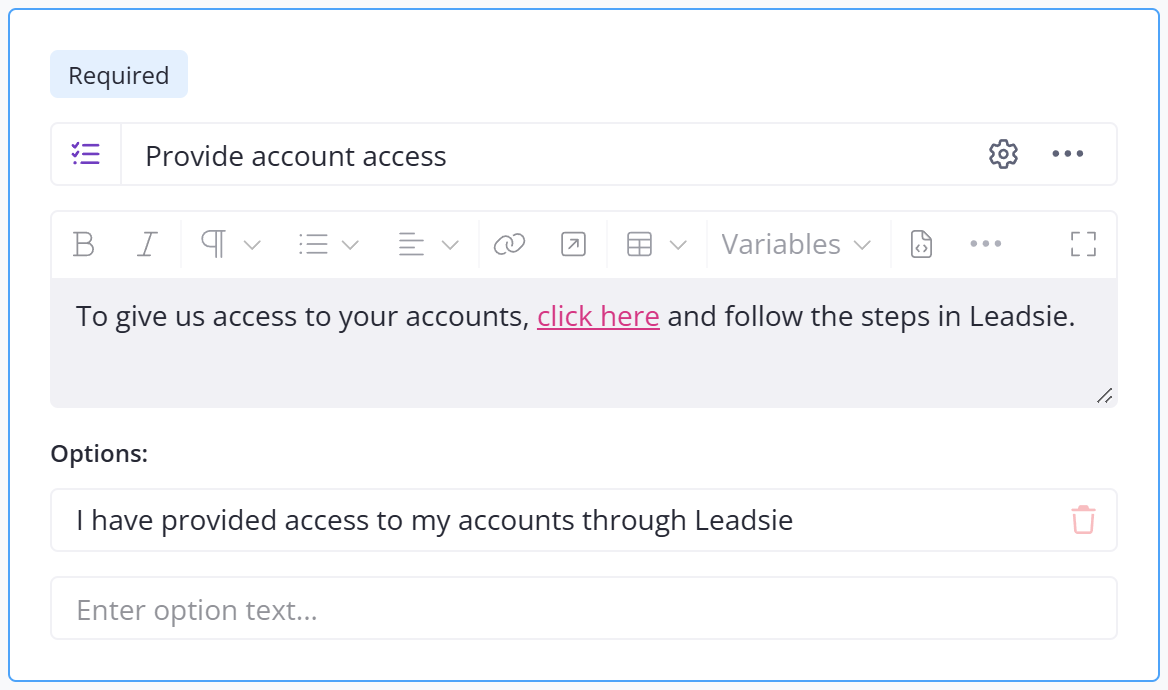
Add a new field to your request. Call it “Provide account access” or similar.
Step 2: Add your Leadsie link & client instructions
In the instructions box, add the following. Feel free to customize this.
We’ll need access to your Google & Facebook Ads account. Please click here and follow the instructions. When you’re done, come back here, tick the box below and click submit.
Highlight “click here” and add your Leadsie link. In the options area at the bottom, add one line that says:
I have provided access to my accounts through Leadsie
It should look something like this
Step 3: Send the request to your client
As you normally would, send the request to your client. When they get to the Account Access step, they’ll see this:
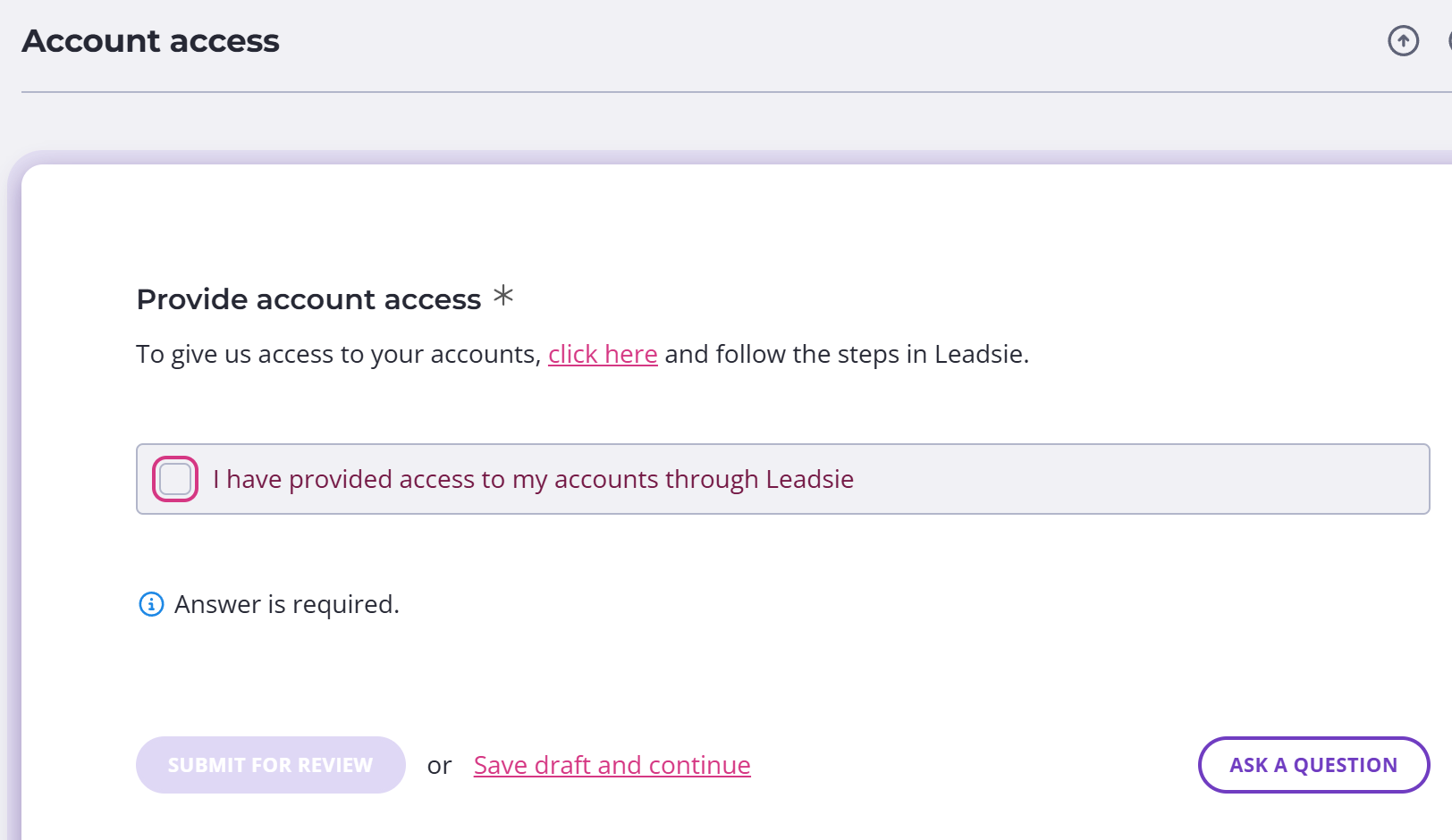
They click the link and tick the box when they are done.
Simple as that.
If you need any help setting this workflow up, contact our support team.