The client portal gives each of your clients a place to open and download files you share with them. When you need files or answers back from a client, send them a request instead.
Anything you add stays in the portal until you remove it, so a client can return weeks later and still find it. Your client reaches the portal by signing in.
Open the client portal
Go to Clients, then Client portal. At the top of the page, the View as: selector switches between the global portal and one specific client's files.
Send files to one client
To send files to a single client, create a portal group for them. A group keeps a set of files together under one name, like "2026 tax return" or "Loan application", and each group belongs to one client.
- Open the client portal.
- Pick the client in the View as: selector.
- Create a group for them and give it a name.
- Upload your files.
When you upload to a client's group, tick Notify client that new files were added to email them about it. If you forget the toggle, the only way to let the client know is to upload another file with the toggle switched on.
To give the same files to a different client, create a new group under that client. Add instruction text for the client if you want to give context about the files.
You can customize the subject and message of that notification email.
Share files with all your clients
A global group shows the same files to every client at once. Use one for anything everyone should have, like a brochure, your service information or payment details.
Global groups don't notify your clients when you add files, so you can keep general material updated without announcing every change.
To build one, switch the View as: selector to Global Portal, then choose Add global group.
Add to or rename a group you already have
Open the group and choose Add files to put more in it. To change a group's name, open its three-dot menu and choose Rename.
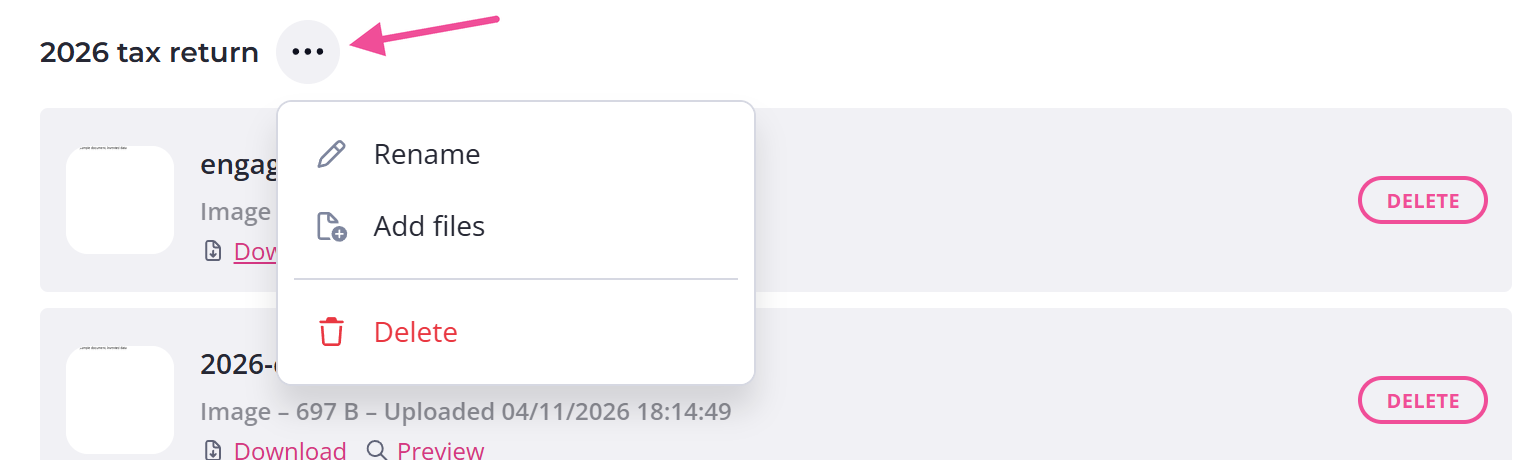
Deleting files and groups is permanent
Content Snare asks you to confirm before removing a file already visible to a client, or before deleting a group that still holds files.
Turn the client portal on or off
The client portal is on by default and available on every plan.
Only an Administrator can turn it on or off.
- Click your avatar in the top right.
- Choose Settings.
- Choose Company.
- Choose Client portal.
- Use Enable Client Portal.
Switching it off hides the files from your clients without deleting a thing. Switch it back on and they're all there again.