Who sets the PIN
Whoever opens the request link first sets the PIN. That should be your client, and usually is. Content Snare doesn't create the code or email it, and you can't set one for them from your dashboard. The first time a protected request is opened, the Set Your PIN Code screen asks for a code, and that code is what opens the request from then on.
Your client picks the code, so they have to remember it. Nobody on your team can look it up or change it from the dashboard, so a client who loses their PIN resets it rather than asking you for it.
Only share the request link with your client
A PIN guards who can act on the request, not who can reach its web address. Anyone with the link can set the code before your client does, so share it only with the person it's meant for. That includes your own team: open the client's link to check how it looks and you may be the one who sets their PIN.
This only matters on the first request you send someone. Once your client has set their PIN it opens every protected request they have with you, so nobody else can set one afterward. And on that first request there are no answers to read yet, so anyone who set the code ahead of your client would see your questions, not their information.
One PIN per client, not per request
Each client has one PIN, not one for each request. Once your client has chosen their code, that same code opens every protected request they have with you, and they're not asked to pick a new one each time you send another. Resetting the PIN changes it across all of those requests at once.
Turn PIN protection on or off
PIN codes only work on requests your client opens through a shareable link, without signing in. That's why the PIN setting sits under the one that allows link access, and stays grayed out until it's on.
To switch protection on for a single request:
- Open Requests and open the request.
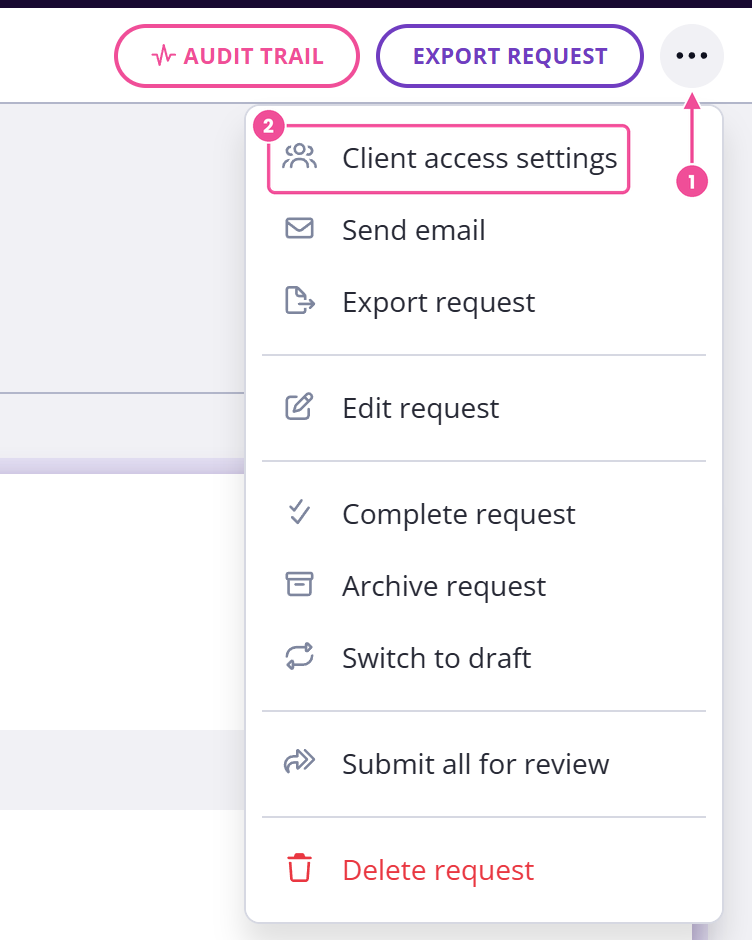
- Open the actions menu (the three dots at the top right) and choose Client access settings.
- Turn on Allow access without logging in if it isn't already.
- Turn on Protect with a pin code.
To require a PIN on all new requests:
- Click your avatar in the top right.
- Choose Settings.
- Open Company, then Request Settings.
- Turn on Protect requests with a pin code by default.
If you'd rather clients sign in to reach their requests, they won't use a PIN at all. See client access and security settings for the login option.
If a client forgets their PIN
Your client resets a forgotten PIN themselves, from the same request link. On the PIN screen they click Forgot your PIN code? Click here to reset your code, and Content Snare then emails them a reset link at their own address. They follow the link and set a new code.
This only works while the request is still open to the client. It must be published, or completed with an active download link. Once you archive the request or the client, the reset stops working and no email goes out.
You can't reset a client's PIN for them from your dashboard. If a client is stuck and a reset won't help, your only option in the app is to switch Protect with a pin code off on that request. The link on its own then opens it, so do that only where link-only access is acceptable for that request.