Copy the link right after you publish
As soon as you publish a request, the next screen shows the client link with a Copy to clipboard button. Copy it there and send it to your client the way you normally reach them, by email, a message, or your own booking note.
Find the link again later
- Open Requests from the main navigation.
- Open the request.
- Click its three-dot menu and choose Client access settings.
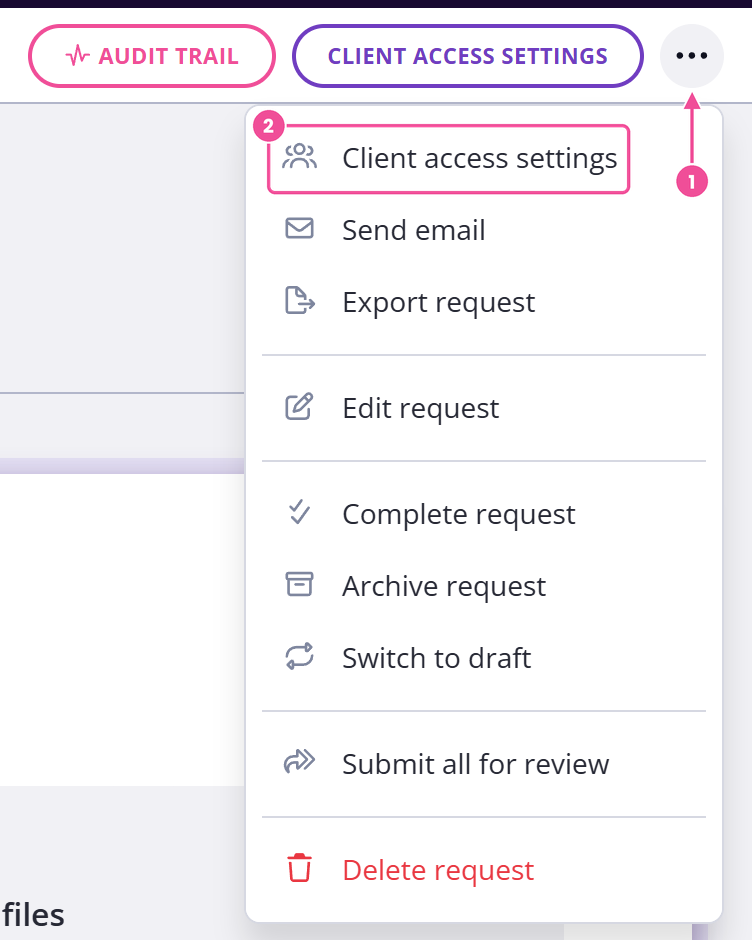
A popup opens with the link and a Copy to clipboard button. If more than one client is on the request, the popup shows a separate link for each of them, so copy the one that matches the person you're sending to.
Let clients open it without logging in
For clients to open the link without signing in, Allow access without logging in must be on. Unless your organization has changed the default, new requests start with it on. Turn it off and your client has to sign in to Content Snare before the request opens. You'll find this checkbox at the top of Client access settings.
Who can open the link
Anyone who has it, unless you ask for a PIN or a sign-in. A new request asks for a PIN by default, so your client needs the link and the code together. How PIN codes work covers how they get it.
With the PIN off and sign-in off, the link is all anyone needs. Whoever opens it works as your client and can read and answer everything in the request, so send it straight to the person it's for and keep it out of public pages, shared inboxes and group chats.
The link stops working once you mark the request complete or archive it. If you have turned on client downloads, can clients view or download a completed request covers what your client can still reach.
Get a new link or switch one off
To close off a link that's reached the wrong person, turn off Allow access without logging in in Client access settings. That means every client on that request has to sign in to open it. To give a single client a fresh link, take them off the request and add them back. That generates a new link for them.