Editing a request doesn't send your client another email. When you want the request in front of them again, whether you've changed something or you're nudging a client who hasn't finished, send them an email manually from the request's actions menu.
How to resend
- Go to your Requests and find the one you want to send again.
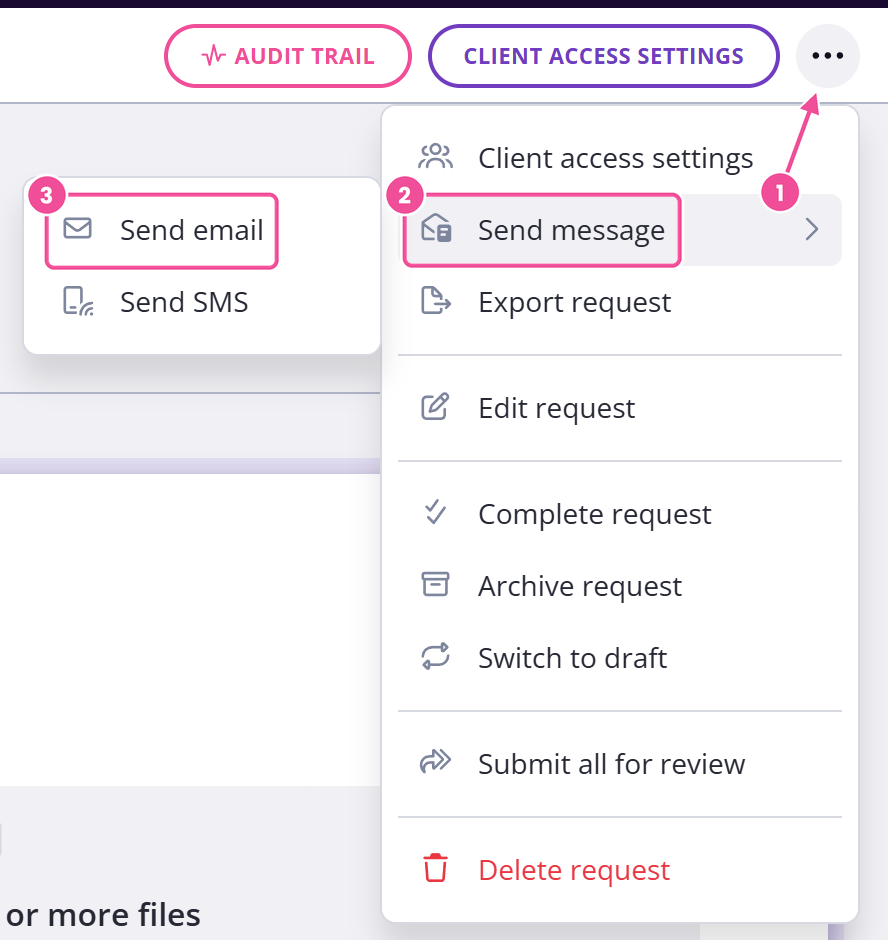
- Click the three dots beside the request to open its actions menu.
- Choose Send message, then choose Send email. If none of the clients on the request have a phone number, the menu reads Send email and takes you straight there.
- Choose the email template to send.
- Send it. Your client gets the request email again.
You can adjust the wording before you send.
The link stays the same
The link you first sent still opens the request, so you don't need to send your client a new one.
The request has to be published
The send option shows only while a request is published, including one that's waiting for your review. You can't send a message on a draft, a completed request or an archived one.
On a draft, send the request first and your client gets it then. If a client needs to get back into a request you've already finished, reopen it first and then resend.