Sometimes you need to nudge one client now, outside the reminder scheduleThe shared set of automated emails and text messages Content Snare sends about a request.. You can send them a single email or SMS from the request.
Send a manual email or SMS
- Open Requests and find the request. Open its actions menu, the three dots at the end of its row. You can also open the request and use the actions at the top.
- Choose Send email or Send SMS.
- Check the Recipient dropdown if the request has more than one client. It sends to everyone assigned unless you pick one name.
- Pick one of your saved templates to fill in the subject and body, or write the message yourself.
- Click Send email (or Send SMS) to send.
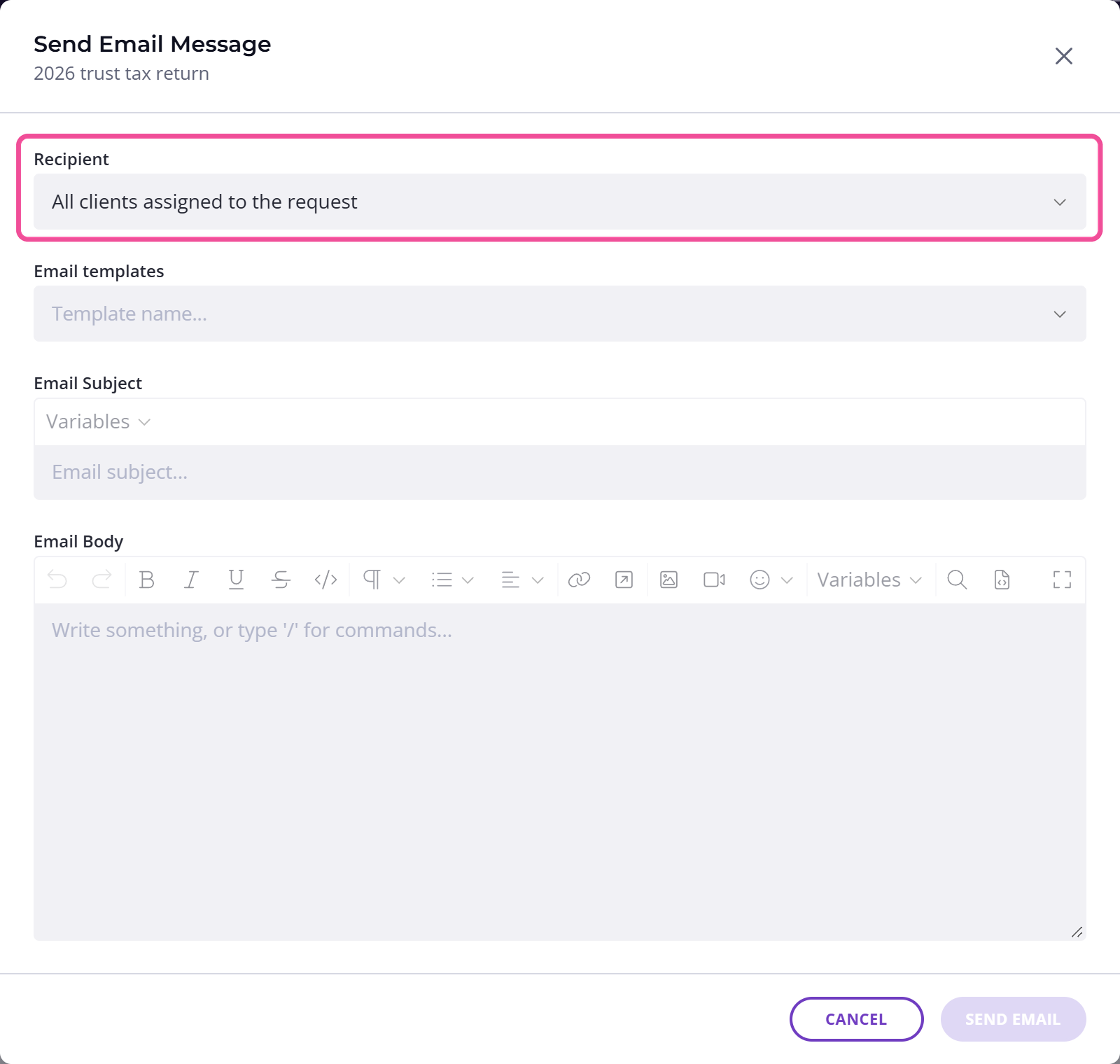
You can add merge variables to drop in details like the client's name, the same way you do in a template. An email can also include links, images, embedded video and emojis.
Check your variables before you send. If one is misspelled or doesn't apply to this request, it comes out blank, and the message still goes with an empty space where the value should be.
Choose who receives it
When a request has more than one client, a Recipient dropdown appears in the message window, set to send to everyone assigned to the request. Leave it as it is and all of them get the message. Pick a single name to message that person only. If there's only one client on the request, there's no dropdown and the message goes to them.
Sending an SMS
Send SMS only appears when at least one client on the request has a phone number saved. If you can see it but it's grayed out, your plan or SMS setup can't send an SMS at the moment.
An SMS is plain text. Variables still work, but links, images and video aren't available.
A manual SMS uses your plan's monthly SMS credits, the same allowance your scheduled messages draw on, and a longer message can use more than one. A request with several clients uses credits for each person it goes to, so leaving the recipient set to everyone costs more than picking one name. If you've connected your own Twilio account, your plan's SMS credits aren't touched and Twilio bills you directly.
Send even when reminders are off
A manual message goes out regardless of the request's reminder settings. So if you've paused or stopped reminders on a request, you can still send the client a message without turning reminders back on.
If the send options aren't there
You'll find Send email and Send SMS on a live request, one you've published, including a request that's waiting for your review. They don't show on a draft, a completed or archived request, or a template.
While you're on a trial, you can't send an email or SMS manually until you add a payment method.