Before you start
To send SMS through Twilio, you need three things:
- A Twilio account. Creating one is free, and you only pay for the messages you send. If you don't have one, create a free Twilio account.
- A Content Snare plan that allows SMS. If yours doesn't, the Twilio entry tells you, and you'll need to upgrade first.
- Admin access in Content Snare. Connecting Twilio and choosing its sender is admin-only, so ask an admin if you're not one.
Get your Twilio credentials
Sign in to the Twilio Console. Your Account SID and Auth Token are on the main dashboard, in the Account panel. Click the eye icon to reveal the Auth Token, then copy both values. Twilio's own guides cover where to find your Account SID and auth tokens and how to change them.
Keep both values private. Anyone with both has full access to your Twilio account.
Buy a phone number that can send SMS
You send SMS from a Twilio phone number, so buy one before you connect Content Snare. In the Twilio Console, go to Phone Numbers, then Manage, then Buy a number. When you search, check the SMS capability so you only see numbers that can send texts, then buy one. Twilio's guide to searching for and buying numbers has the full steps.
Connect Twilio in Content Snare
This is a two-step form. You enter your credentials first, then choose the phone number or service to send from.
- Click your avatar in the top right and choose Settings, then Integrations, then the Applications tab.
- On the Twilio entry, click Connect Twilio.
- Enter the Account SID and Auth Token you copied from Twilio, then click Verify & Continue. Your Account SID starts with AC followed by 32 hexadecimal characters, so if it's rejected, check you haven't pasted a different Twilio identifier.
- On the Configure sending resource step, choose Phone Number, select your number in the dropdown, and click Save and Activate.
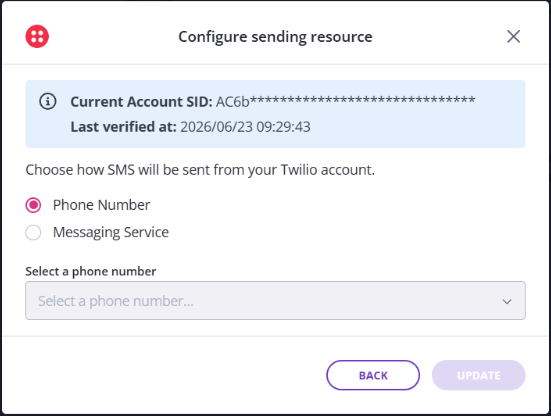
Once you activate, Content Snare sends SMS through your Twilio account.
Send through a Messaging Service instead
A Twilio Messaging Service is a pool of senders that Twilio picks from automatically for each message. It helps when you text clients in more than one country. Buy a number in each country, add them all to one Messaging Service, and Twilio sends each message from the right one.
Set up the Messaging Service in the Twilio Console and add your numbers to its Sender Pool. Twilio covers both parts: getting started with Messaging Services and managing a Sender Pool. Then, on the Configure sending resource step in Content Snare, choose Messaging Service and pick it from the dropdown.
Send from your business name with a Sender ID
A Sender ID shows your company name in place of a phone number. It's an advanced setup, and you only need it if you want your name on the message. The steps above are enough for SMS to work.
Content Snare has no separate Sender ID option. You use one by adding it to a Messaging Service and selecting that service. Register the Sender ID in the Twilio Console under Phone Numbers, then Manage, then Alphanumeric Sender IDs, following Twilio's registration steps. Add it to your Messaging Service's Sender Pool, then select that service in Content Snare. Twilio's Alphanumeric Sender ID overview explains what one is and where it works.
Before you rely on a Sender ID:
- It can be at most 11 characters, for example CSnare.
- It's one-way. Clients can't reply to messages sent from a Sender ID.
- It isn't supported everywhere. The USA doesn't allow it, and support varies by country. Check Twilio's list of supported countries before you start.
- Some countries make you register the Sender ID and submit business details and documents first. This can take time, so plan for it.
What happens to your plan's SMS credits
While your Twilio account is connected and active, SMS reminders and notifications send through Twilio. They don't count against your plan's monthly SMS credits, so they keep sending even after your allowance runs out. You pay Twilio directly for what you send.