What connecting FYI does
Connecting FYI ties it to your Content Snare account so your team stops copying clients and files across by hand. Three things start working:
- Your FYI clients and contacts show up in the client list when you send a request.
- Publishing a request adds a Web Link back to that request inside FYI.
- Files your clients upload, and completed requests you export, are saved into FYI.
Before you connect
Three things need to be in place:
- Administrator access. Only an Administrator can connect or change an integration in Content Snare.
- The Plus plan or above. FYI is one of the premium integrations.
- Company-wide two-factor authentication, turned on for everyone. See Require 2FA for your company if it isn't on yet.
Both the plan and company-wide two-factor authentication need to be in place before FYI will connect. Once it is connected, you can't turn company-wide two-factor authentication back off while FYI stays on.
Connect your FYI account
- In Content Snare, click your avatar in the top right, choose Settings, then Integrations, then the Applications tab.
- Find FYI and start the connection.
- In FYI, open Automation, then Apps. Click the cog next to Content Snare and choose Create new secret.
- Copy the secret, then copy the Access Key ID. Copy the secret before you close the FYI window, because FYI shows it only once.
- Back in Content Snare, paste the two values into Access Key ID and Access Key Secret, select Validate, then Activate.
You won't be sent off to log in to FYI, and nothing asks you for a region. Content Snare works it out on its own.
Choose where files are stored by default
FYI stores files in a cabinet and category, so during setup you pick the default Cabinet and category for all uploads. A cabinet has categories it requires and categories you can add, and you add the optional ones with Add an optional category.
The same screen carries two more choices:
- When files are sent across to FYI.
- Whether a request is exported to FYI automatically once it's marked complete.
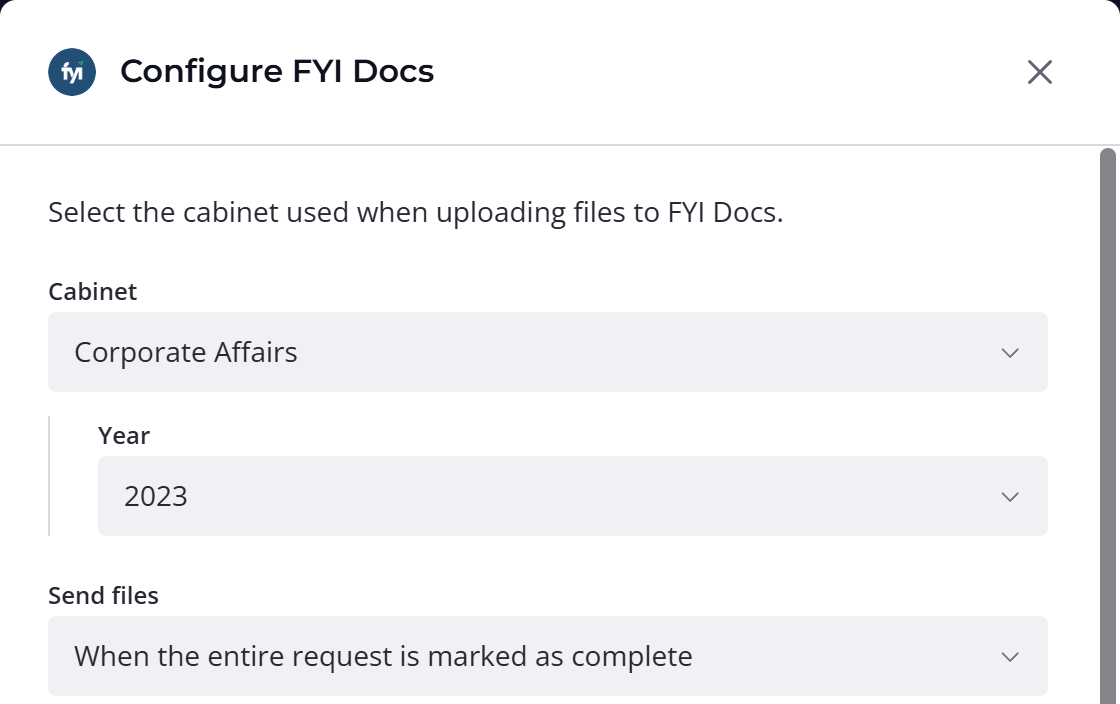
To change the default later, click your avatar in the top right, choose Settings, then Integrations, then the Applications tab, and open FYI's settings.
Next to each category, use the dropdown to pick an option.
Files are filed under the first client
Content Snare files everything under the first client on the request. It makes no difference which page, section or field a file was uploaded to; the first client decides where it goes in FYI.
So the first client on a request needs to be one of your FYI clients. If that first client isn't linked to FYI, nothing from the request reaches FYI. When you send a request to more than one person, add the FYI-linked client first.
Send requests to your FYI clients
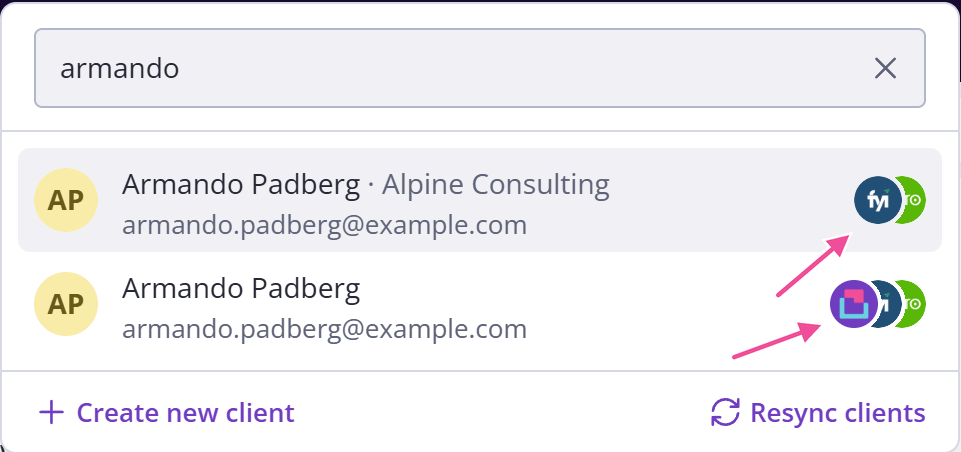
After connecting, the people in FYI show up in the client list when you send a request, with their entity next to their name. An entity with two contacts shows up twice.
Pick one and Content Snare adds them as a client. If you already have a client with that email, the two are linked automatically, so you'll see both with the FYI logo. Either one sends files to FYI.
Your FYI clients and contacts sync into Content Snare when you first enable the integration, then once a day when the first team member from your company signs in.
Change the storage location for one request or field
You can override where files go, for a whole request or for a single file question, and Content Snare uses the most specific one it finds. It checks the field's location first, then the request's, then the default.
For a whole request
- Open Requests.
- Choose Edit on the request you want to change.
- On the Essentials step, turn on the switch for a custom FYI location.
- Pick the cabinet and category for this request.
For one file question
- Open Requests.
- Choose Edit on the request you want to change.
- Select the file question.
- In its settings panel on the right, turn on the switch for a custom FYI location.
- Pick the cabinet and category for that question.
If you save a request that has a request-level location as a template, that location is stored with the template and used by every request you build from it.
Export a completed request to FYI
As well as the files your clients upload, you can export a completed request to FYI yourself. You do it the same way as any other export, which exporting a request covers. What's different with FYI is what arrives: the completed request goes across as a file, with any attachments alongside it.
Why one file appears under several FYI entities
This happens when the first client on the request is linked to more than one FYI entity. A request can go to several clients, but only the first one decides where files go, as above. If that client is linked to three FYI entities, each of the three gets its own copy of every file. That's meant to happen, not a fault.
To limit which entities receive files, go to Clients, open the client, and find Linked Integration Clients (optional). Remove any links you don't want with Unlink external client. Unlinking doesn't affect anything in FYI, it only stops that entity receiving uploads.
If one person acts for several entities, collecting from a client with several entities covers how to set that up.
Deleting a file leaves the FYI copy in place
Deleting a file in Content Snare doesn't remove it from FYI. Content Snare renames the copy instead, so invoice.pdf becomes something like invoice-deleted-20260831-141503.pdf. It stays in FYI until you delete it there yourself.
What the FYI Web Link opens
Publishing a request adds a Web Link to it in FYI. That link opens the request in your team's view of Content Snare. Anyone who clicks it needs to sign in, so it's for staff, not clients.