Xero Practice Manager brings your existing clients and the contacts under them into Content Snare so you can send requests without setting everyone up by hand. It imports your clients and contacts only. Content Snare doesn't file documents or finished requests to Xero Practice Manager. An Administrator can connect it once your plan and security settings are ready.
Before you connect
Three things have to be in place, and one of them is hard to reverse, so check all three first.
- You're an Administrator. Only an Administrator can open the integration settings and connect Xero Practice Manager. Other roles don't see this part of Settings, so if you can't find it, hand the setup to an Administrator on your team.
- You're on Plus or higher. Xero Practice Manager is available on Plus and above. If you're missing both the plan and two-factor authentication, Content Snare tells you about the plan first, so sort the plan out before you go looking for the second message.
- Company-wide two-factor authentication is on. Xero Practice Manager requires every team member to use two-factor authentication, turned on for the whole company.
Turn on company-wide two-factor authentication
Every team member on your account has to use two-factor authentication before Xero Practice Manager will connect. You switch it on once for the whole company, and Require 2FA for your company walks through it.
Company-wide two-factor authentication can't be turned back off while Xero Practice Manager or FYI stays connected. If you ever need to switch it off, remove the integration first.
Connect your Xero Practice Manager account
- Click your avatar in the top right, choose Settings, then Integrations, then the Applications tab.
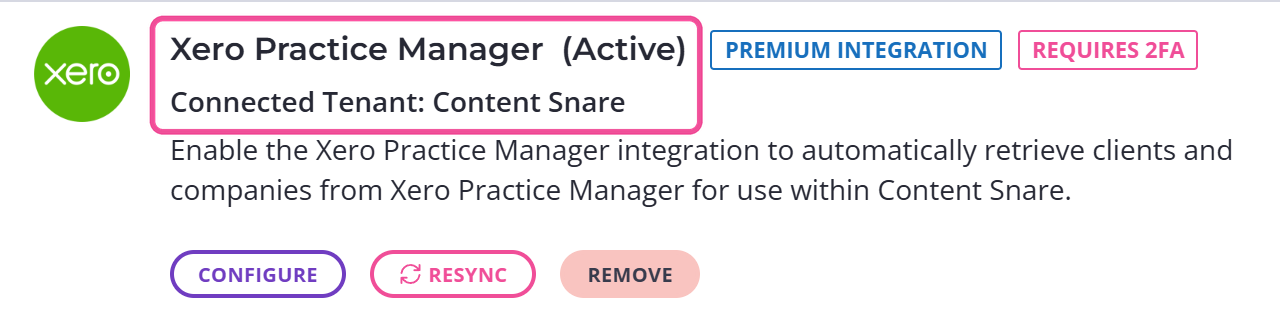
- Find Xero Practice Manager in the list and click to connect.
- Content Snare sends you to Xero Practice Manager. Review the access Content Snare is asking for and approve it.
- Xero sends you back, and Xero Practice Manager now shows as connected.
Send requests to your Xero clients
Your Xero clients and contacts appear in the client list as you send a request.
- Open the request and go to the Finalize step.
- Open the client list.
- Pick the client you want. Anyone imported from Xero Practice Manager carries a small Xero badge on their avatar, so you can tell them apart from clients you added yourself.
How Xero clients and contacts map to Content Snare
Xero and Content Snare use the word "client" differently, so one Xero business can turn into several clients here. In Xero Practice Manager a client is usually the business itself, and a contact is a person who sits under it. Content Snare has no two-level structure like that, so the contacts under a business each arrive as their own Content Snare client, ready to pick when you send a request. A Xero business called Stark Enterprises with contacts Tony Stark and Melinda Stark gives you a client for Tony and a client for Melinda. From then on you can send a request to either of them without setting them up again.
How clients get created from your Xero clients
Content Snare creates the client the moment you pick a Xero client from the list, so there's no separate step to add them.
If one of your existing Content Snare clients already uses that email address, Content Snare links the two together instead of creating a second client. You'll see the link on the client, under Linked Integration Clients (optional), and you can break it there with Unlink external client.
Create clients in Xero Practice Manager from a request
It works the other way too. Using integration actions, Content Snare can create a new client and their main contact in Xero Practice Manager and fill in custom fields on both, straight from a request. It can't change a client that already exists in Xero, and it won't create jobs, tasks, invoices or documents. To set this up, see Create clients in XPM from a request.
Common questions
How do I disconnect from Xero?
- Click your avatar in the top right, choose Settings, then Integrations, then the Applications tab.
- Find Xero Practice Manager in the list and choose Remove.
- Content Snare asks you to confirm.
Confirming revokes Content Snare's access to Xero and turns the integration off. The clients and contacts already imported stay in your client list, so disconnecting doesn't undo the import.
Can Content Snare create clients in Xero Practice Manager?
Yes. Integration actions create a new client and their main contact in Xero Practice Manager from a request, and set custom fields on both. See Create clients in XPM from a request.
Integration actions say "Integration privileges insufficient"
Your connection was set up before integration actions existed, so it doesn't carry permission to create clients. Reconnect it:
- Click your avatar in the top right, choose Settings, then Integrations, then the Applications tab.
- Select Reconnect on Xero Practice Manager.
Once it reconnects, the actions can run.
When does the client list sync?
Content Snare pulls your Xero clients across when you first connect, and then about once a day, the first time someone on your team logs in. If you've added a client in Xero and need it straight away, open your integration settings and choose Resync.