An integration action creates a new client in Xero Practice Manager (XPM) from the answers in a request. The action is called Create new client.
What you need first
You need XPM connected before any action runs. Connecting it is an Administrator job. See connect Xero Practice Manager for how to set it up. Once XPM is connected, Administrators, Editors and Reviewers can all run integration actions on a request.
If an action reports "Integration privileges insufficient", your XPM connection needs reconnecting. Connect Xero Practice Manager covers that too.
Set up an action
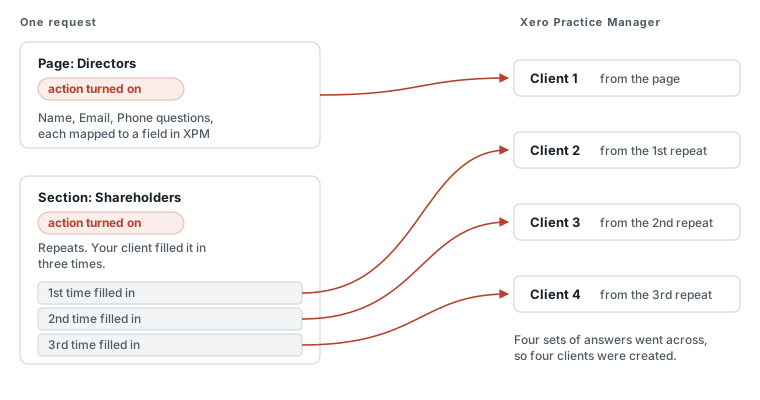
An action attaches to a page or section, not to an individual field or the whole request. Each page or section with an action creates one client in XPM. So a section that repeats creates one client per repeat: a repeatable section your client fills in five times makes five clients.
Say you collect a company's details in a section, with questions for its name, email and phone. You turn the action on for that section, connect the name question to the client name field in XPM, the email question to the email field, and so on. When the action runs, those three answers become one new client in XPM. If you make that section repeatable, your client fills it in once per company, and each company becomes a separate client in XPM.
To set one up:
- Open Requests.
- Choose Edit on the request.
- Select the page or section.
- Turn on Enable integration actions and set its action to Create new client.
- Go through the fields on that page or section and connect each one you want to send to the matching field in XPM.
Only fields that live on that same page or section get sent. Connect two fields to one XPM field and only one value comes through. For a full walkthrough of the mapping, see create clients in XPM from a request.
Requests with integration actions show an icon on the request list, so you can see at a glance which ones have an action attached.
When actions run
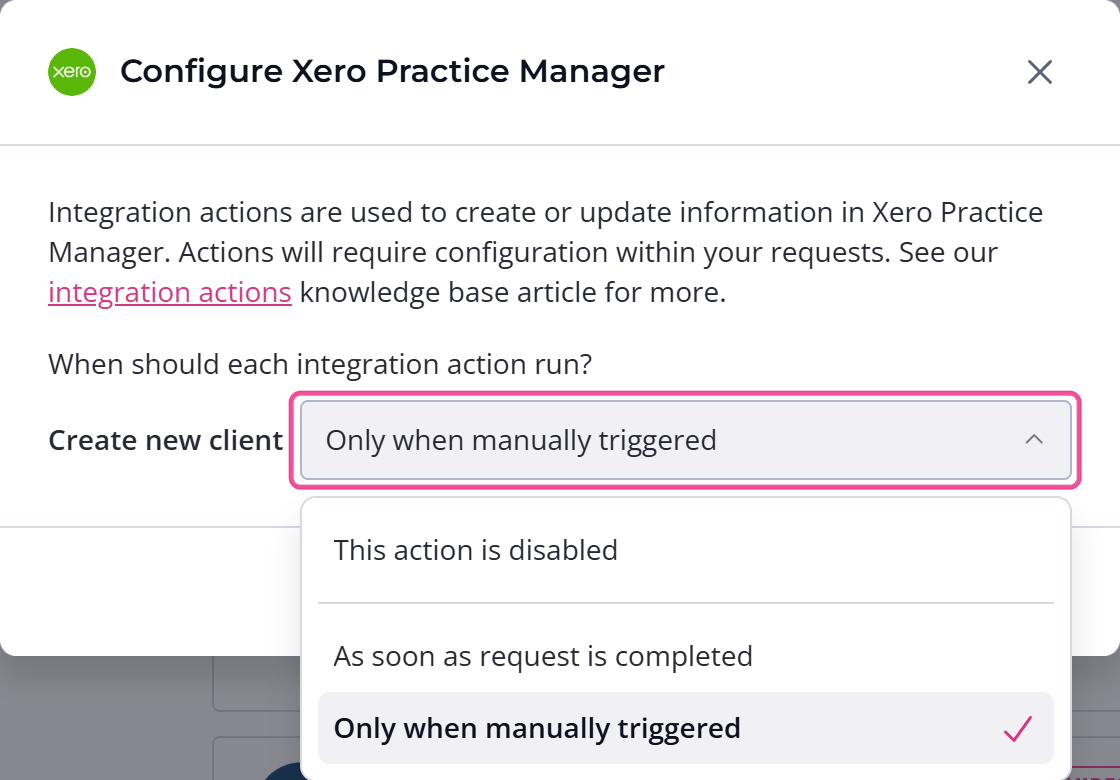
Each action runs automatically when a request is completed, only when you trigger it by hand, or not at all. You pick this in your settings.
- Click your avatar in the top right and choose Settings.
- Open Integrations, then the Applications tab.
- Open the Xero Practice Manager settings.
The three options are This action is disabled, As soon as request is completed, and Only when manually triggered. The default is Only when manually triggered.
You can also trigger an on-completion action by hand, as long as the request is neither a draft nor archived. A manual-only action never runs on its own, even when the request is completed.
The As soon as request is completed trigger fires every time a request becomes complete, not only the first time. So if you reopen a completed request and complete it again, the action runs a second time and adds another client in XPM. Restoring an archived request to complete does the same. If a duplicate shows up, remove the extra client in XPM.
If a request expires, As soon as request is completed actions don't run, because expiring doesn't count as completing it.
Run actions by hand
You can run an action yourself instead of waiting for completion.
- Open Requests.
- Open the request.
- Choose Run integration actions from the actions along the top.
This is also how you re-run actions after a failure.
Before it runs, Content Snare checks the email addresses against your XPM clients, including ones you created in XPM yourself. That's the only field it compares. If it finds one, it stops and warns you rather than creating anything. Choose Yes, please continue and it goes ahead, duplicate and all. Content Snare can't recognize a client with no email address mapped, so it won't catch that kind of duplicate.
There's no way to retry a single action. If one action fails, Run integration actions runs every eligible action on the request again, not only the one that failed. The email check above runs again too, so you get the same warning before anything is created.
Reuse an action in a template
You can turn a page or section that already has an action into a template. Both the action and the field mappings come with it, which saves mapping the fields again. See create and edit templates for how templates work.