The three kinds of template
Which kind you save decides where you can use it again, and this is the part people miss most often.
| Kind | What it saves | Where you use it |
|---|---|---|
| Request template | A whole request | Pick it when you start a new request |
| Page template | A single page | Add it to a request you're building |
| Section template | A single section | Add it to a page you're building |
Scroll sideways to see the whole table
Use a request template when you send much the same thing to lots of clients. You choose it at the start: select Add new request and pick it from the template library. Send your first request walks through that.
Page templates and section templates are reusable building blocks you add to a request while you build it. In the request builder, Add a page or Add a section, then choose From template. Reuse a page or section in another request has the full steps, including what happens to any conditions inside.
All three live together under Templates in the top menu. The ones you save appear under My Templates, and the built-in ones sit in their own categories. Templates covers what's there.
Save components from an existing request
You can save any of these as a template, then reuse it as often as you like.
- Open Requests.
- Choose Edit on the request you want to save from.
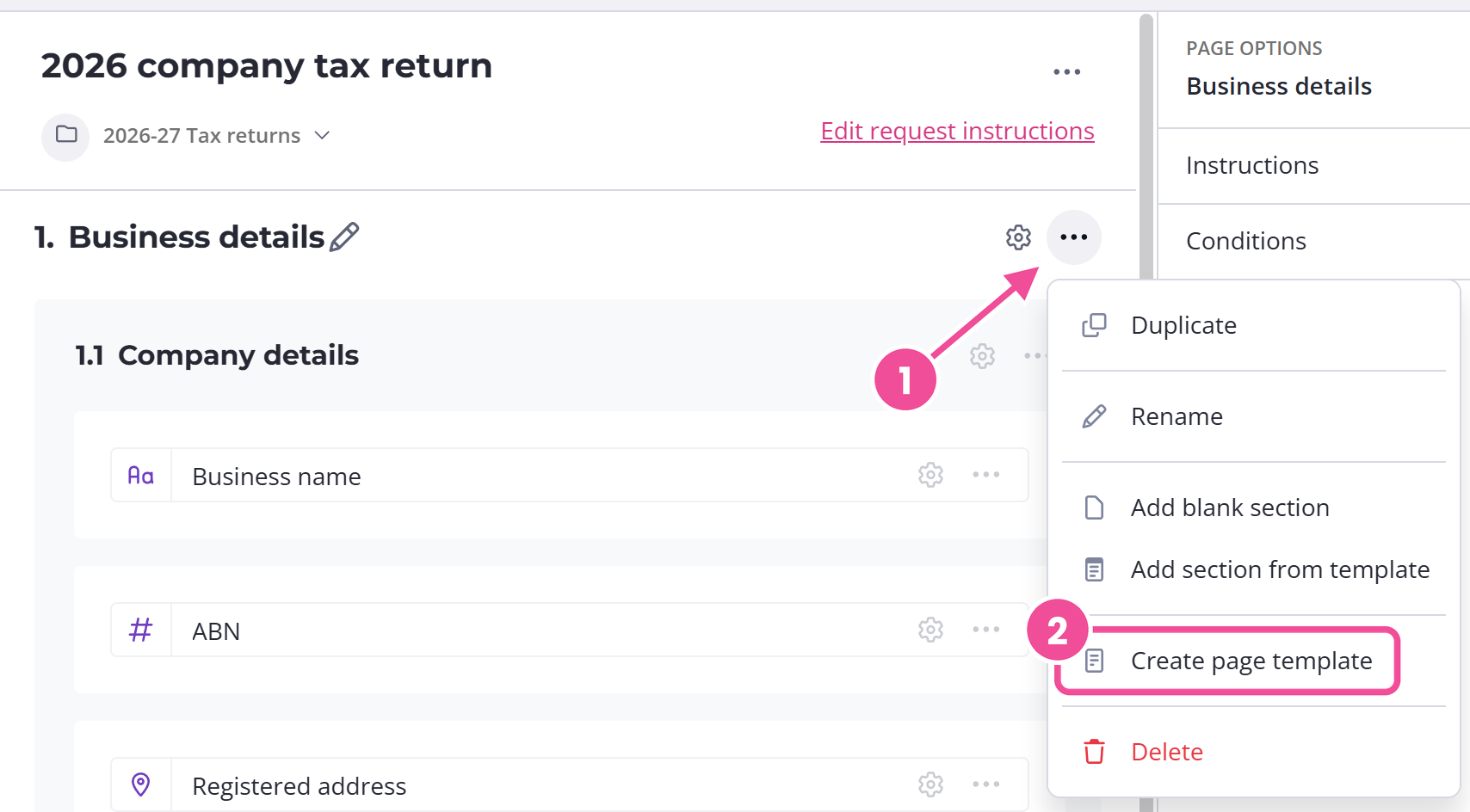
- Open the three-dot menu next to the request, page, or section name.
- Choose Create request template, Create page template, or Create section template, depending on what you're saving.
- Give the template a name. A description is optional.
- Select Save.
If you reuse a name you already gave a template of the same kind, Content Snare warns you that saving will overwrite the earlier one. Pick a fresh name unless you mean to replace it.
Saved pages and sections are useful as building blocks. A web designer might keep a homepage, an about page, and a products page as separate templates, then combine the ones they need for each new client.
A page or section template keeps the conditions inside the piece you saved. Conditions that point at a question outside it are not part of the template. Saving a whole request keeps all of its conditions, so this only applies to page and section templates. Check the conditions once you've reused one.
Build a template from scratch
You don't need an existing request to start. Open the Templates page and select New template. Content Snare creates an empty template in My Templates and opens it in the builder. Add your questions the same way you would build a request.
Edit a template
You can edit the custom templates in your account.
- Find the template you want on the Templates page, under My Templates.
- Open its menu.
- Choose Edit.
Built-in templates work differently. You can't change or delete the ones that come with Content Snare, so to adapt one, select Duplicate & edit. That puts an editable copy in My Templates, and you edit the copy while the original stays as it was.
Template edits save as you make them. There is no save button, and no undo once a change is made. If you're not sure about a change, copy the template first with Duplicate and work on the copy.
Test a template's conditions
Open the template from your Templates list and choose Preview. It always opens in test mode, so you can type answers straight away and watch which questions appear and disappear, and confirm your conditions fire the way you set them up. Anything you enter is temporary and will not be saved.
The Preview step inside a request works differently, and one of its three modes does save what you type. See see what your client sees.
Who can create and edit templates
Only Administrators and Editors can create, edit, duplicate, or delete templates. Other team members, including Reviewers and Viewers, can open and preview templates but won't see the edit controls. If the buttons described here aren't showing for you, check your role.