Content Snare turns the answers on a request into a client in Xero Practice Manager (XPM). You set up one action on a page or a section, map each question to an XPM field, and decide when the client gets created.
Before you can create clients
XPM has to be connected to Content Snare first. Connecting it is an Administrator job, and it needs a plan that includes premium integrations plus company-wide two-factor authentication. Connect Xero Practice Manager covers all three.
If Content Snare shows an 'Integration privileges insufficient' message, reconnect XPM. Connect Xero Practice Manager shows how.
Start with a built-in XPM template
Content Snare includes three page templates already mapped to standard XPM fields: Individual, Entity (for most business structures other than sole trader or individual), and Sole Trader. Find them under the Accounting category in the template library. Add the matching page or pages to your request and the field mappings are ready to go. You can rename questions, remove them, or add new ones, then save the result as your own template for reuse.
Turn on Create new client for a page or section
Content Snare has one XPM action: Create new client. Each page or section you enable it on becomes one client in XPM, so keep all of one client's details on the same page or section. If the name is on one page and the email on another, Content Snare can't combine them into one client.
To set it up:
- Open Requests.
- Choose Edit on the request you want to change.
- Select the page or section that holds one client's details.
- In its settings panel on the right, turn on Enable integration actions.
- Set Application to Xero Practice Manager and Action to Create new client.
- Choose the client's business structure, such as company or sole trader.
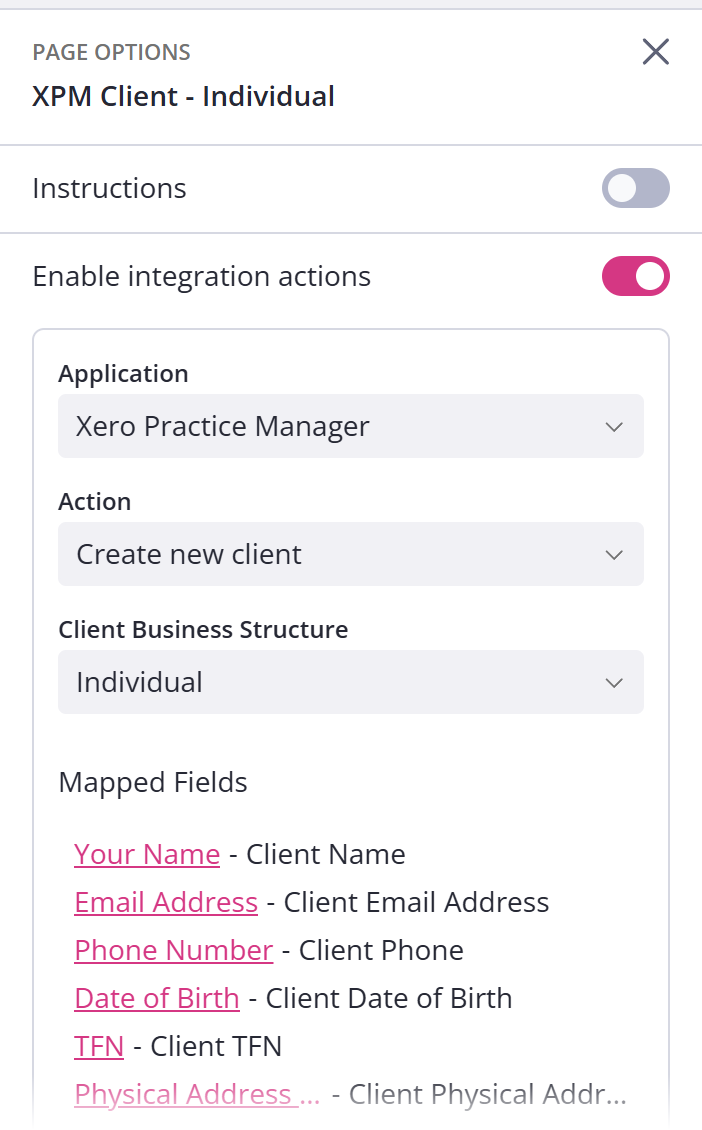
Map your questions to XPM fields
With the action on, map each question to the XPM field it should fill using the Mapped Value dropdown beside it. The dropdown lists XPM's standard client fields.
- Split addresses into parts. XPM stores a physical address as separate components, so break address questions into street, city, state and so on, and map each one to its own XPM field.
- Map each XPM field from one question only. If two questions point at the same XPM field, only one answer comes through.
- Custom fields have to match by type. You may not see every XPM custom field in the dropdown. A custom field shows up only when its type matches what your question can send to it, so if one is missing, check the question's field type. If a mapped custom field is later deleted in XPM, Content Snare clears that mapping for you.
The compatible types are:
| Content Snare field type | Compatible XPM custom field types |
|---|---|
| Single line text, Currency, Country, Task List, ABN/ACN verification | Text, Multiline text, Link, Heading, ContactLink, Value Link |
| Multiline text, Formatted text, Email, URL | Text, Multiline text |
| Single select (radio button) | Text, Multiline text, Checkbox, Dropdown list |
| Checkbox | Text, Multiline text, Dropdown list |
| Dropdown | Dropdown list, Checkbox |
| Date / Time | Date |
| Number | Number, Decimal |
Scroll sideways to see the whole table
Choose when clients are created
Each action runs either automatically when the request is completed, or only when you run it yourself. To set this:
- Click your avatar in the top right.
- Choose Settings, then Integrations, then Applications.
- Open Xero Practice Manager.
Each action can be set to As soon as request is completed, Only when manually triggered, or This action is disabled.
With As soon as request is completed, marking the request complete creates the clients in XPM. Content Snare does this in the background, so give it a moment before you check XPM.
With Only when manually triggered, nothing goes to XPM until you open Requests, open the request, and choose Run integration actions from the actions along the top. A summary shows how many clients will be created before you confirm. Administrators, Editors and Reviewers can run it, on a published or completed request. You cannot run actions on a draft or an archived one. Choose this when you want to check the answers before anything reaches XPM.
Create a client for each entity with repeatable sections
A repeatable section creates one XPM client per repeat. Turn on Enable integration actions for the section, make it repeatable, and map the fields inside it. When the client fills in the request, they can add another entry for each entity, and each entry becomes its own client in XPM. For more on repeatable sections, see Let clients repeat a section.
Always ask for an email inside the repeatable section. On an ordinary page, if you don't map an email question, Content Snare uses the request's main client email. In a repeatable section, Content Snare doesn't fall back to that, so clients created without a mapped email have no email address. The duplicate check matches on email, so it can't catch them.
You can also pair a repeatable section with a Yes/No question so it only appears when the client needs it, for example, 'Do you have more than one company?' See Show and hide questions with conditions to set that up.
Avoid creating duplicate clients in XPM
Content Snare only checks for an existing client when you run actions by hand. Choose Run integration actions and it flags any email that already belongs to an active client in XPM. The check matches on email address only, so a client with the same name but a different email is not flagged. You can still go ahead by choosing Yes, please continue, which creates the client anyway.
Automatic creation on completion doesn't check for duplicates, so the same client can be created twice.
An action set to run on completion runs every time the request is marked complete. Reopening a request and completing it again runs them again, and so does restoring an archived request to completed. Content Snare doesn't track whether an action has already run, so completing the request again creates the same client in XPM a second time. If a request has already created clients in XPM and you mark it complete again, check XPM afterwards.