Exporting gives you a copy of what a client has entered in a request, in a format you choose, to keep or pass on. You export one request at a time. To collect answers from several requests into a single spreadsheet instead, see export multiple requests to a spreadsheet.
Start an export
- Go to Requests.
- Open the three-dot menu on the request and choose Export request.
You can also open the request first and choose Export request from the action menu at the top.
You can't export a draft request. You can export any other request, including one that is scheduled, completed or archived, and an archived request doesn't need restoring first. If a request has no export option in the list, open it and export from there.
Choose a format and options
The export window shows an Output Format dropdown and a set of options to turn on or off. You can export as PDF, DOCX, HTML, TXT, CSV or JSON, and PDF is the default.
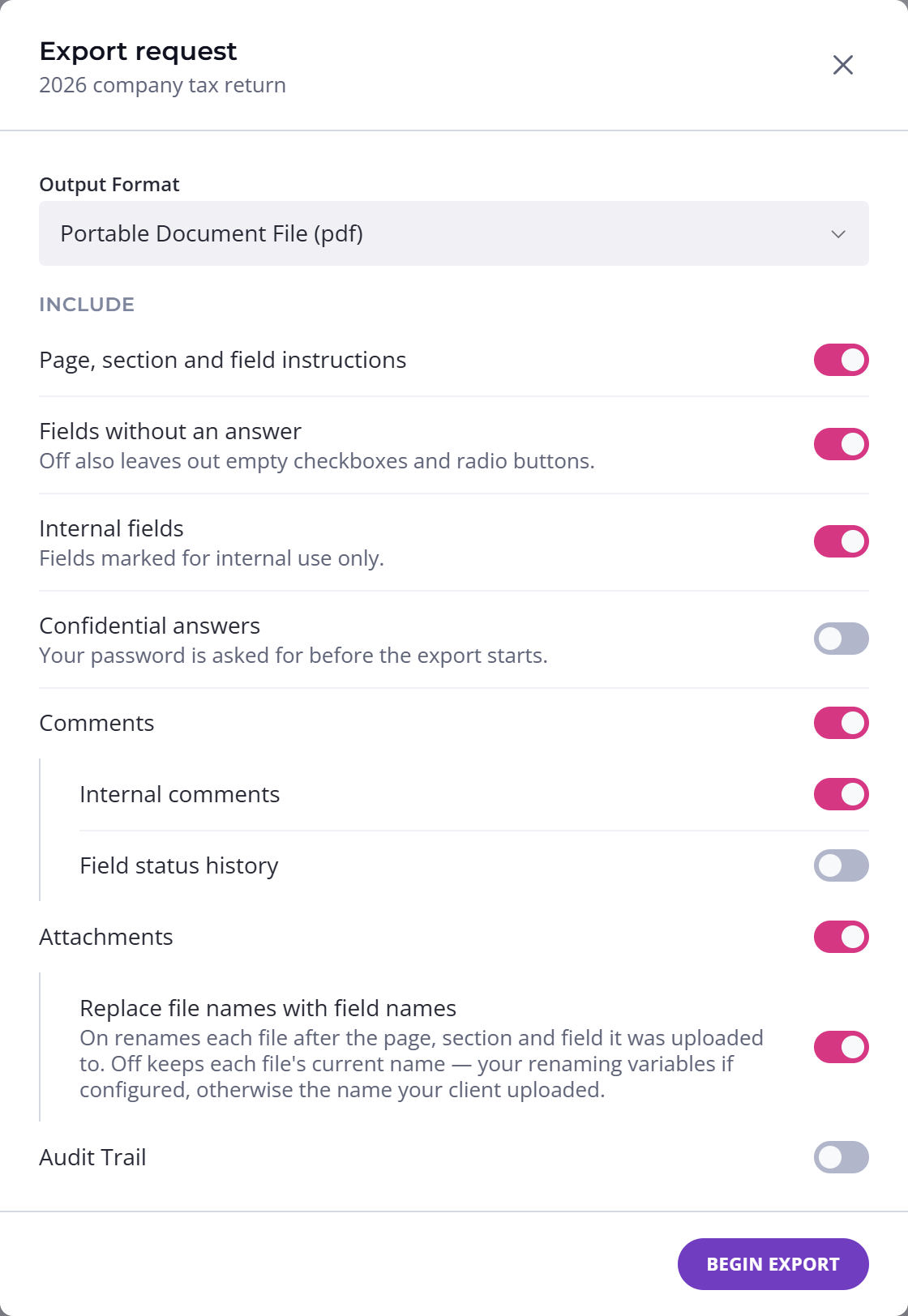
Content Snare remembers your choices for later exports in that browser. On another computer or in another browser, you get the defaults back.
Here is what each option adds and how it starts out:
| Option | Default | What it puts in the export |
|---|---|---|
| Page, section and field instructions | On | Your page, section and field instructions |
| Fields without an answer | On | Questions the client did not answer |
| Comments | On | The comments on each answer |
| Internal comments | On | Comments your team kept internal |
| Internal fields | On | Fields only your team can see |
| Field status history | Off | The history of each field's status changes |
| Audit Trail | Off | The request's activity log |
| Confidential answers | Off | Answers marked confidential |
| Attachments | On | The uploaded files themselves, in a folder for each page |
| Replace file names with field names | On | Names each uploaded file after its question, followed by the question's ID number, rather than keeping the file's current name (your client's file name, unless it was renamed with the pencil icon beside the file in the request, or by a naming convention on the question) |
| High compatibility export | Off | Strips formatting from instructions so Word opens the file cleanly. Word exports only |
Scroll sideways to see the whole table
Some options appear only when another is on:
- Internal comments and Field status history appear when you turn on Comments.
- Replace file names with field names appears when you turn on Attachments.
- High compatibility export appears when you choose DOCX and turn on Page, section and field instructions.
Some of these options only apply to some formats.
Keep internal notes out of a client's copy
Your export includes internal fields and internal comments by default, and both are meant only for your team. Before you send a copy to a client, turn off Internal fields and Internal comments.
Confidential answers
Confidential answers are left out of an export by default, so an ordinary export is safe to share on that count. When an answer is confidential, the export shows the line The answer is confidential and has not been exported.
in place of the value. The question, its status and its comments still appear.
To put the real answers into the export, switch on Confidential answers. Content Snare then asks for your password before continuing. Team members with the Viewer role can't export confidential answers, so their exports always leave the confidential values out.
To mark a field confidential, see confidential fields.
When a request has too many files
If the files in your export add up to 3 GiB or more, the export can't include them all. It includes the smaller files and leaves out the largest ones.
When you press Begin export, Content Snare warns you that the copy won't have every file and tells you to download the remaining large files one at a time. The download then goes ahead with the files that fit.
Export to a cloud destination
When a file-storage integration like Google Drive is connected, the Begin export button turns into a dropdown. From there, you can Download to this computer or send the copy directly to that destination. The cloud export runs in the background.
A cloud export you start from this window follows the options you set here. The automatic export that runs on completion is different. It uses whatever settings you saved on the integration itself, not the choices in this window, so set those up separately.
To connect a destination and choose its settings, see how cloud storage integrations work.
Can clients download their own copy?
A client can download a request only if you allow it in your company settings. For a completed request, you need two settings on: the one that lets clients download, and the one that lets them download after completion.
Clients get a single PDF that lists their uploaded files by name only. The files themselves aren't included, and it isn't a zip.
Copy a single answer or file
If you only need one thing, you don't have to export the whole request. Open the request and use Copy to clipboard next to an answer to copy its text. On a file or image answer, use the controls on the file itself to preview it, download it, or copy its link.
Where a question collects several files and repeats, you can get all of its files at once. Once its answers are completed or approved, use Download all files.... Clients never get that control.