Only the required questions have to be answered
No. Your client has to answer the questions you marked as required, but optional questions can be left blank. When your client skips an optional question, Content Snare asks them to confirm before letting them submit the page.
The Submit Page for Review button stays disabled if a required question your client can see is unanswered, if you sent an answer back for changes, or if an answer has an error. In a compressed section, Submit for Review stays disabled while a required question is unanswered or an answer has an error. An answer you sent back doesn't block that button, and clicking it resubmits the answer. A required question that is internal, or hidden by your conditional logic, doesn't block them completing the request.
How your client submits answers
Your client can complete one answer at a time with Submit for Review, or complete an entire page with Submit Page for Review. There is no option to mark an entire request as complete from your client's point of view.
To have your client submit a whole section at once, select the section in the request builder and turn on Compressed section in its options. See compressed sections for the full steps. Your client then sees every question in that section together in one card, with a single Submit for Review at the bottom. Submit Page for Review still submits a compressed section along with the rest of the page.
ID verification questions and signatures through an e-signature provider are the exception. Your client completes each of those on the question itself. Until every required one is finished, Submit Page for Review won't submit the page, and a compressed section's Submit for Review won't submit that section.
If you renamed these buttons in your branding settings, your client sees your wording instead.
Make a question required
Questions are optional until you mark them required. Turn on Required for the question you want answered, in the same question options panel where you set everything else about it. See field options for how to get there.
The Table question type has no Required setting of its own. Mark a column required instead, and your client has to fill that column in every row before they can submit the page.
Save a question for later, or ask about it
Their answers save on their own as they work, so your client can stop and pick it up later. If they're not sure what you're after, Ask A Question opens a comment thread on that question so they can ask you directly. Comments are enabled by default.
Answers in confidential fields can't be read again once they're typed, not even by your client. If your client closes the page before submitting, the question is blank when they come back and they'll have to answer it again.
Submit answers for your client
If your client fills in their answers but never submits them, you can do it for them.
- Go to Requests.
- Open the published request.
- Use Submit all for review in the actions along the top to send everything through at once.
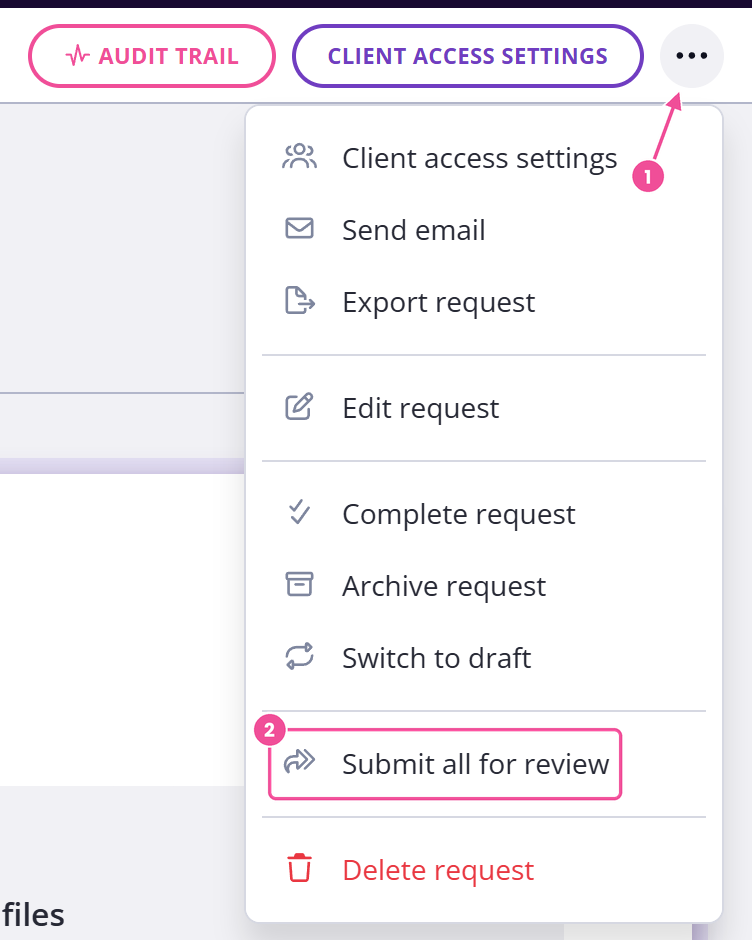
You need to be an Administrator, Editor or Reviewer to do this, and it isn't available once the request is archived.