You review a request one answer at a time. The moment your client submits an answer, three buttons appear under it: Approve, Reject and Revise. In a compressed section, Approve and Reject appear beside each question name. You don't have to wait for all the answers to come in.
Your client never sees these buttons. On your side they show for Administrators, Editors and Reviewers, so a Viewer won't see them. Approving is optional, and a request can be completed whether or not you approve its answers.
To start reviewing:
- Open Requests.
- Open the request.
- Go to the page with the answer you want.
Approve an answer
Approving an answer confirms it and locks it. Your client can no longer edit a locked answer, and on their side it now reads The answer is approved and can no longer be modified.
To change an approved answer later, you unlock it first. Click Remove Approval and the answer goes back to submitted. Your client can't remove an approval. Administrators, Editors and Reviewers can. Approving locks that one answer, not the whole request, so everything else stays open.
Approving also triggers any automation you've tied to it. It sends a field approved webhook, and if a cloud storage integration is set to upload on approval, approving a file or image answer pushes that file out to your storage. Each answer triggers them separately, so keep that in mind before approving a large batch.
Reject an answer
Reject an answer when it's not what you need: the client has misread the question, the information is incomplete, or the file is the wrong one. It goes back to them to redo. Click Reject. You can add a note saying what needs to change, though you don't have to, and a rejection with no note still goes through. The note is worth writing, since it's what tells your client exactly what to fix, and it's saved to that question's comment thread.
If you reject the wrong answer, click Remove Reject to take it back.
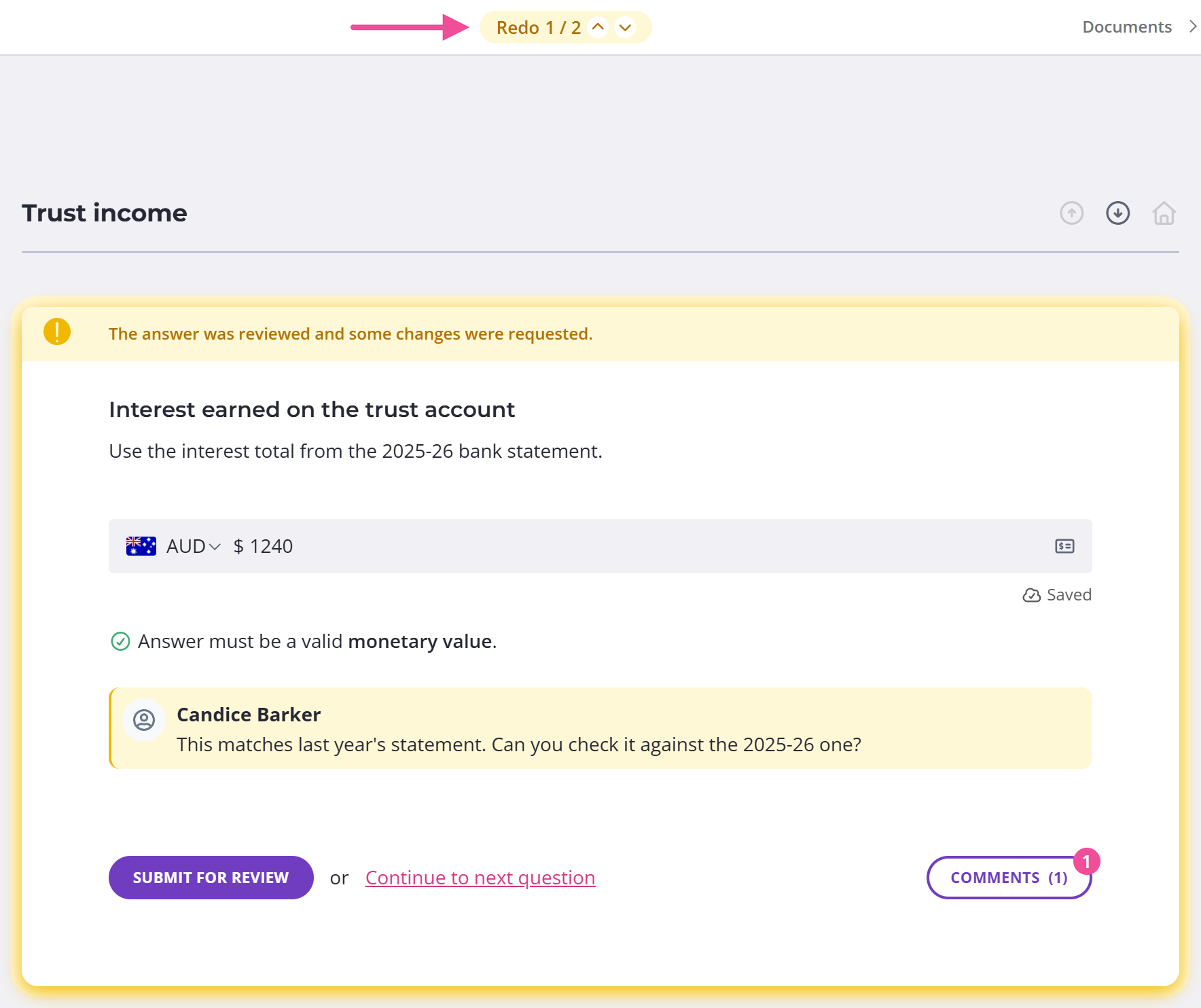
Your client never reads the word "reject". For them, the answer is marked Changes requested, with the line The answer was reviewed and some changes were requested.
In a compressed section, they see a Changes requested tag on the question and on the section card instead. Approve, Reject and Revise stay on your screen only.
Whether your client is emailed about a rejection depends on your communication schedule. If the schedule has an email for rejected answers, they get one; if it doesn't, nothing is sent automatically.
That email is a nudge, not a list. It tells your client you've reviewed the request and made some comments, and gives them a link to the request. It doesn't name the answers you rejected, repeat what you wrote, or say how many there are. Reject several answers at once and they get one email covering the lot, and if you reject something else before they act on it, no second email goes out.
The detail is in the request itself. Every answer you rejected reads The answer was reviewed and some changes were requested.
, with your name and your message underneath. A Redo bar at the top of the page counts them and has arrows to step through them, and the page summary at the bottom shows how many under Changes Requested. So the email gets them there and the request tells them what to redo.
Everyone on the request gets that email, not only the person who submitted the answer.
Revise an answer yourself
Revise is for when fixing the answer yourself is quicker than sending it back. Click Revise, make your edit, then submit the answer again so it counts as done. A compressed section has no Revise on a single answer.
This is not the same as Remove Approval. Revise changes what the answer says. Remove Approval only unlocks an answer you'd already approved and puts it back to submitted. The content stays the same.
Approve everything at once
Once you've read through and you're happy, click Approve all submitted rather than approving answer by answer. It approves everything your client has submitted and that's still waiting on you. Anything they haven't submitted yet, or that you've already rejected, is left untouched. You can approve the whole request this way, or one page at a time. A compressed section has its own Approve All and Revise All in the section footer.
Approving every answer doesn't mark the request complete. Completing a request is a separate step you do yourself.
Review files one by one
When your client uploads several files to one question, you can review each file separately. Approve the ones that are right and reject only the files that need another go, each with its own note, so your client isn't sent back to redo the lot. Approving the files you're keeping also locks them while your client is fixing the others, so they can't accidentally remove them. You can still approve or reject the whole set together when that's simpler.
Confidential questions
If you reject or revise the answer to a confidential question, your client has to enter it again, and Content Snare warns you first that the previous answer will be deleted. That's only for confidential questions. On an ordinary question the answer stays in place for your client to edit.
Set when a request is ready to review
Your dashboard flags a request as "Waiting for Approval" so you know there's something to look at. By default it appears as soon as the first answer arrives.
If you'd rather wait and review in one go, an administrator can change when it appears:
- Click your avatar in the top right and choose Settings.
- Go to Company.
- Open Request Settings.
It can then flag When a field is submitted, When all fields are submitted, or When all required fields are submitted.