What a compressed section does
A compressed section puts every question in the section into one card for your client, with a single Submit for Review at the bottom. Your client fills in the card and submits it once, instead of submitting each answer separately.
It suits short, routine sets of questions, like a client's name, email, phone number and address. You can still approve or reject each answer on its own, or approve them all at once with Approve All.
Turn on Compressed section
- Open Requests.
- Choose Edit on the request.
- Click the section you want to compress, or its cog icon .
- In Section options on the right, switch on Compressed section.
The section now shows a Compressed tag in the builder. You can turn it on in a template the same way.
You can turn it on or off after you've sent the request. It only changes how the section looks and how you review it. Your client's answers stay as they are, and so does anything already submitted or approved.
If the Compressed section switch is grayed out
You can't change the switch in two cases:
- A copy of the section has been added. On a repeatable section, turn Compressed section on before your client starts adding copies.
- The request is completed or archived.
How your client fills in and submits the section
Your client sees one card, with the section's name and instructions at the top and every question below. If the section is repeatable, each copy they add gets its own card, with a number after the section name, like "Team member (2)", and they submit each card on its own.
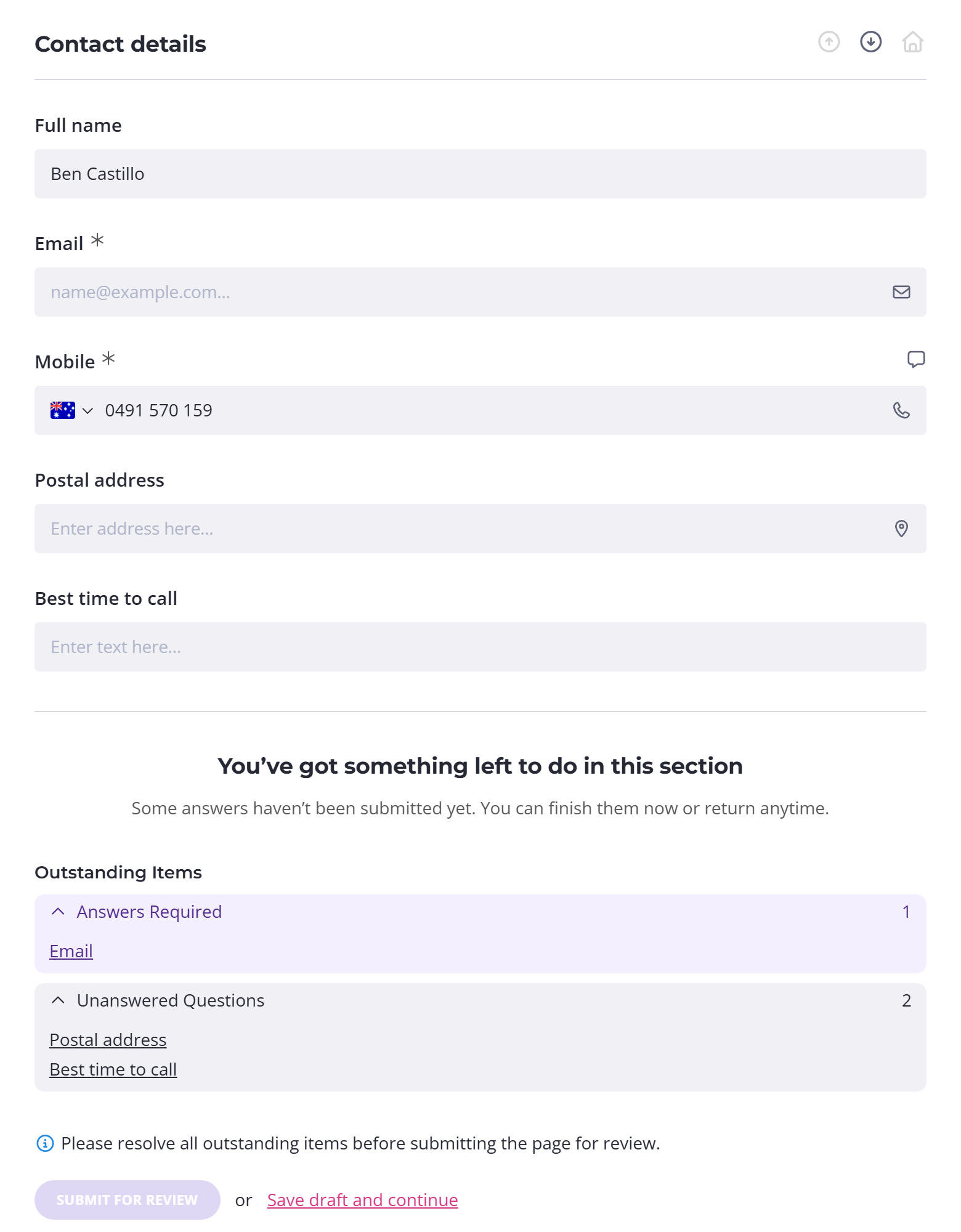
At the bottom of the card, your client has two choices:
- Submit for Review submits every answer in the card.
- Save draft and continue saves their answers without submitting them and moves on to the next section.
Submit for Review stays grayed out until every required question your client can see has an answer and no answer has an error. It also stays grayed out while a file is still uploading. Optional questions can be left blank.
If the section includes a required ID verification, or a required signature through a signing provider, your client needs to finish it before the section will submit. If it includes a signature that locks the request, Content Snare asks your client to confirm the lock before the section submits.
Submit Page for Review at the bottom of the page also submits compressed sections, along with everything else on the page. Do clients have to submit every question? covers the rules for submitting a page.
If you've renamed Submit for Review, Revise or Save draft and continue in your branding settings, the card shows your wording.
The outstanding questions summary
Until the section is submitted, a panel above the buttons shows your client what's still outstanding. It's headed "You’ve got something left to do in this section", and under Outstanding Items it lists the questions by name:
- Answers Required: required questions with no answer yet. These stop the section submitting.
- Invalid Answers: answers with an error to fix. These stop it too.
- Changes Requested: answers you've sent back for changes.
- Unanswered Questions: optional questions left blank. The section still submits with these.
- Requiring Approval: submitted answers waiting for your review. Only team members who can approve answers see this list.
Your client can click a question's name to jump to it. The panel is there from the moment they open the card, so they can use it as a checklist while they work.
When your client needs to change a submitted answer
Submitted answers lock. To change one, your client clicks Revise at the bottom of the card. That reopens all their answers in the section that you haven't approved yet, and they submit the card again when they're done.
When you reject an answer, your client sees it marked Changes requested and can edit it straight away. They resubmit it with the Submit for Review on that question, or with the one at the bottom of the card, which also sends anything else they haven't submitted.
Once you've approved every answer in the section, your client sees a Completed tag on the card and can't change anything. You see Approved.
Approve or reject a single question
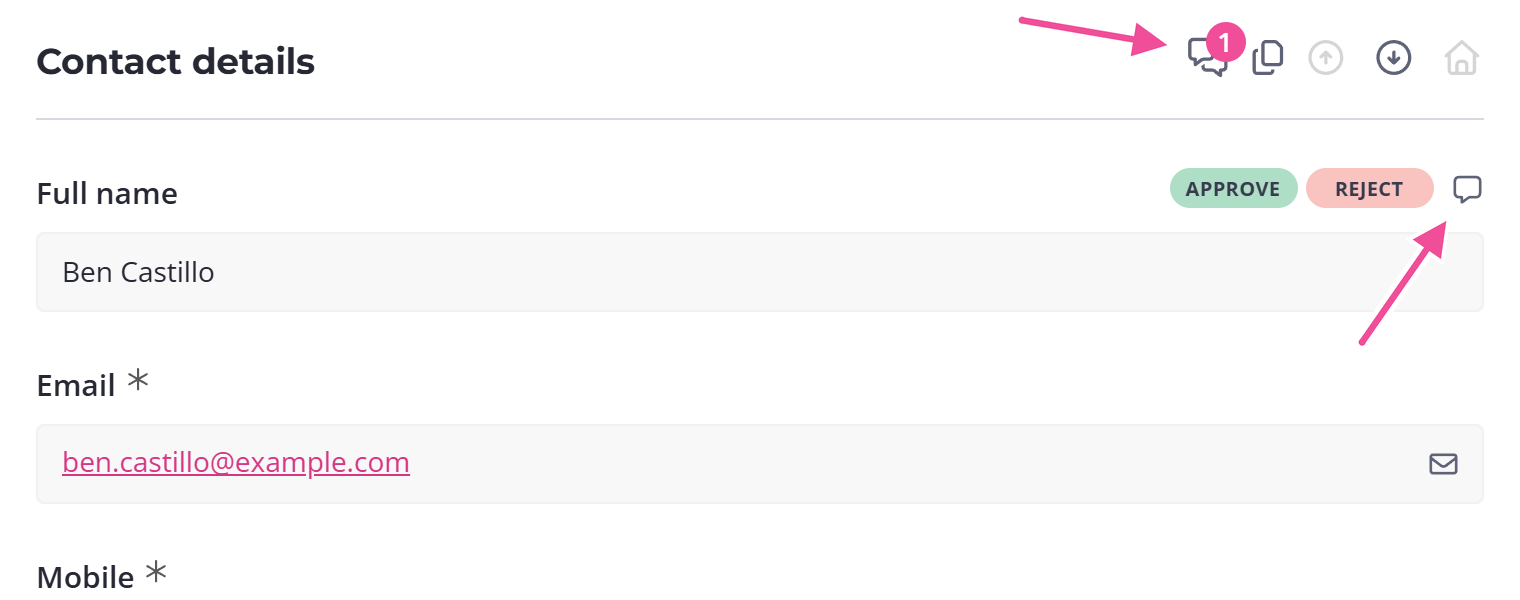
Approve and Reject appear beside each question's name once your client submits. Administrators, Editors and Reviewers see them.
- Open Requests.
- Open the request.
- Go to the page with the compressed section.
- Click Approve or Reject beside the question's name.
Approving locks the answer. Rejecting sends it back to your client, and you can add a note saying what to change. To undo either one, click Remove Approval or Remove Reject.
In a compressed section, you revise the whole section at once, with Revise All at the bottom of the card. Review and approve answers has the rest, including when your client is emailed about a rejection.
Approve or reopen the whole section
Approve All at the bottom of the card approves every submitted answer in the section. Answers your client hasn't submitted, or that you've sent back, are left as they are. The button appears once at least one answer has been submitted.
Revise All reopens every submitted answer in the section that you haven't approved, so the answers can be changed and submitted again. It doesn't ask for a note or mark anything Changes requested, so your client isn't told what to change. To ask for a specific change, reject that question with a note instead.
- To change an answer you've already approved, click Remove Approval on it first.
- If a signature has locked the request, Revise All asks you to confirm first. Going ahead unlocks the request and clears the signature that locked it.
Comments in a compressed section
Each question has its own comment thread. Open it with the speech-bubble icon beside the question's name. Your client sees the icon whenever client comments are on for the request.
Your team also gets a View All Comments icon at the top of the card once any question in the section has a comment. It opens every comment on the section in one list. Each comment shows which question it's on, with a link to that question. To reply, open the question's own comments.
Comments covers replying, team-only notes, and turning client comments on or off.
Copy all the answers in a compressed section
The Copy all answers icon at the top of the card copies the section's answers as plain text, one line per question, like "Email: alex@example.com". Questions with no answer are skipped. Paste the result into an email or another system. Everyone on your team can use it, Viewers included.