Comments are how you and your client work out the details of a single question. If an answer isn't clear, or your client isn't sure what you're asking for, you talk it through in the comments on that question rather than over email. Every question has its own thread, so it's always clear which answer you're discussing.
Answering your client's question
When a client gets stuck on a question, they can ask you about it right there. Beside each question they see a button that says Ask A Question. Tapping it opens that question's thread, and whatever they write comes through to you as an ordinary comment.
To reply:
- Open Requests and open the request.
- Go to the question they asked about and open its comments.
- Write your reply and select Add comment.
You can add an image to a comment, though there's no way to attach a file to one. Your client can't add an image to theirs.
Once a thread has its first comment, that button changes to Comments for the client too. Your team always sees Comments on it, never Ask A Question. You can change the wording for your account, so if you've renamed the button in your branding settings, your clients see your version instead.
Comment notifications follow your communication schedule, the same as your reminders, so you can change their wording there. When you reply, your client gets an email; when a client asks a question, the request ownerThe one team member assigned to a request. gets one rather than your whole team. If you'd rather not get them yourself, you can choose which emails you receive.
What else appears in the thread
The thread also shows what happened to the question. You'll see a line when an answer was submitted, when you approved it, and when it went back for changes. When you reject an answer, Content Snare posts your explanation to the thread automatically, so your client knows what to fix. For the review side of this, see review and approve answers.
Notes only your team can see
You can leave a note on a question that your clients never see, for something like a reminder to a colleague or a query about an answer.
Below the comment box, next to Add comment, is a control showing which kind you're writing. It reads Comment while you're writing something your client will see. Switch it to Internal, and anything you post won't be visible to clients. Clients can't add one themselves.
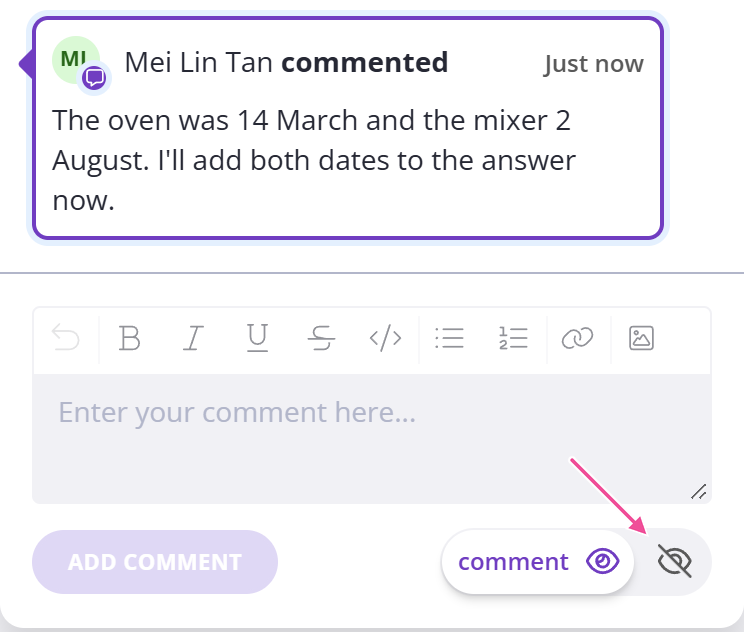
If a question is marked internal, the box only lets you add a team note. Marking questions internal is covered in use internal fields for your team.
Turning client comments on or off
Client comments are on by default, so unless you've changed something, your clients can already ask questions. If a client tells you they can't find any way to comment, this is the first setting to check.
You can switch comments off for a single request with its Enable client comments toggle, which sits on the publish step while you build or edit the request.
To change it for every request, open your company settings. The account-wide switch, Allow client comments to be enabled for requests, also applies to requests you've already sent, while Enable client comments by default only changes requests you create from then on.
When client comments are off, your clients see no button to comment, and your comment box only lets you add team notes. Nothing you write there reaches the client.