What a webhook does
A webhook tells another app that something happened in Content Snare, the moment it happens. You pick the events you care about, like a new client being added or a request being published, give Content Snare a web address, and when one of those events fires Content Snare sends the details to that address. Whatever is listening there can then act on them.
That makes webhooks a building block for automation. You might save the details into your own system, start a workflow in Microsoft Power Automate or Make, or update another tool the second a client finishes. If you'd rather not build a receiver yourself, Zapier connects Content Snare to thousands of apps without any code.
Set up a webhook
Only an Administrator can set up webhooks.
- Click your avatar in the top right and choose Settings, then Integrations, then the Webhooks tab.
- Click Add a new webhook.
- Enter the address Content Snare should send events to. It has to start with https, and it can't be localhost, a loopback address or a Content Snare address, so you can't point a webhook at your own machine to try it out and you can't point one back at us.
- Choose the events to send. Tick each event you want.
- Save the webhook.
You can add as many webhooks as you need, each with its own address and its own set of events.
What a webhook sends
Each event goes out as an HTTP POST, and the body is JSON. What's in that body depends on the event. Some request events carry the whole request, including every answer on it. Those are Request Published, Request Completed, Request Expired, Request Archived, Request Scheduled and Request Waiting for Approval. A request that expires sends Request Expired and doesn't send Request Completed. Other request events, like Request Updated, send the request's own details and its client, with no answers. Events about a client, a team member or your billing carry that thing's own details instead.
Uploaded files arrive as download links, not as the files themselves. Those links don't expire, so a payload sitting in a log file or a spreadsheet still opens the client's files later. Keep saved payloads somewhere private.
Content Snare doesn't add a signature or shared secret to the request, so the app receiving it has no way to verify the message really came from Content Snare. Treat the webhook address like a password and don't share it.
For exactly what a payload looks like and a field-by-field breakdown, see webhook payloads.
Test a webhook
Every webhook has a Test action, with a submenu so you can test one event at a time. Test replays the last payload that event actually produced and sends it to your address. On an account that has been running a while, that means a real client's answers go to whatever is listening, so only test against a service you trust.
A test goes to your endpoint like any other delivery, but it isn't retried if it fails.
If the event has never fired, there's no payload to replay, so Test builds one from a matching item already on your account, like a completed request for Request Completed. That payload can still include a real client's answers. When there's nothing on your account to build it from, Test sends a built-in sample instead.
Manage your webhooks
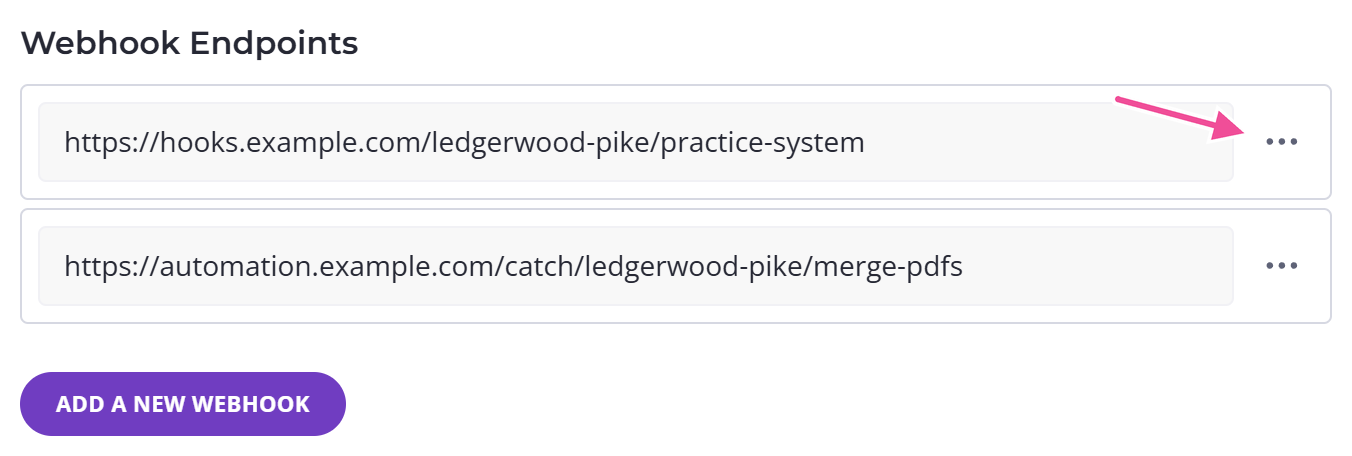
Each webhook has its own menu. Edit changes which events it sends. Disable pauses it and Enable turns it back on. Test sends a test payload. Delete removes it.
When a delivery fails, the webhook shows the error as an alert on its own row, so you can see which endpoint is having trouble. Turning the webhook off and on again clears those outstanding errors.
Turn off all webhooks
Above the list, Disable all configured Webhooks switches off every webhook you created on this screen at once. It's the fastest way to stop them all if something's going wrong at the other end.
There's one thing it doesn't cover. Automations you connected through Zapier run on hidden webhooks that never show up on this screen, so the master switch leaves them running. To pause a Zap, turn it off in Zapier.
When a delivery fails
Your endpoint should answer each POST with a 2xx status code. That's how Content Snare knows the data arrived. Anything else counts as a failed delivery.
Content Snare doesn't give up on the first failure. It makes up to five attempts in all. After the first one fails it waits 60 seconds and tries again, then 120, then 240, then 480. A delivery that takes more than 30 seconds to answer also counts as a failure. If every try fails, the delivery is marked failed and the account owner gets an email.
A failing endpoint doesn't switch itself off. Content Snare only disables a webhook on its own after the endpoint has repeatedly reported that it's gone for good, using the HTTP status 410, which is what Zapier and Make send once their hook is deleted. An endpoint that returns some other error, or times out, keeps getting events until you step in. So if you retire an endpoint, disable or delete its webhook rather than waiting for Content Snare to notice.