To get a blank PDF of a template, make a request from it, archive that request, then export it as a PDF. The Export request option only shows up once the request is out of draft, and archiving moves it out of draft without emailing anyone.
Create the request, then export it
- Open Templates in the top menu and create a request from the template you want a blank copy of. Leave it as a draft.
- Open Requests, find that draft, open its three-dots menu , and choose Archive request.
- Open that menu again and pick Export request.
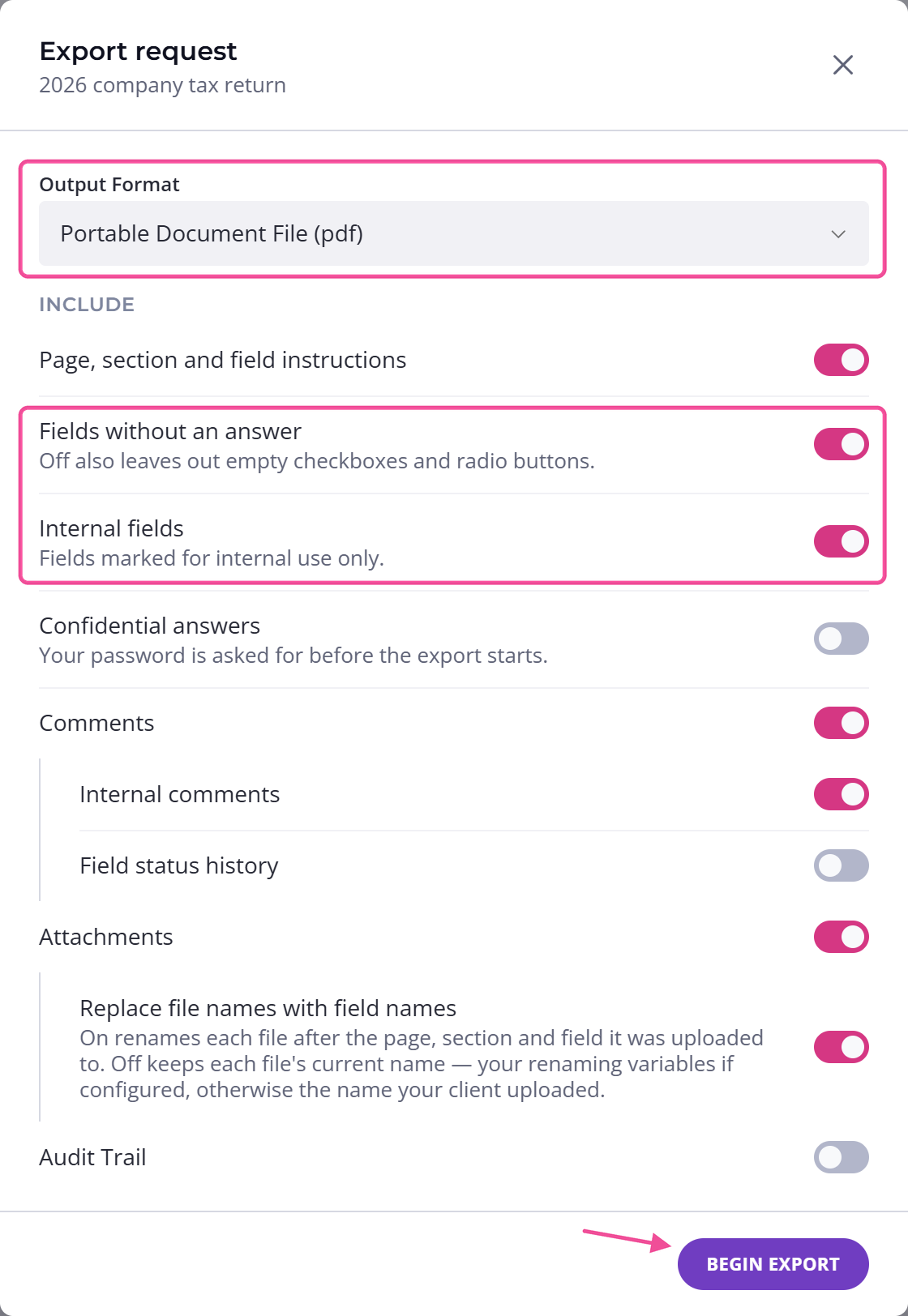
- In the popup, open the Output Format dropdown and choose Portable Document File (pdf).
- Click Begin export. If a short menu opens instead of the file downloading, choose Download to this computer.
Content Snare builds the PDF for you to save. The request doesn't count against your plan's active requests because you never publish it.
What the PDF includes
Check two switches in the popup. Fields without an answer is on by default. Leave it on so every question appears in the PDF. Internal fields is also on by default, so any internal questions in your template show up too. Turn it off before you export if you want a copy without them.