Stop the automatic reminders on a request
To stop the reminders going to a client, open that request's Quick settings and set its schedule to send nothing.
- Open Requests.
- Open the request you want to pause, then choose Quick settings from its actions.
- Open the Select a communications schedule dropdown and pick the schedule that sends nothing. On a request with one client it reads "Don't send any messages to my client"; with more than one, "Don't send any messages to my clients".
- Click Apply.
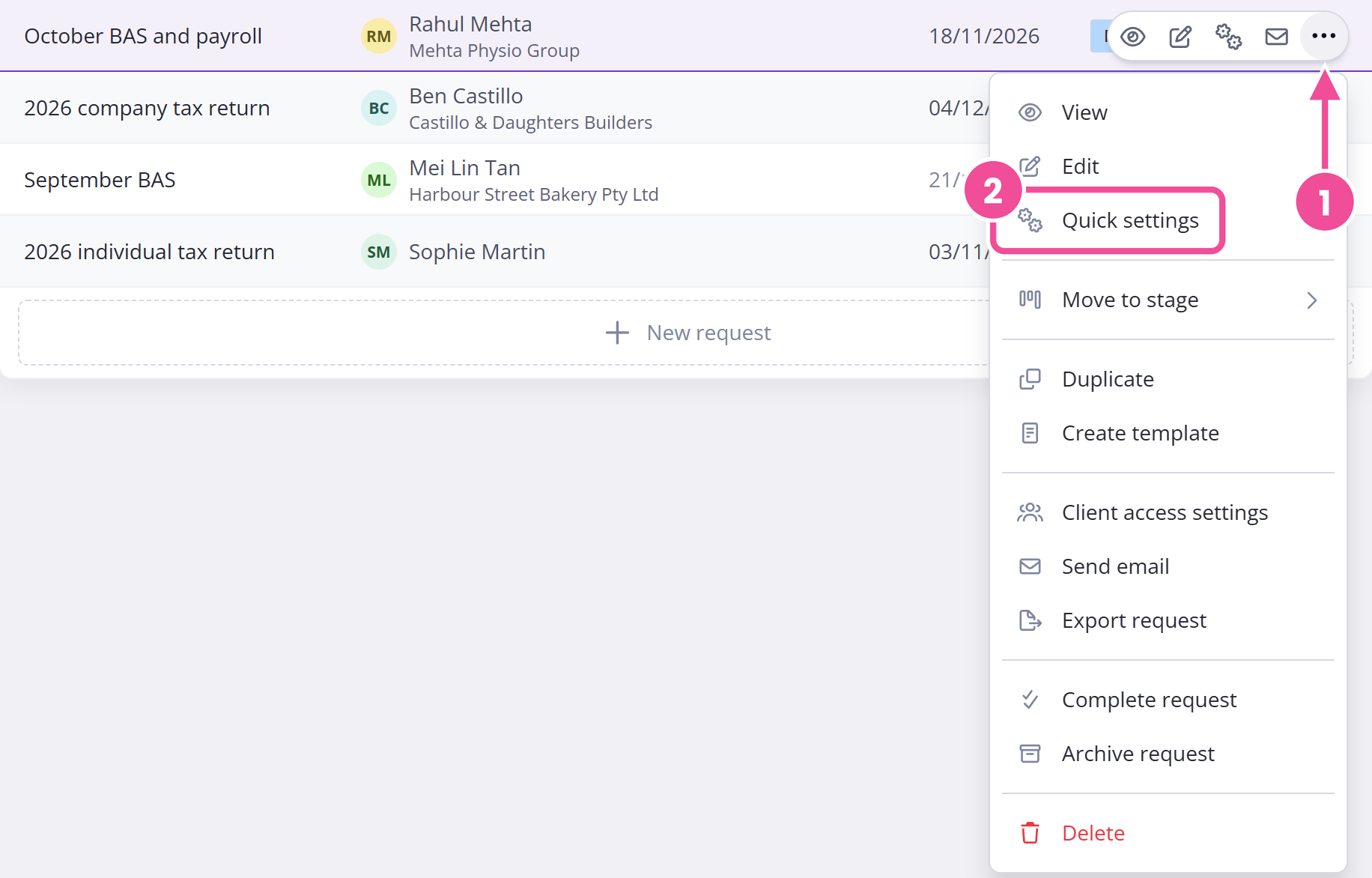
That turns off every automatic reminder on the request at once.
You can change the schedule while a request is a draft, published, scheduled, or waiting for your review. Changing it needs permission to edit the request, so if you can't, ask an administrator to check your team member permissions.
Keep the first email but stop the follow-ups
Most people who want to stop reminders still want the client to get that first request email. To keep it, switch the schedule to "No automatic reminders" instead.
That schedule sends the opening request email and still tells the client when you reject an answer or leave a comment, but not the timed follow-ups. It's in the same dropdown in Quick settings, and you can see and edit what your schedules send in Reminder schedules.
Turn reminders back on
To start the reminders again, open Quick settings on the request and choose a schedule.
The schedule doesn't pick up where it left off. Content Snare works out each reminder's date from when the request was first published and when it's due, not from the day you switch reminders back on. Any reminder whose date has already passed won't go out.
So before you turn reminders back on, check the request's due date. If it has already passed or is very close, extend the due date first, or the reminders you're expecting won't go out.
Messages that still reach your client
Two things still reach your client after you stop the reminders.
You can still send them a one-off email or SMS at any time. Sending a manual message bypasses the schedule.
System emails still go out: sign-in codes, download links, and portal file notifications.