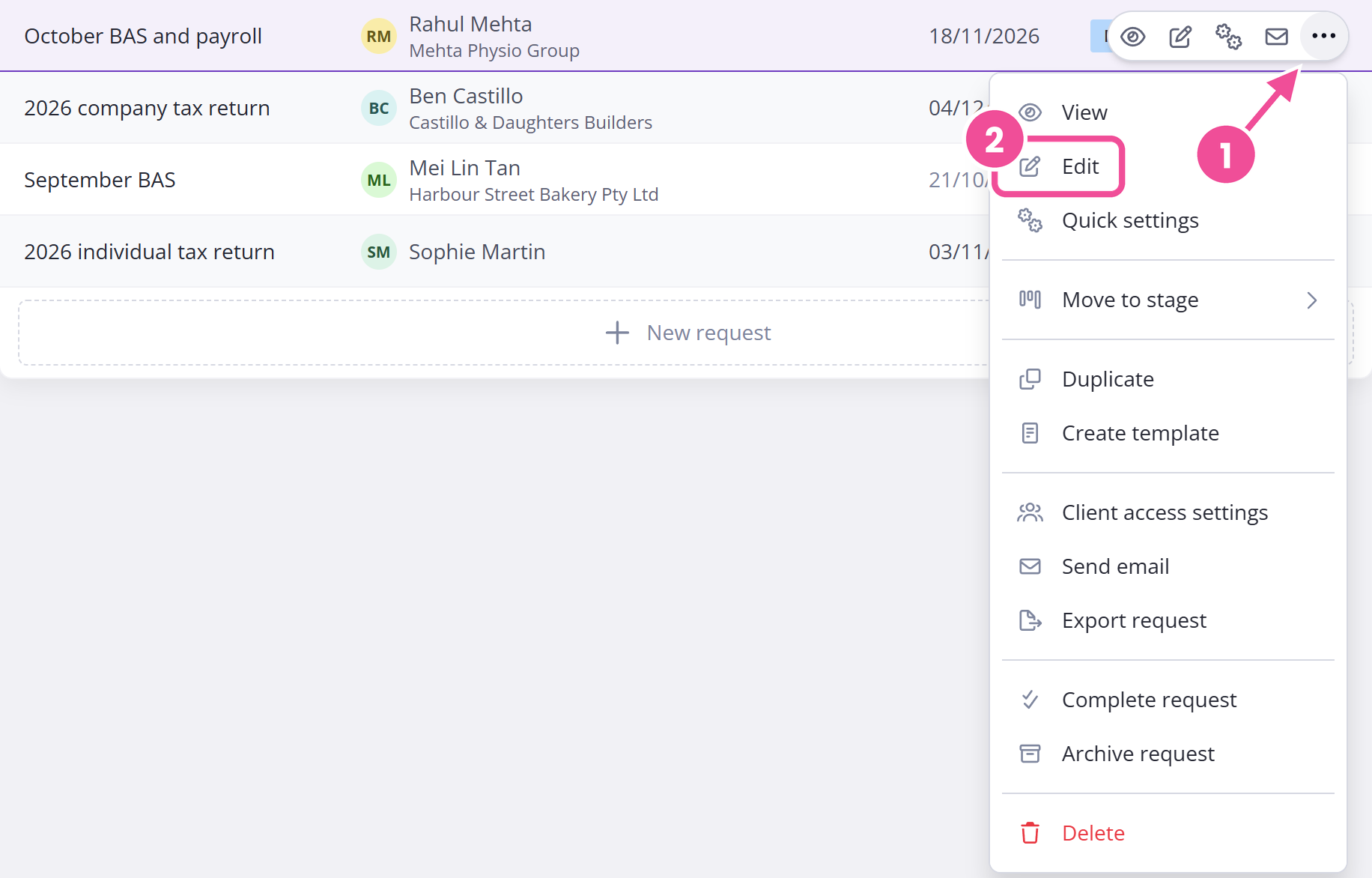
Open Requests and find the one you want, then open its actions menu and pick Edit. The request reopens in the builder, ready to change. It stays published the whole time, so your client keeps using the same link.
Your question changes go live as you make them
Changes you make in the builder itself are saved as you go. There's no save button. Your client sees them the next time they open or refresh the request.
Because every change saves as you make it, a client who opens the request mid-edit can see a half-written question. Finish what you're working on before you leave the builder.
Deleting a field your client has answered
Deleting a field your client has already answered deletes their answer with it. Content Snare warns you first and won't delete either until you confirm.
Change the due date or reminders
Open the last step of the builder to change the due date or reminder scheduleThe shared set of automated emails and text messages Content Snare sends about a request.. Unlike question changes, these don't save on their own, so make your change and choose Update settings at the bottom.
You'll see a preview of the reminders that are due to go out, and you can turn reminders off for this request from the same place. To change the schedule itself, see reminder schedules.
Quick settings
For the request's basic details, use Quick settings instead. Open Requests, open the request's action menu and choose Quick settings. A popup opens where you can set:
- Request owner
- Folder
- Communication schedule
- Due date
Choose Apply to save. On a scheduled request, the popup also lets you change its publish date.
Who can edit a sent request
Administrators and Editors can edit a request. Reviewers and Viewers can't change it. If you can't edit a request you've sent, check your role and ask an Administrator to update your role if you need to make changes.
Tell your client what changed
Editing a request doesn't notify your client. If you've added or changed questions, send them a quick note.
A saved email template makes this fast. A subject line such as "New questions on your request" works well, and you send it manually each time you make changes.