How to reopen a completed request
- Go to the Requests page and open the completed request.
- In the request viewer, open the actions menu (the three dots near the top right) and choose Restore to published.
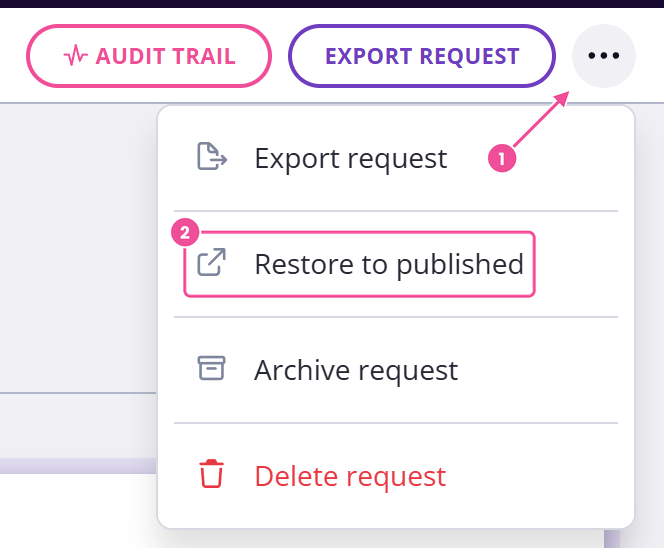
The request goes back to Published right away.
Only Administrators and Editors see this option. A Reviewer can complete a request but can't reopen one, so they'll need an Administrator or Editor to do it.
What happens when you reopen
The client's answers, uploaded files, comments and field approvals all remain as they were, and the due date is unchanged.
A client can't get into a request once it's been completed or archived, and reopening restores their access on the same link. They aren't sent a new link and reopening doesn't email them, though they may still get reminders on the original schedule.
Adding a client at the same time
If you add a new client as part of reopening, only that new person gets an email. Anyone already on the request hears nothing, the same as a plain reopen.
Reminders after you reopen
When you reopen a request, reminders may still be sent. Each rule is timed from the request's original publish date or from its due date, and it goes out if that moment is still ahead.
A rule set for five days after publishing means five days after the request first went out. On a request published months ago that moment has passed, so the reminder stays quiet. On one published three days ago, it still goes out on day five. A rule set for three days after the due date counts from the due date the same way.
To run the schedule from the beginning again, take the request back to draft and publish it a second time. That sets a new publish date, so every rule timed from publishing counts from then. You can also set a new due date, or send your client a message yourself.
The client's download link stops working
If your client was given a link to download a copy of their completed request, reopening breaks that link. Completing the request again creates a fresh download link at a new address, so you'll need to send them the new one. Only the download link is affected.
Reopening counts toward your active request limit
A published request counts toward your plan's active request limit, and reopening makes the request published again. If you've already hit your active request limit, the reopen is blocked, exactly as publishing a new request would be. Complete or archive another request to open up a slot, or move to a larger plan, then reopen.
Completing it again re-runs your integrations
Completing a request triggers its integration actions. When you reopen a request and later complete it a second time, those actions run again. That can leave duplicate records in tools like FYI or XPM. Check the connected system after you re-complete, or pause the integration beforehand.
Reopen an expired request
A request with Close client access after the due date turned on moves to Expired when its due date passes. To give the client access again, publish it with a new due date.
- On the Requests list, click the three dots next to the request's name and choose Publish.
- On the Publish step, set a new due date after today.
- Click Publish, or Publish & Send if your reminder scheduleThe shared set of automated emails and text messages Content Snare sends about a request. has a client publish email.
The request goes back to Published and the client's access returns. The switch stays on, so access closes again on the new due date. Clients already on the request aren't emailed, so send them a message to say it's open again. Publishing uses an active request slot, so the active request limit applies.
Reopen an archived request
An archived request goes back to Published in two moves, because it has to pass through Complete on the way.
- On the Requests list, click the three dots next to the request's name and choose Restore to complete. The request moves to Complete.
- Open the request, then in the request viewer open the actions menu and choose Restore to published.
If the archived request had expired, Restore to complete brings it back as Expired. Publish it again instead of using step 2.
That is the route for one request. Restoring a whole archived folder works differently: every request inside it comes back as a draft, whatever status it had before. Folders covers that.