Folders group your requests so you can find them by year, client, project, or however your team works. You can't send a request until it's in a folder, so every request always belongs to one. New accounts start with a single folder named Default Folder, and requests land there until you make some of your own.
Find and manage folders
To see your folders, click your avatar in the top right and choose Manage folders.
Select New folder at the bottom of the list to make a new one, give it a name, and save. Each folder has its own menu beside its name, where you can Rename it, start a new request already filed in it, archive it, or delete it.
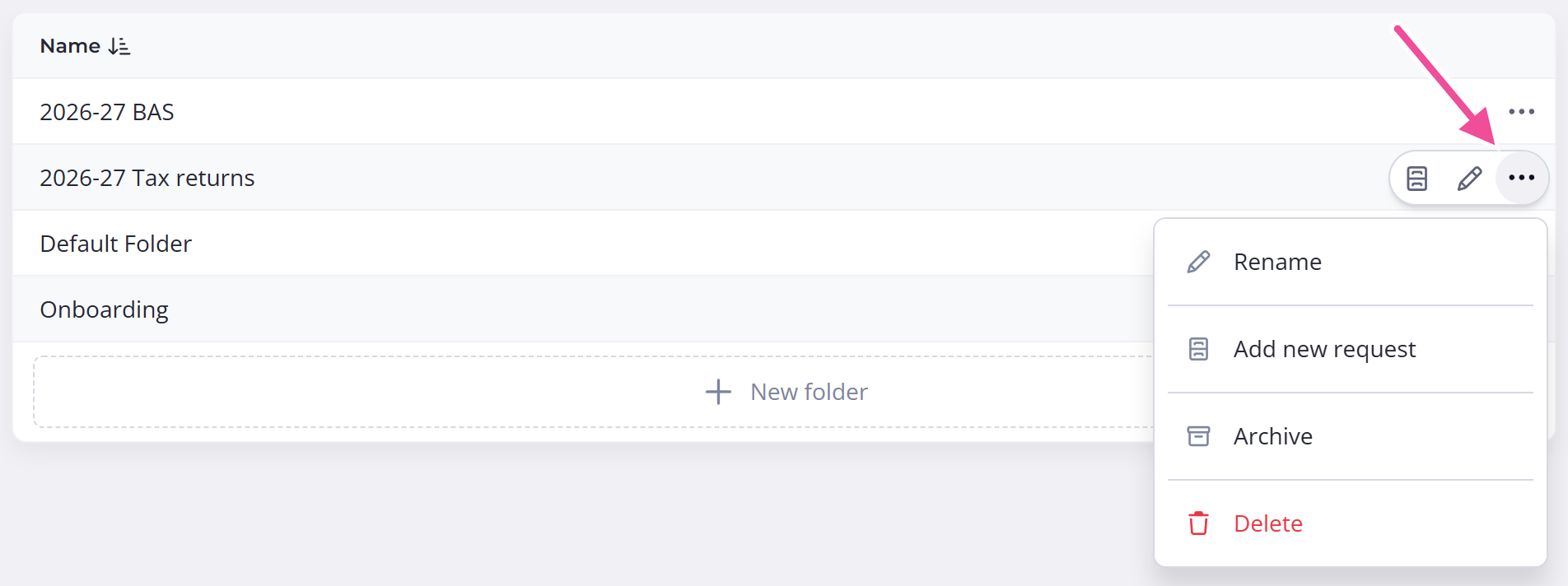
Folders sit at a single level, so you can't create a folder inside another. Teams that want more structure usually use a naming scheme instead, like putting the year at the front of each folder name.
Once you have folders set up, you can group the requests list by folder or filter it by one or more folders. See Grouping and filtering requests for how.
Choose a folder for a request
You pick a request's folder while you build it, on the Essentials step:
- Open Requests and open the request you're building.
- On the Essentials step, select Show additional settings.
- Open the Select a folder to organize your Request dropdown and choose one.
Leave it as Default Folder if you don't want to sort it yet.
Move a request to another folder
You can change a request's folder up until you complete or archive it. Open it on the Essentials step and pick another folder, the same way you chose the first one.
To change the folder along with the owner, due date or communication scheduleThe shared set of automated emails and text messages Content Snare sends about a request., use Quick Settings from the request's own menu. Edit a request after you've sent it covers it.
Archive a folder
Archiving hides a folder without deleting anything, so it's the safe way to clear one you're not using. Open the folder's menu and choose Archive, then confirm. This archives every request in the folder and deactivates any recurring requests it contains.
You can restore the folder later from the Archived view on the folders page. The requests inside return as drafts, whatever status they had before, so you'll need to send them again.
Delete a folder
Open the folder's menu and choose Delete. Content Snare asks you to confirm.
Content Snare always keeps at least one folder, so you can't delete the last one. Keep or create another first.