Content Snare sends your clients emails and text messages as their request moves along, from the first reminder to a note when their answers are approved. Each one is a template you can open and rewrite in your own voice. The default wording is deliberately plain because so many different businesses use Content Snare.
Open a template to edit
You'll find your templates in the Reminders area, with emails and text messages on separate tabs. Editing them needs an Administrator or Editor role. Reviewers and Viewers can open a template to read it but not change it, and clients never see this area.
To edit one:
- Find it in the list.
- Open the menu next to its name.
- Choose View details.
- Make your changes and save.
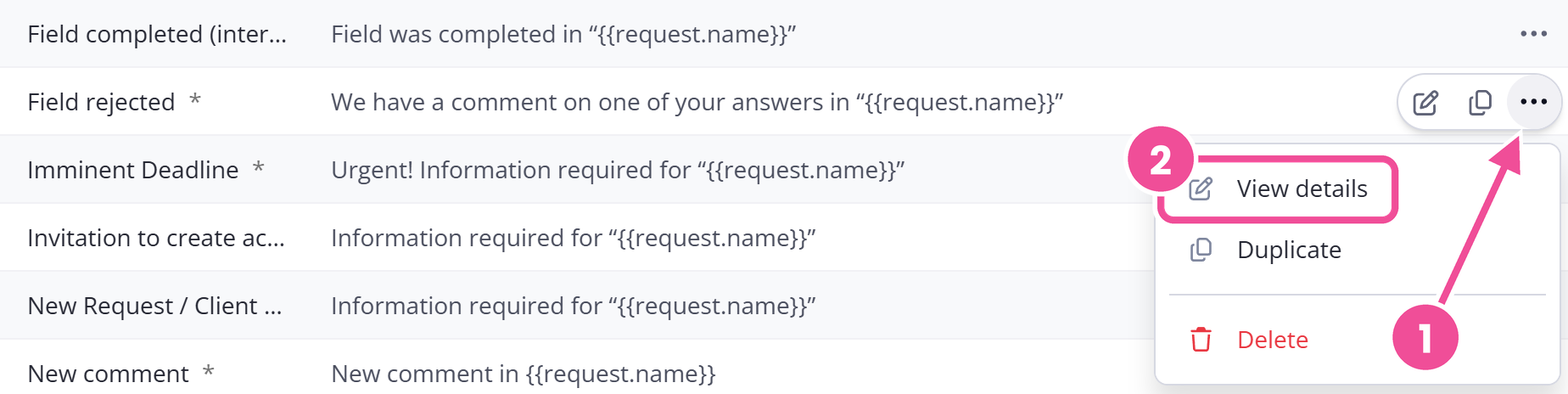
To build a new one from scratch, use New email template or New SMS template at the bottom of the list.
A message that is already queued to go out keeps the wording it was built with. Messages sent after you save use the new wording.
What you can change
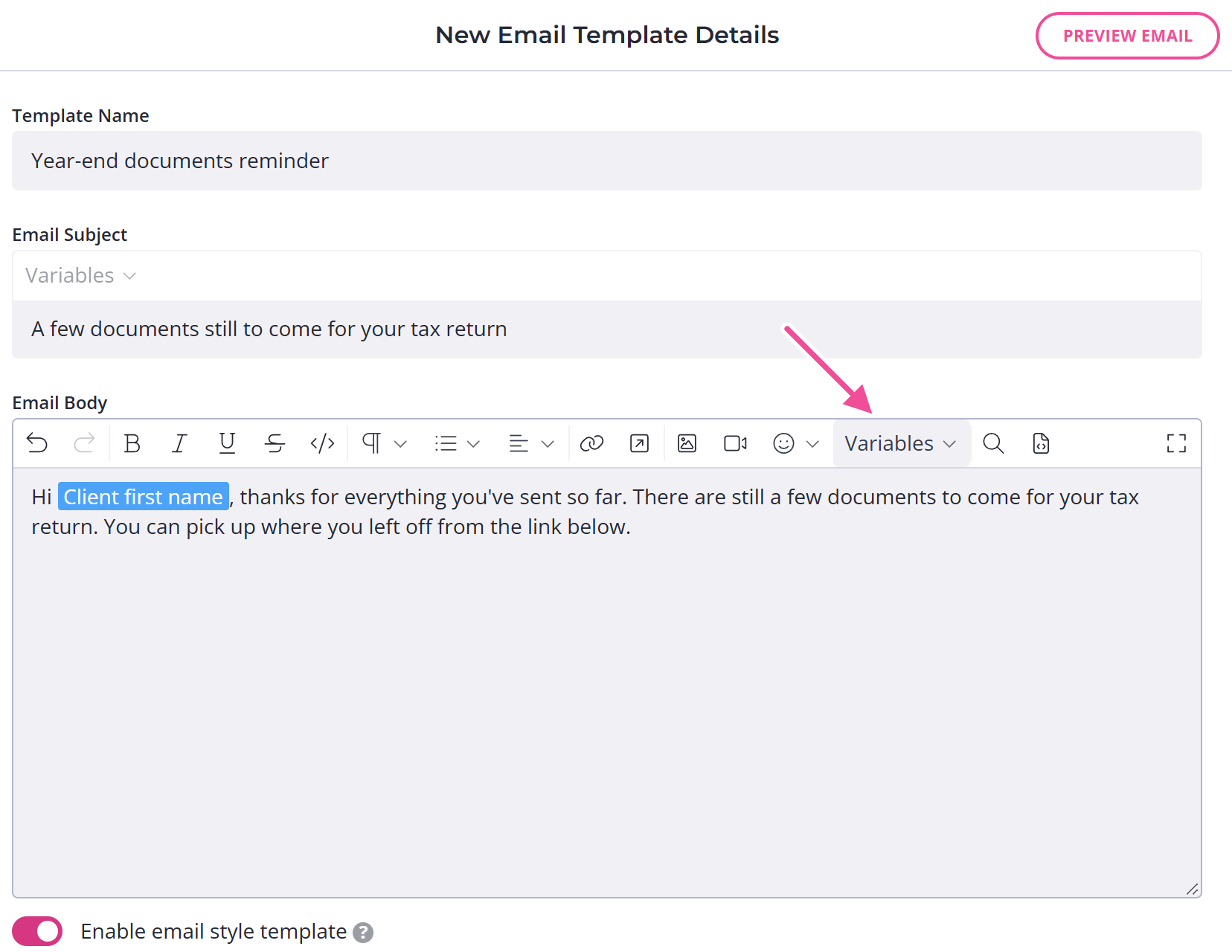
An email template has three fields you can edit: the Template Name, the Email Subject, and the Email Body. The name is internal, a label so you and your team can tell templates apart; your client never sees it. An SMS template has only a Template Name and an SMS Body.
Enable email style template sends the email with Content Snare's styling and your brand colors, instead of as plain text. Preview Email shows you what your client receives, so turn the switch on and off and preview each one.
The timing and recipients come from your reminder scheduleThe shared set of automated emails and text messages Content Snare sends about a request.. Use reminder schedules to change timing or recipients.
Add variables to personalize a message
Variables fill in details like the client's first name or the days remaining, so one template greets everyone by name. Open the variables list in the editor and pick one to insert it. The email and SMS variables reference lists every variable you can use in each type of message.
Insert variables from that list rather than typing them by hand. A variable you mistype, or one that isn't available in that message, comes out blank and the message still sends, so a greeting can go out as "Hi ," without you noticing. Read the message back after you edit it.
Preview Email shows you roughly how an email will look, but don't rely on it to test a variable you typed yourself. Some tags fill in on the preview and still arrive blank in the real email. A variable you picked from the list is safe.
Combine them to make a message specific to where the client is. For example, Request % completed and Request days remaining together can produce a line like: You are 56% complete and there are 4 days remaining.
The list of incomplete questions
Some reminder emails include a placeholder that lists the questions your client still needs to answer. It generates the list automatically, but shows only the first ten and adds a line like "+ 18 other questions" for the rest.
Styled or plain emails
Turn Enable email style template on for a designed email that matches your branding, or off for a plain one that reads like a note you typed to the client yourself. Plain messages often feel more personal and more urgent. Designed ones look more like an automated reminder. Text messages are always plain.
Turning styles off also changes any button in that email into a plain text link. Liquid variables and filters covers the button tag itself.
Whichever you pick, every email includes a line saying it was sent by your company. Designed emails also include a "Powered by Content Snare" line.
SMS templates
Content Snare gives you four built-in SMS templates: Due, Overdue, Reminder, and Request completed. Each has a name and a message body, and you edit them the same way as an email.
Keep the body short. A text message is sent in blocks of 160 characters, and each block uses one Content Snare SMS credit, so a long message costs more than one. The character counter under the box counts the raw template, variable tags and all, so treat it as a rough guide rather than the length your client actually receives. Your monthly SMS credit allowance depends on your plan; see plans and limits.
If you send through your own Twilio account, those messages are billed by Twilio and leave your Content Snare credits alone.
Text messages work well for clients who don't check email regularly, or for consumer-facing work where a short, direct message gets a faster response.
Duplicate a template for a variation
A template is shared across your whole account, so editing one changes the wording everywhere it's used. Every schedule and request that points at it picks up the new version. To create a different version for one process, copy the template first and edit the copy, leaving the original as it was.
To make a copy, open the menu next to a template and choose Duplicate. Point a reminder rule at the copy when you want it to go out. With several versions, a naming convention keeps them straight. You can name by:
- Process, such as Onboarding - Initial Email.
- Client tone, such as Casual - Reminder.
- The team member whose clients use it, such as Bob Smith - Due Today.
Name your requests, folders and reminder schedules has more on that.
Turn a message off
To stop a particular email or text going out, remove its rule from the reminder schedule. You can rename and edit a built-in template, but you can't delete it. You also can't delete a template that a reminder rule is currently using. The schedule controls what sends, so that's where you turn a message off. See reminder schedules for how.
Comment notifications
The comment notification emails are templates like any other, so you can change their wording. The "New comment" and "New comment (internal)" templates are in your reminder schedule alongside the rest.