SuiteFiles is built on Microsoft SharePoint, so you won't find it in Content Snare's list of integrations. You reach it through the OneDrive or SharePoint integration and connect that to your SuiteFiles site.
Before you connect
Only an Administrator can set up or change integrations, and only they can even open the integrations screen. If you can't get to it, ask an Administrator on your team to connect SuiteFiles for you.
The connection works on every plan. There's nothing to upgrade to switch it on.
Make a folder in SuiteFiles for Content Snare before you start, and put it where you already sort client files. Content Snare creates its own subfolders inside whatever folder you pick, so one dedicated folder keeps everything tidy.
Connect to SuiteFiles
- Click your avatar in the top right and choose Settings, then Integrations, then the Applications tab.
- Find OneDrive or SharePoint in the list and start the connection.
- Content Snare sends you to Microsoft. Sign in and approve access, and Microsoft brings you back.
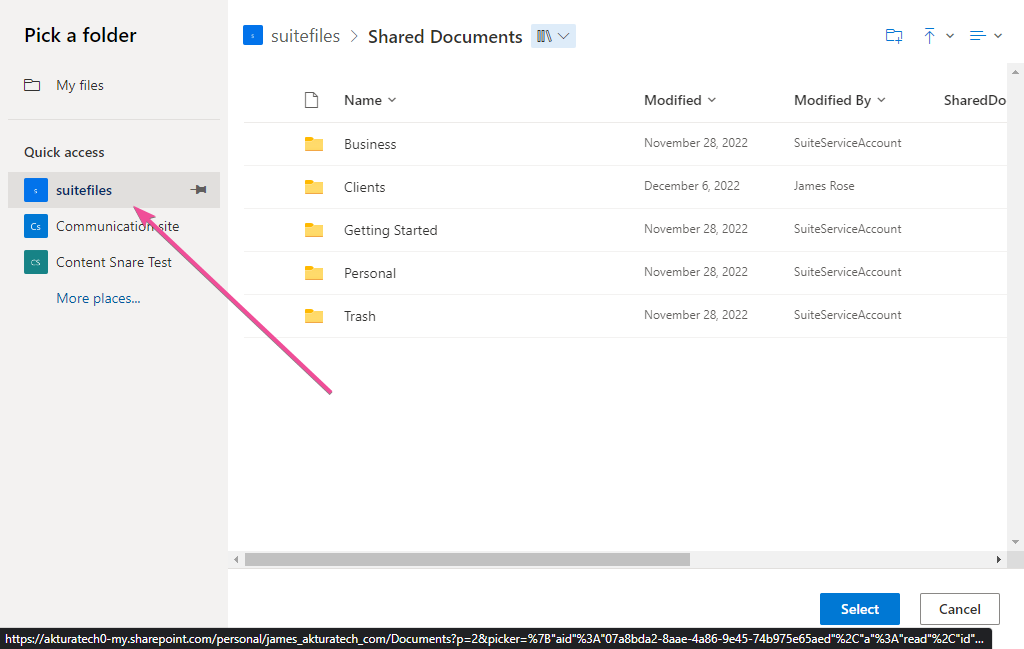
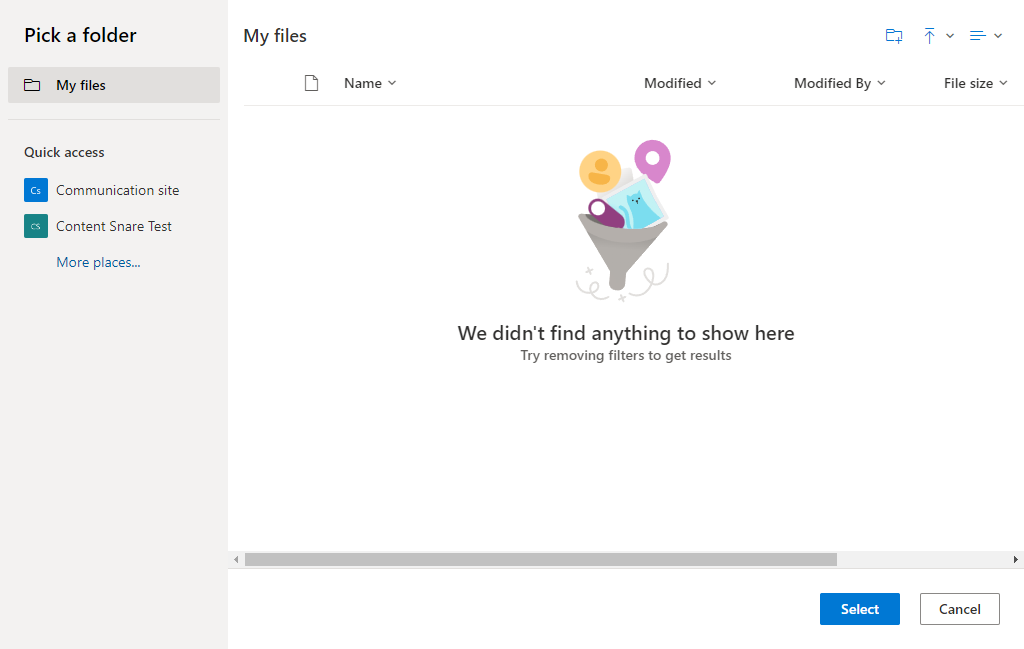
- Back in Content Snare, the folder and file settings open. Click Select a Folder, find your SuiteFiles site in Microsoft's folder picker, and choose the folder you made earlier. The connection won't turn on until you've picked one.
What happens next
From here it behaves like any other cloud storage connection, and how cloud storage integrations work covers it: when files are sent, how the folder path is built, what happens to confidential and internal answers, and how to have Content Snare file a copy of the finished request alongside them.
Deleting a file in Content Snare doesn't delete it from SuiteFiles. The copy stays there under a new name, with -deleted- and the date and time added, so invoice.pdf becomes invoice-deleted-20260831-141503.pdf. Replacing a file renames the old version the same way, so you end up with both. If you want the old copy gone, remove it in SuiteFiles yourself.
One site per account
Content Snare allows one active OneDrive or SharePoint connection at a time, and SuiteFiles uses that same connection. So you can have one SuiteFiles site, or one SharePoint site, but not both and not two of either. To send different clients or jobs to different places, use the folder path to separate them instead.
If SuiteFiles isn't in the folder picker
Microsoft's picker only shows sites your signed-in account can already reach. If your SuiteFiles site isn't there, that's a permissions or visibility issue on Microsoft's side rather than something Content Snare controls.
The usual fix is to open your SuiteFiles site in SharePoint, pin it to Quick access, then try the picker again. If you are not sure of the URL, look at your SuiteFiles address bar and note everything before .sharepoint.com (that is your subdomain). Then go to https://yoursubdomain.sharepoint.com/sites/suitefiles/Shared%20Documents/Forms/AllItems.aspx and use the Pin to Quick access button there.
If pinning doesn't help, the Microsoft account you signed in with probably doesn't have access to SuiteFiles. Ask your IT administrator to grant it, or contact our support team.
"Approval required" when you connect
Some organizations don't let staff approve outside apps on their own. If yours is one, Microsoft shows an "Approval required" screen in place of the normal sign-in. A Microsoft 365 administrator has to approve Content Snare before the connection can go through. Ask whoever runs your Microsoft 365 setup to approve it, then connect again once they have.