Content Snare has keyboard shortcuts where you write, where you fill in a table, where you build a request, where you comment and where you preview a file. Each section below says which keys work there, and which key a Mac uses.
Text editor
These shortcuts work wherever you write formatted text in Content Snare, including question instructions, emails and comments. A shortcut only works where the toolbar has that button, so the trimmed toolbar in comments and messages has fewer of them than the full one in instructions.
On a Mac, use Cmd in place of Ctrl.
| Action | Shortcut |
|---|---|
| Undo | Ctrl+Z |
| Redo | Ctrl+Shift+Z |
| Bold | Ctrl+B |
| Italic | Ctrl+I |
| Underline | Ctrl+U |
| Strikethrough | Ctrl+Shift+S |
| Highlight | Ctrl+Shift+H |
| Link | Ctrl+K |
| Normal text | Ctrl+Alt+0 |
| Heading 1 to 6 | Ctrl+Alt+1 to Ctrl+Alt+6 |
| Quote | Ctrl+Shift+B |
| Code block | Ctrl+Alt+C |
| Bulleted list | Ctrl+Shift+L |
| Numbered list | Ctrl+Shift+7 |
| Checklist | Ctrl+Shift+9 |
| Align left | Ctrl+L |
| Align center | Ctrl+E |
| Align right | Ctrl+R |
| Justify | Ctrl+J |
| Subscript | Ctrl+, |
| Superscript | Ctrl+. |
| Find | Ctrl+F |
Scroll sideways to see the whole table
Use the toolbar for the controls that have no shortcut: images, attached files, videos, tables, variables, source view and full screen.
Table questions
A table question works like a spreadsheet, so the keys you use to move around and edit one carry over. Arrow keys skip any cells you cannot edit.
On a Mac, use Cmd in place of Ctrl.
| Action | Shortcut |
|---|---|
| Move between cells | Arrow keys |
| Move to the next or previous cell | Tab or Shift+Tab |
| First or last cell | Ctrl+Home or Ctrl+End |
| First or last cell in the row | Ctrl+Left or Ctrl+Right |
| First or last cell in the column | Ctrl+Up or Ctrl+Down |
| Select a range | Hold Shift with any movement key |
| Select all cells | Ctrl+A |
| Copy | Ctrl+C |
| Cut | Ctrl+X |
| Paste | Ctrl+V |
| Clear the selected cells | Delete or Backspace |
| Undo | Ctrl+Z |
Scroll sideways to see the whole table
A few of these behave differently depending on what you have selected:
- Ctrl+A selects every cell. If you are editing a cell, the first press selects the text in that cell and a second press selects the whole table.
- Ctrl+C copies the cells you have selected, or the whole table when nothing is selected.
- Ctrl+V pastes CSV or spreadsheet data. It fills the range you have selected and trims anything that doesn't fit, so select a single cell first when you want the whole block pasted.
To build a table, and to decide whether clients can add their own rows, see Collect structured data with tables.
The request builder
While you are building a request, these keys move you between questions and pages and open a question's settings without the mouse.
These use the Ctrl key on every platform, including a Mac.
| Action | Shortcut |
|---|---|
| Go to the next question | Ctrl+Enter |
| Go to the first question on the page | Ctrl+Home |
| Go to the last question on the page | Ctrl+End |
| Go to the next page | Ctrl+Shift+Enter |
| Show or hide the settings panel for the selected question | Ctrl+Space |
Scroll sideways to see the whole table
From the last page, Ctrl+Shift+Enter loops back to the first.
Comments
Press Ctrl+Enter to post a comment or internal note instead of clicking the button. The same shortcut submits your reason when you reject an answer. Both use the Ctrl key on a Mac as well.
File preview
When you open a file to look at it, the preview uses single keys. Press each one on its own, without Ctrl, Cmd or Alt.
| Action | Key |
|---|---|
| Next or previous file | Right or Left arrow |
| First or last file | Home or End |
| Download the file | D |
| Close the preview | Esc |
| Zoom in or out | + or - |
| Rotate left or right | L or R |
Scroll sideways to see the whole table
Zoom and rotate only work on files such as images.
Find this list in the app
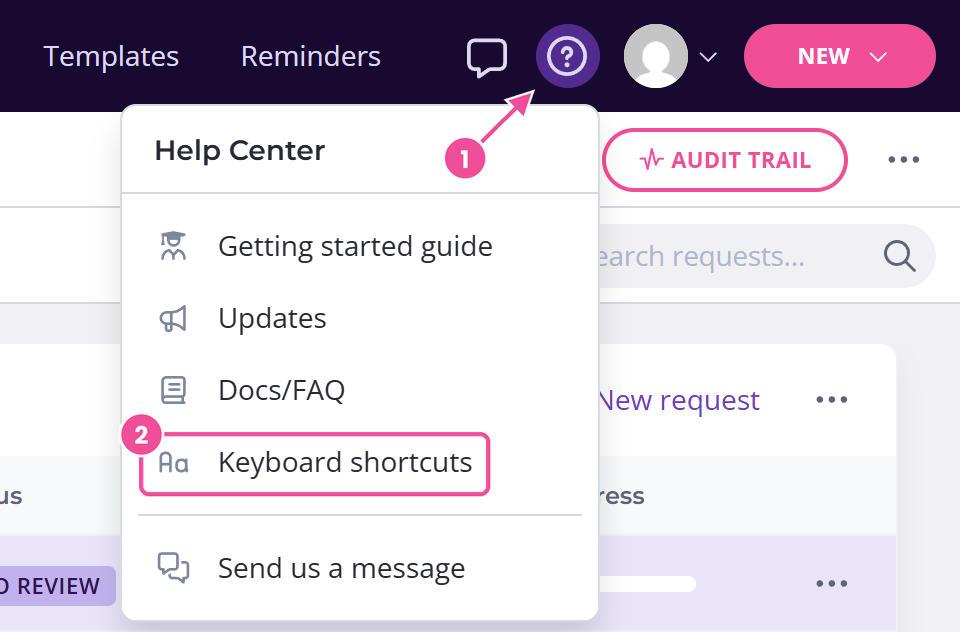
Open the Help Center menu in Content Snare and choose Keyboard shortcuts.