If you have received a request from somebody, this guide is for you.
Content Snare is where the organization that sent you a request collects the information and files they need from you, all in one place instead of a back-and-forth over email. You work through their questions one at a time, and they can see your progress as you go.
Open your request
Your request starts with an email from the organization asking for your information. Click the button in that email to open it.
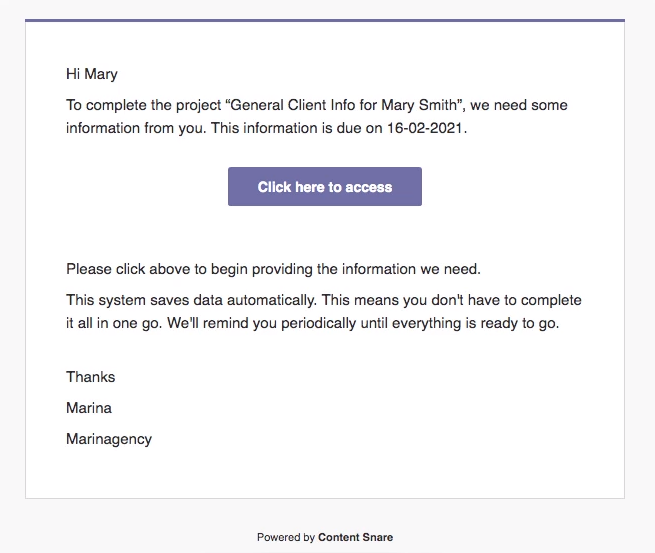
What happens next depends on how they set things up. You might go straight in, you might be asked to pick a PIN or enter one you set earlier, or you might be asked to sign in. Any of those is normal. If none of them lets you through, reply to the person who sent the request and they can sort it out.
Start the request
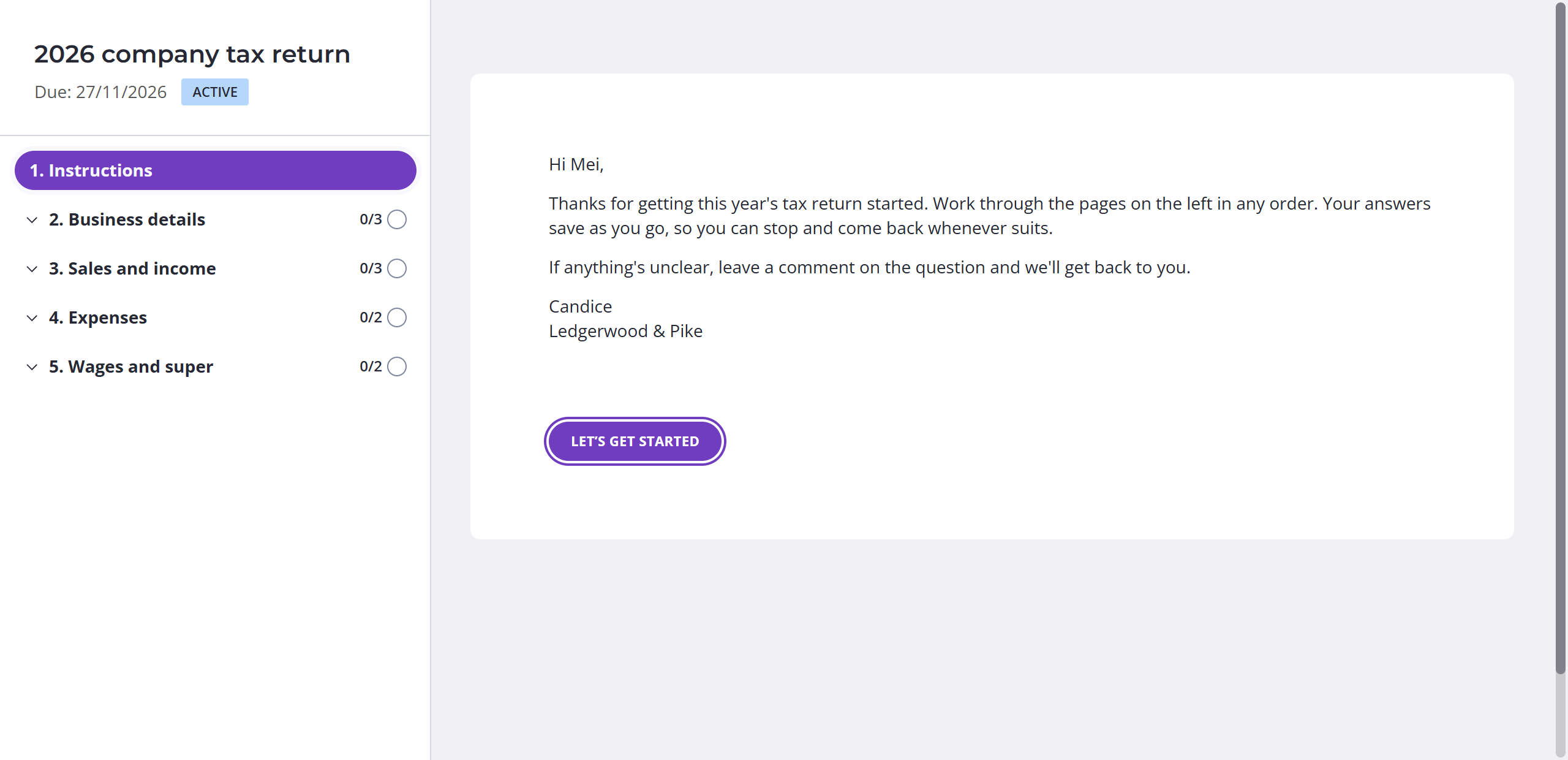
A request sometimes opens on a short welcome note from the sender. Read it if it's there, then click Let’s Get Started to reach the first page. If there's no welcome note, you land on the first question right away.
See what's left to do
Down the left side is a list of every page in the request. Next to each page you'll see a count, like 3/5, and a small icon. Together they show you which items still need your attention, without scrolling the whole thing.
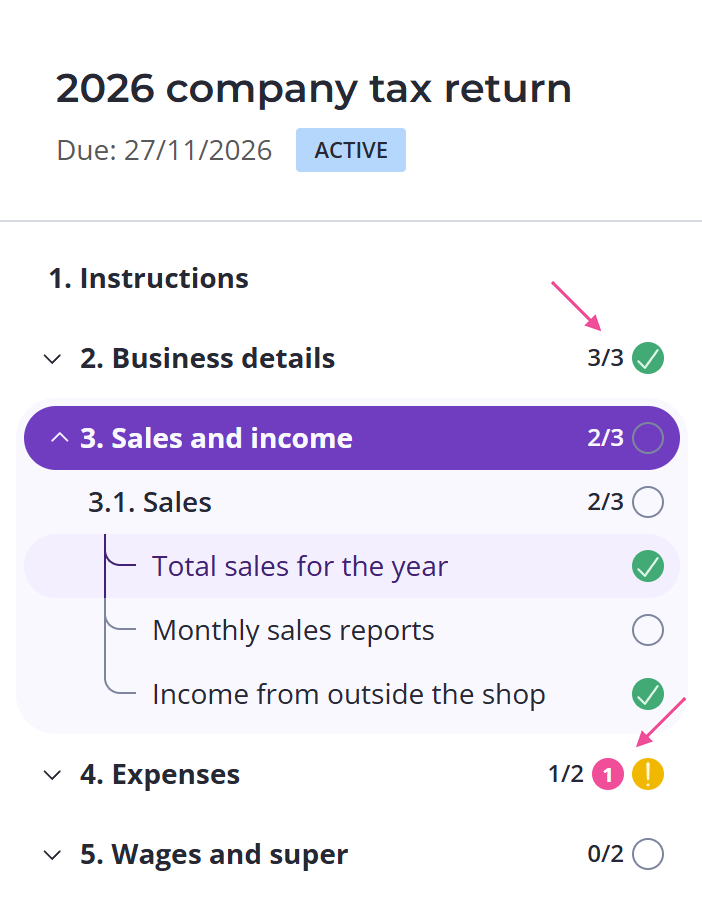
If the sender set a deadline, it shows at the top of the request as "Due:" with the date next to it.
Answer a question and submit it
Typing an answer isn't the same as sending it. When you're happy with an answer, click Submit for Review. That says you're finished with this question, and moves you on to the next one. After you submit, the answer shows the line The answer is saved and submitted for approval.
Under the question name are the sender's instructions, which tell you what they need in the answer.
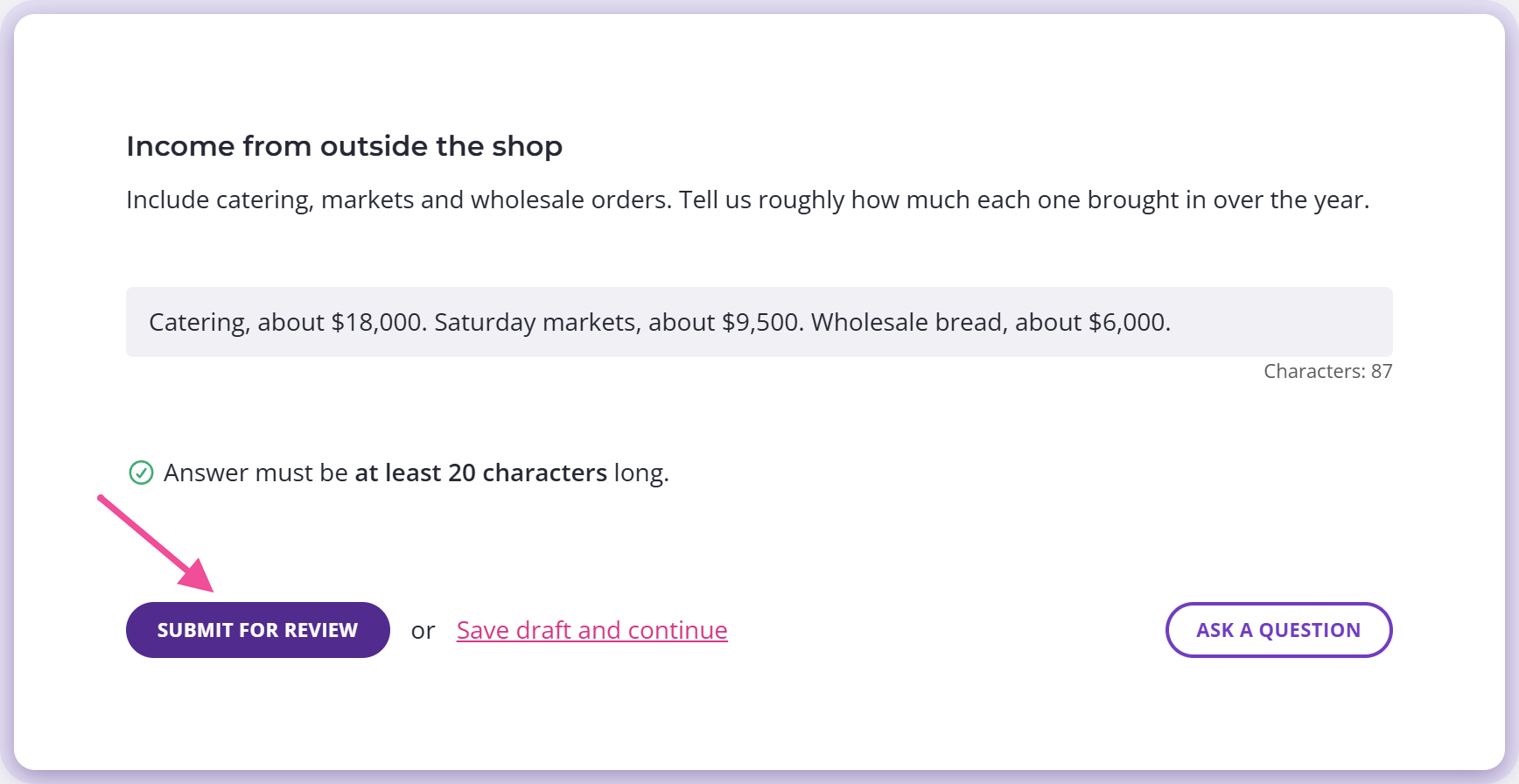
Until you submit, an answer counts as unfinished, even though you can still see it on screen.
Once you submit, the question is marked off in the page list on the left and the progress bar moves.
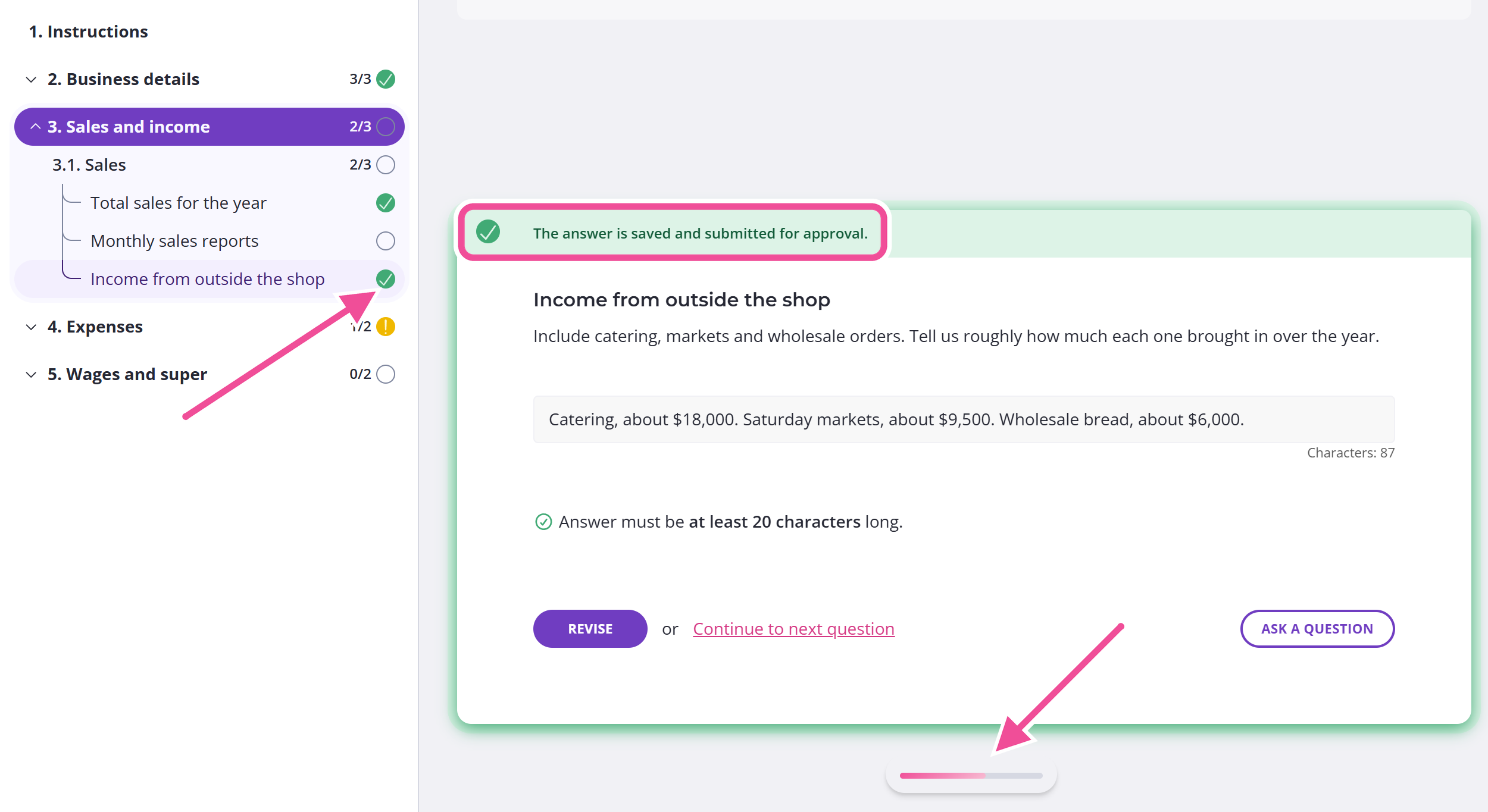
Submit a section shown as one card
Some sections show all their questions together in one card. Answer them all, then click Submit for Review once at the bottom of the card. The button stays grayed out until you've answered every required question. The list above the buttons shows what's left. Click a question's name to go to it.
Your answers save automatically
Content Snare saves your work as you type. You'll see Saving... while it happens, then Saved once it's stored. Wait for Saved before you close the tab, or your last edit might not save.
You can close the tab and come back later, and your answers will be waiting. To get back in, open the same link you used the first time. If it no longer works, contact the person who sent you the request.
It works on a phone too
You can answer a request on a phone or a tablet as well as a computer. Open the same link and the request fits itself to the smaller screen. There's nothing to download and no account to set up.
Submit a whole page at once
When you've finished a page, you can send everything on it at once with Submit Page for Review at the bottom.
If you can't submit an answer
Some questions have rules, like a minimum length or a required file. If your answer doesn't meet them, Submit for Review stays grayed out and the parts that need fixing are marked for you. Fix those and the button turns active.
If they ask for changes
Sometimes the sender looks at an answer and needs something adjusted. When that happens, you get an email telling you so.
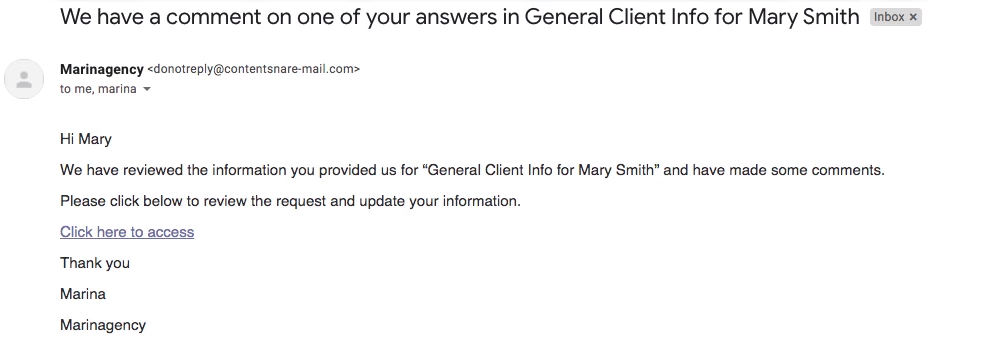
Open the request from that email. The answer reads The answer was reviewed and some changes were requested.
with a note underneath saying what they need. In the sidebar, that page's icon changes so you can find it again.
The sender's note sits underneath the answer itself, so you can see what they want changed.
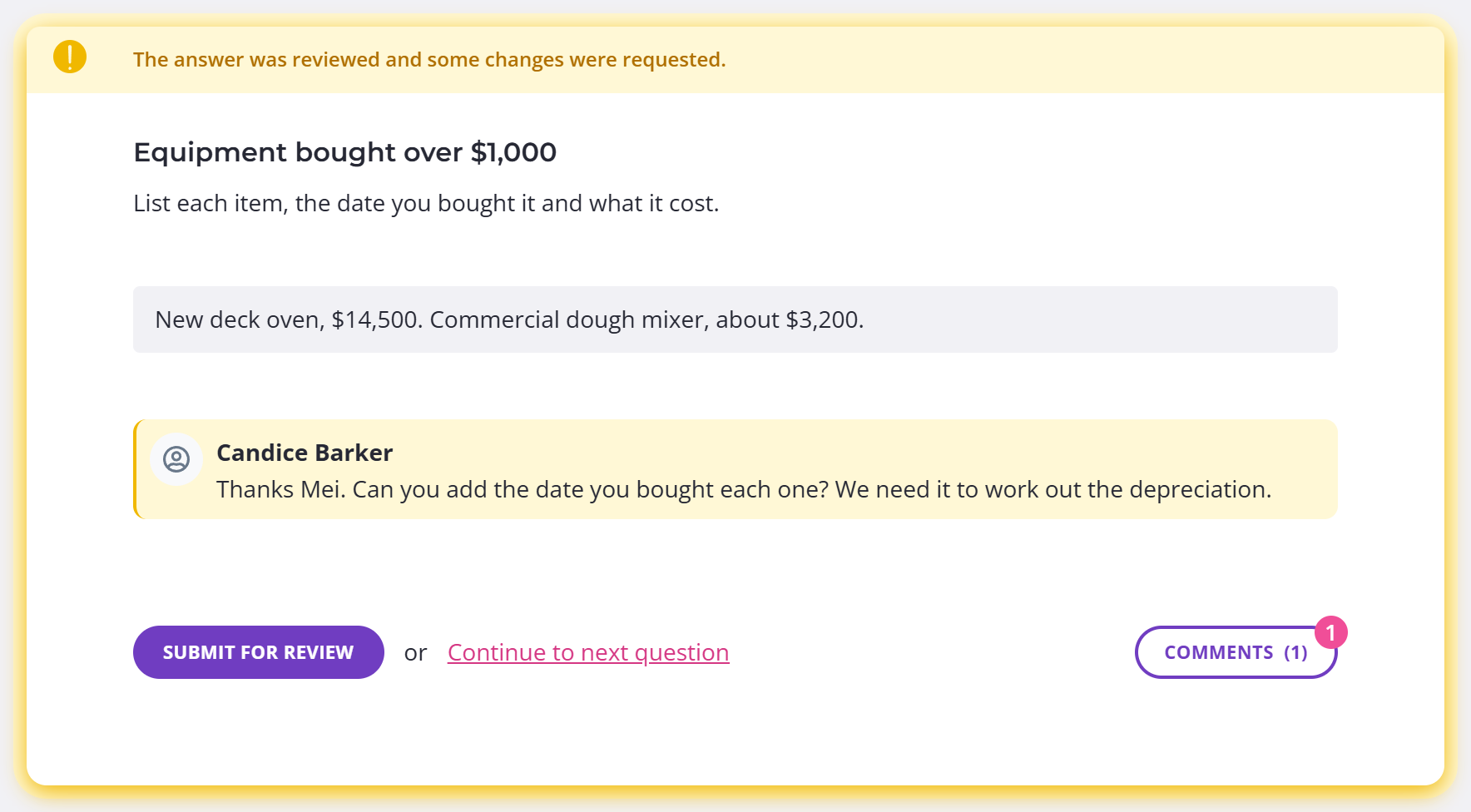
Change the answer, then click Submit for Review again. It's already open for editing.
In a section shown as one card, you'll see a Changes requested tag on the question. You can edit the answer straight away, then click Submit for Review.
After an answer is approved
Once the sender approves an answer, you can no longer change it. The Revise button is gone and the answer reads The answer is approved and can no longer be modified.
If an approved answer turns out to be wrong, tell the person who sent you the request.
If you get stuck
If a question has you stuck, click Ask A Question on it to send a message straight to the person who built the request, without leaving Content Snare. Their reply appears on that same question. Once a question has messages on it, that button reads Comments instead. In a section shown as one card, it's the speech-bubble icon next to the question name.
If you can't see that button, contact the person who sent you the request directly.