Connecting Google Drive copies the files your clients upload into a folder in your own Drive, so you have them alongside the rest of your work. An Administrator sets it up once, and you can connect Google Drive on every Content Snare plan.
Make a folder for Content Snare
Before you connect, create a new folder in your Google Drive for Content Snare to use. Name it something you'll recognize later, like "Content Snare".
Content Snare can only work with the folder you connect it to and the files it saves there. It can't see anything else in your Drive, so a dedicated folder keeps your Content Snare files separate.
Connect your Google Drive account
Only an Administrator can set this up, so if you can't find the settings below, ask an admin on your account to do it.
- Click your avatar in the top right and choose Settings, then Integrations, then the Applications tab.
- Find Google Drive in the list and select the connect button.
- Content Snare sends you to Google to sign in and approve access, then brings you back to Content Snare.
- Use Select a Folder to pick the folder you created. This opens Google's own folder chooser.
- Set a path for how files are filed, then click Activate. You can't activate until you've chosen a folder.
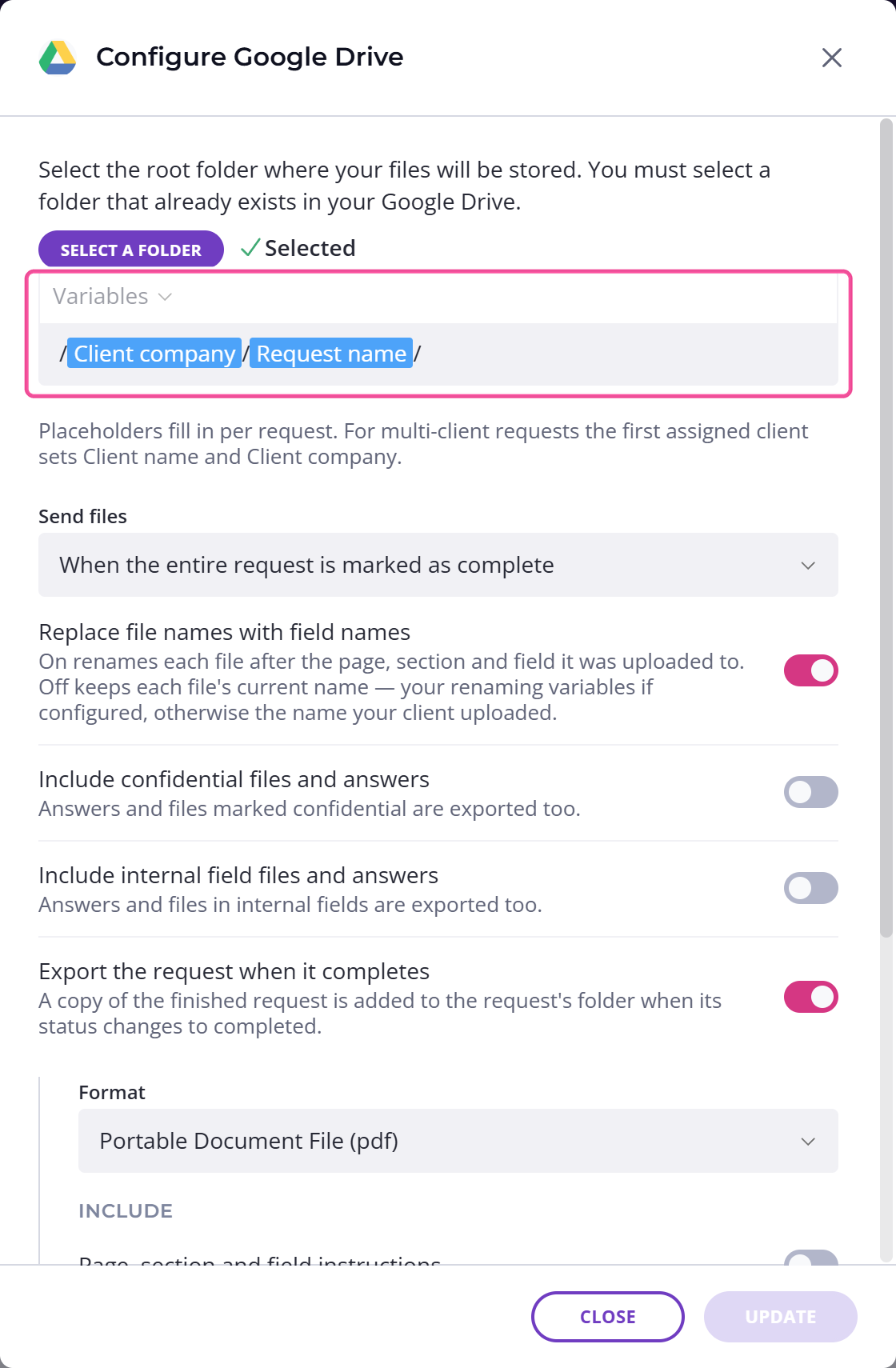
Once you activate, files start copying to your folder. Content Snare sends you a confirmation email when the integration activates.
What happens next
The integration works the same way for all three cloud storage services, and how cloud storage integrations work covers it: when files are sent, how the folder path is built, what happens to confidential and internal answers, and how to have Content Snare save a copy of the finished request.
Two things are worth knowing before you leave this page.
Deleting a file in Content Snare doesn't delete its copy in Google Drive. Content Snare renames the copy instead, so invoice.pdf becomes something like invoice-deleted-20260831-141503.pdf, and it stays in your folder.
If you remove the integration later, Content Snare stops tracking the files it put in your Drive. Deleting one of those files in Content Snare after that won't rename the Drive copy, so anything from before the disconnect stays exactly as it is.
You can also export any request to Google Drive by hand, which lets you choose exactly what goes across, including instructions, unanswered fields and comments. See exporting a request.
Can I connect more than one Google Drive account?
No. Content Snare connects to one Google Drive account at a time. To move to a different account, deactivate the current connection first, then connect the new one.