Sharing copies a template into another Content Snare account. That might be a second account of your own, or someone else's, such as a student or a colleague at another firm. You turn on sharing for the template, send the link it gives you, and the other account imports a copy of its own. Your original stays where it is.
Who can share a template
Only an Administrator can share a template. If you have another role, the option won't show up, so ask an Administrator on your team to share it for you.
Share your template
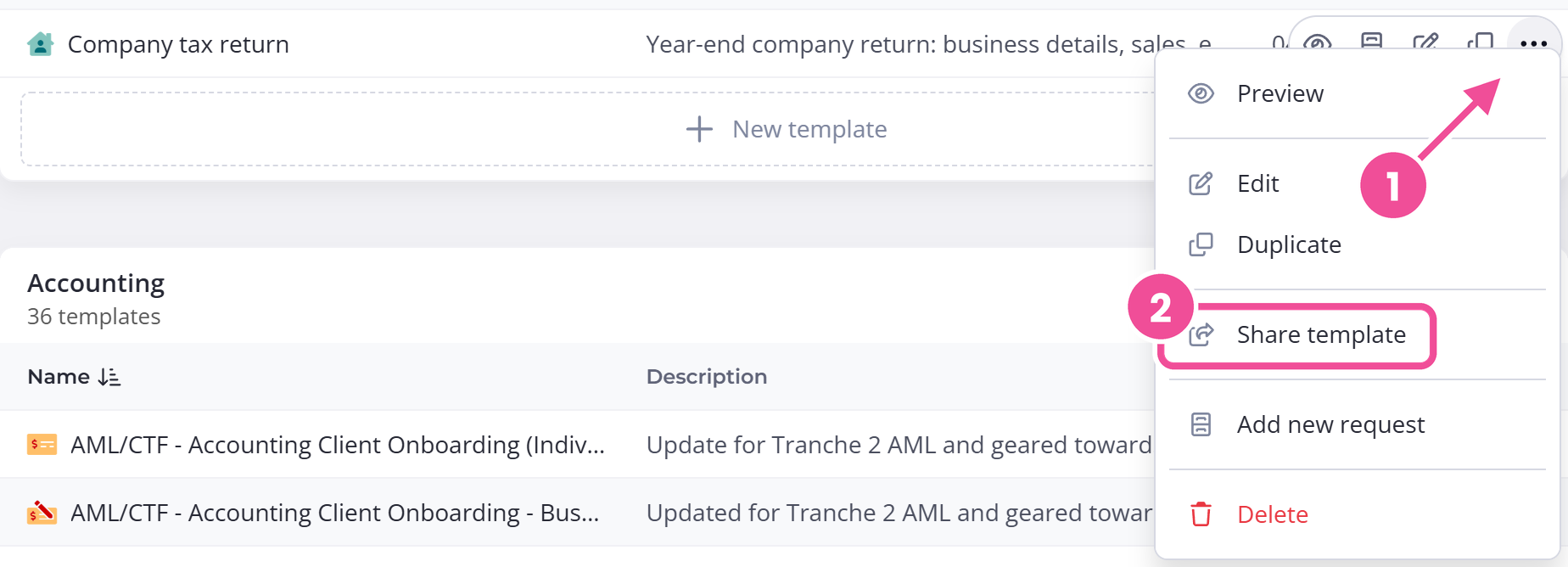
Go to the Templates page and find the template you want to share. Then:
- Open the three-dot menu on the template and choose Share template.
- Turn on Share this template. The link appears once sharing is on.
- Copy the Template Share Link.
- Send that link to the other account.
Import the template into the other account
The other account opens the link in a browser. An Import Shared Template popup appears where they can give the template a new name, then choose Import to add it to their account.
That copy is theirs to edit. Changes you make to the original later won't update their copy. The person importing needs the Editor or Administrator role in the receiving account.
Built-in templates can't be shared
Content Snare's built-in default templates don't offer Share template. The templates your account owns can be shared.
Copy the link again or stop sharing
Once a template is shared, it shows a share icon , and its three-dot menu changes. Use View share link to copy the link again, or Remove share to stop sharing it. Anyone who can edit templates can view the link, but only an Administrator can remove the share.
Removing a share stops new imports. It doesn't remove copies the other account has already imported.