Once you've built a request worth reusing, keep it as a template so you can send the same setup again without rebuilding it. To save the request you're working on:
- Go to Requests and open the request you want to save.
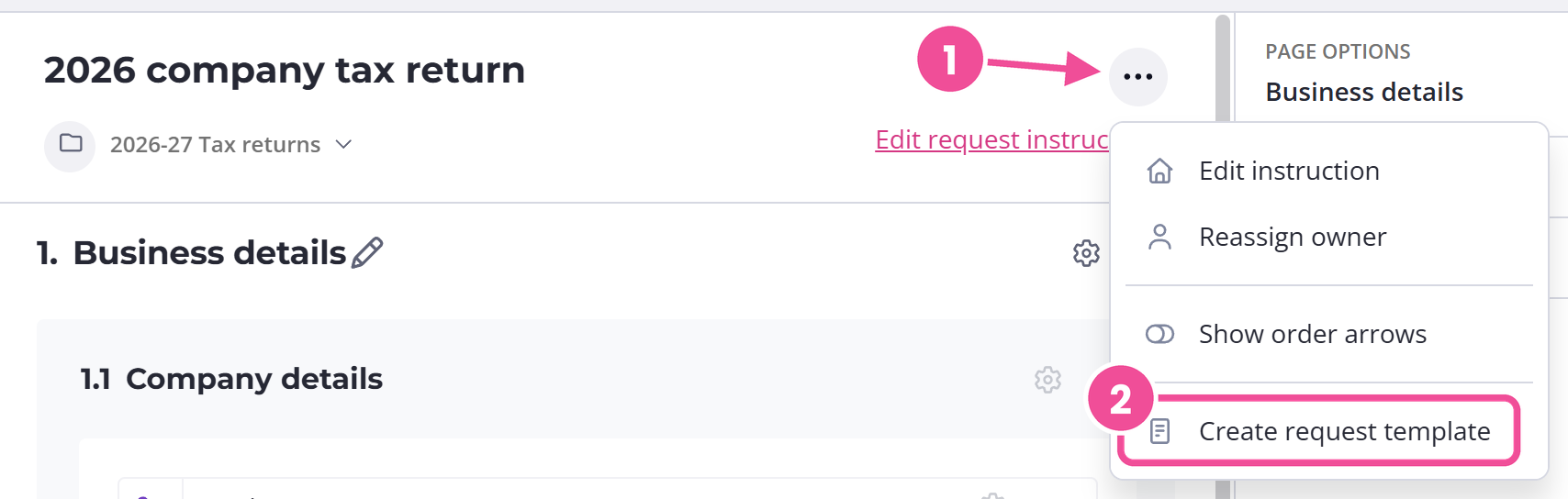
- Open the menu beside the request name and select Create request template.
- Give the template a name. The name is required and the description is optional.
- Save, and it's ready to reuse.
Only Administrators and Editors can save templates or change them later. If you're a Reviewer or Viewer, the option won't appear.
Save a page or section
You don't have to save a whole request. A single page or section can be a template on its own, which helps when you want to reuse it across different requests. Open the menu beside the page or section name and choose Create page template for a page or Create section template for a section. You name it the same way you name a request template.
If you build websites, for example, you might keep a homepage template, an about-page template, and a products-page template, then assemble each new request from the ones the client needs.
A page or section template does not carry every condition. When you save a single page or section, Content Snare drops any conditions that show or hide questions based on answers elsewhere in the request. Conditions that only look at questions inside that same page or section stay put. So after you reuse the page or section, check that your branching still does what you expect. Saving the whole request as a template avoids this, because a full request keeps all of its conditions.
Where your saved templates go
All the templates you create appear on the Templates page. From there you can start a new request from any of them.
The templates Content Snare ships with sit there too, and those you can't edit or delete. If you want your own version of one, duplicate it first and change the copy. When you need to rename, duplicate, share, or delete a template, create and edit templates covers it.