Content Snare has no built-in daily summary of the questions your clients complete. However it is possible to create one using Zapier.
Steps
First, you’ll need a Zapier account.
Once you have signed up, create your first workflow by clicking the “Make a Zap” button. Then follow these steps
Step 1: Create a trigger
You’ll trigger this workflow with Content Snare’s “Field completed” trigger. Every time a client completes a field, we’ll add it to our daily summary.
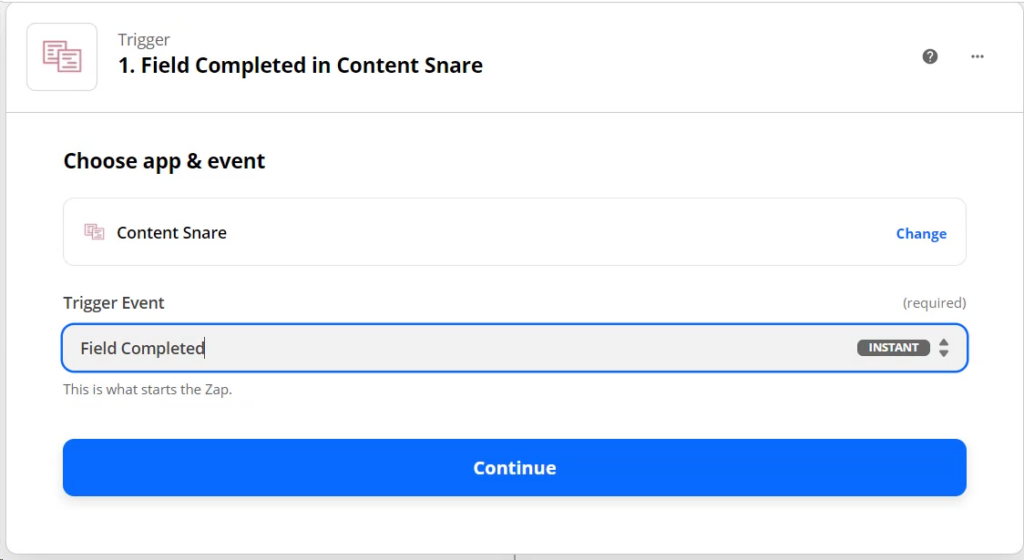
Go ahead and test the trigger to get some sample data.
Step 2: Create a Digest by Zapier action
Create an action. Search for “Digest by Zapier”, and then select the “Append entry and schedule digest” event.
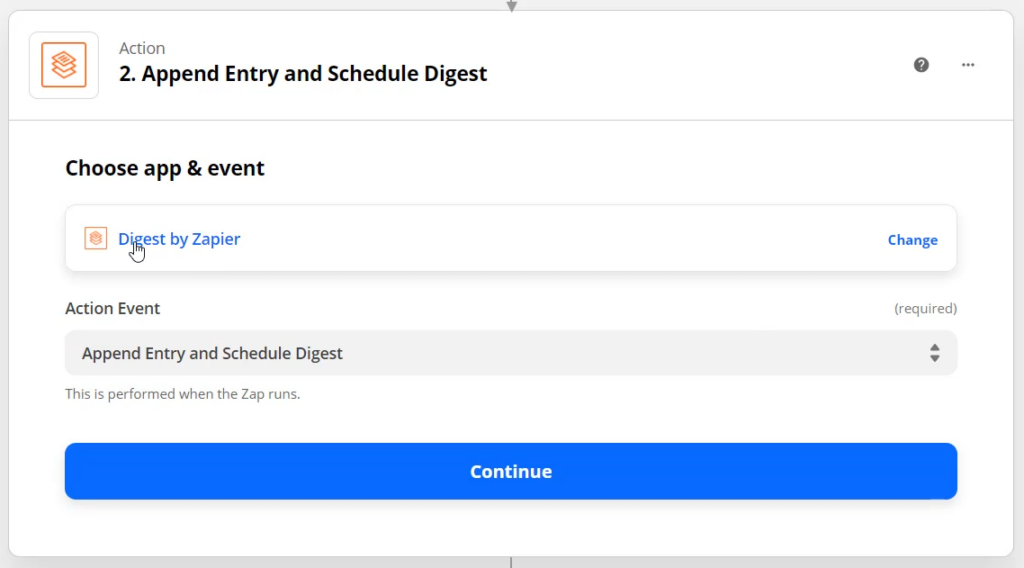
Set it up like this:
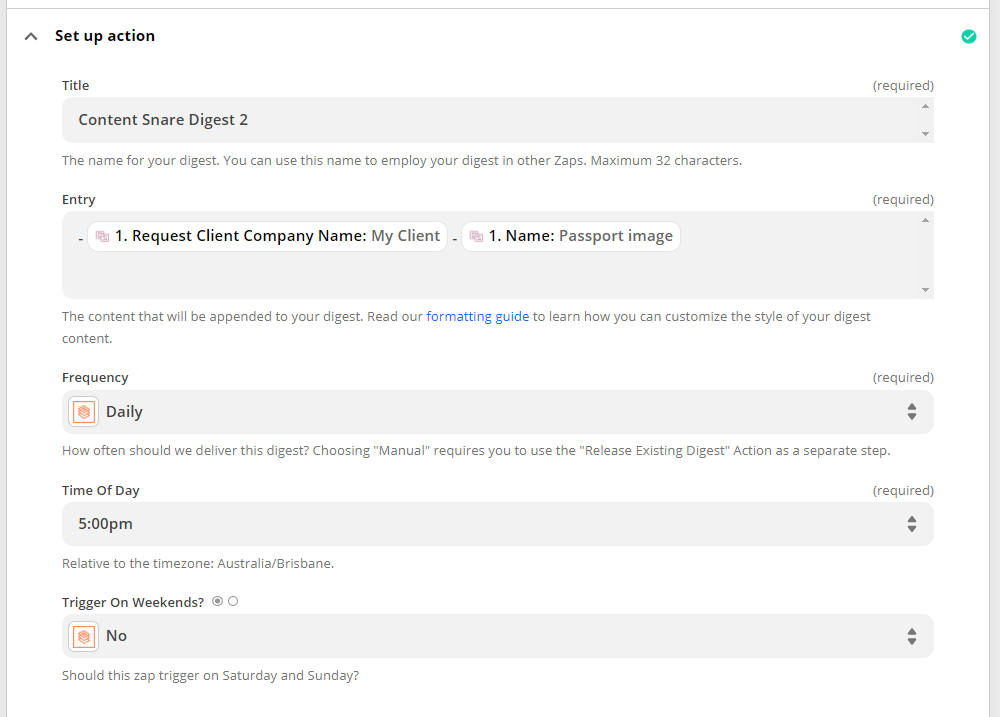
- Title: This is a unique name for the digest. You don’t want to use the same name as another digest in your Zapier account
- Entry: This is the text that will become one item in your daily summary list. You could use a dash at the start to indicate a bullet point. Or separate items with three dashes on a new line, like "---"
- Frequency: How often you want to get the email
Step 3: Create an email action
Use the “Email by Zapier” app with “Send Outbound Email”.
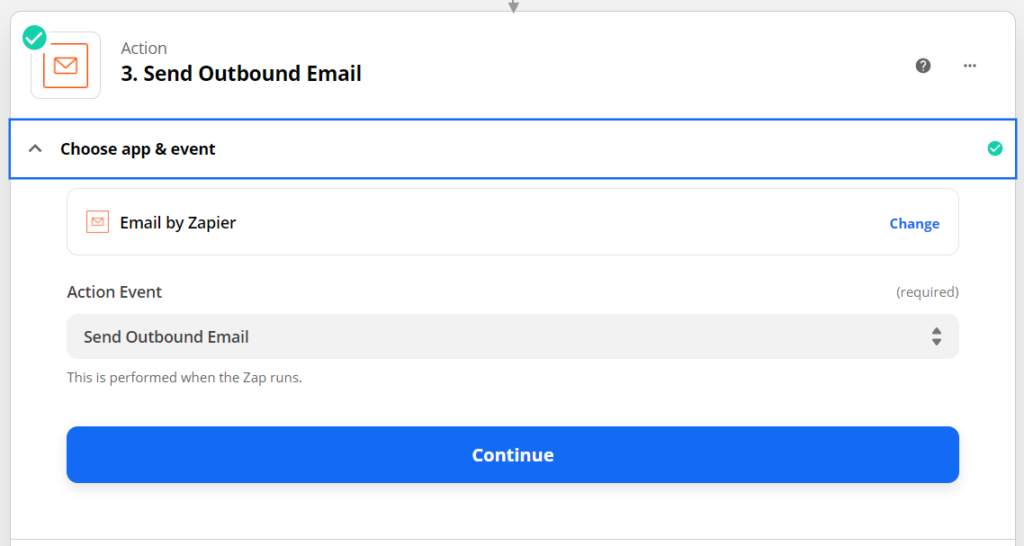
And set it up as follows:
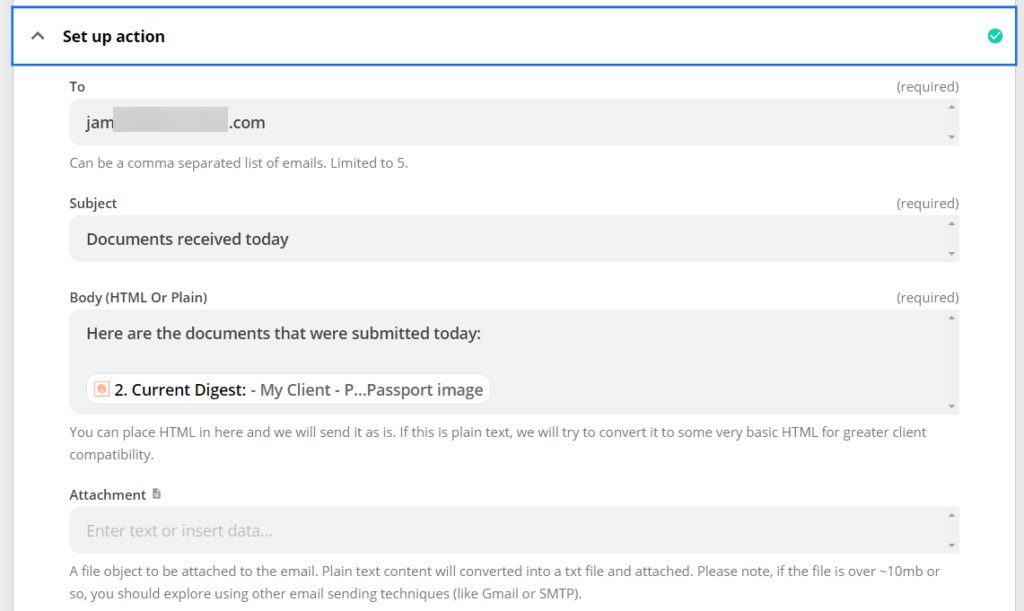
This is like writing an email. Add who you’re sending it to, give it a subject and a body.
Create the body by writing whatever you like, and then adding the “Current Digest” from the previous step.
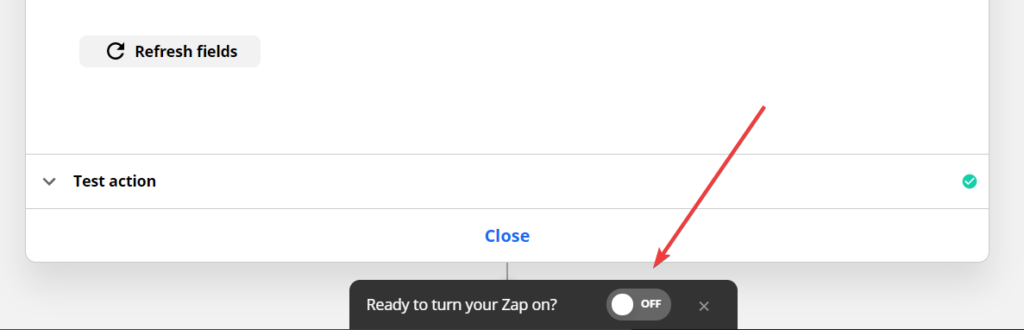
Step 4: Turn the Zap on
That’s it!
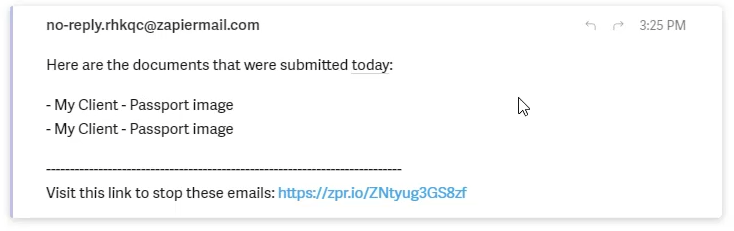
Now turn the Zap on and you’ll begin receiving a daily summary email of documents received in Content Snare.
The email might look like this:
You can use this same process to add a daily summary to your task management system, or any system supported by Zapier.