With this workflow, you can combine all the files uploaded by your clients to a Content Snare request into a single PDF. You’ll need a couple of external tools to make this work.
Prerequisites
- a PDF.co account: any account (you’ll use around 35 credits per page merged)
- Zapier: premium account
- Cloud storage (i.e. Google Drive)
Steps
If you’d prefer to watch this on video:
-
Create a new zap on Zapier
-
Create a trigger on Zap and choose “Webhooks by Zapier”.
-
Select Catch Raw Hook as an event.
-
Copy the webhook URL generated for the zap.
-
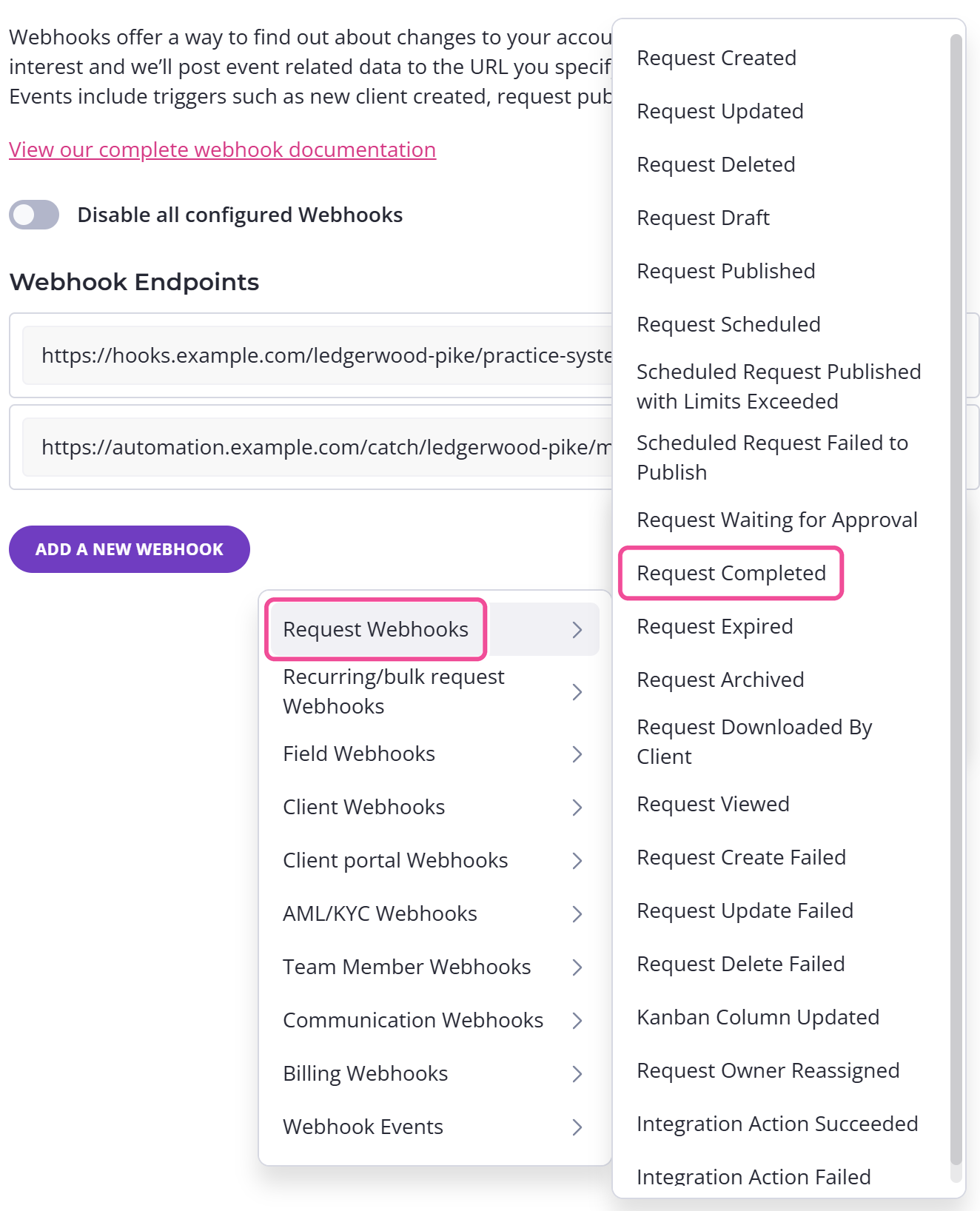
Paste the webhook URL on your Content Snare settings and go to Webhook tab, click “Request Completed” and click “Save”.
-
Generate a test webhook by clicking the three-dot menu next to the new webhook, then choose Test, then Request Webhooks, then Request Completed.
-
Back at Zapier, click the “Test Trigger” button and select the record that will be pulled by your webhook request. Click “Continue with selected record”
-
When the action pop-up box appears, search for “Code by Zapier”
-
Choose “Run Javascript” then click “Continue”.
-
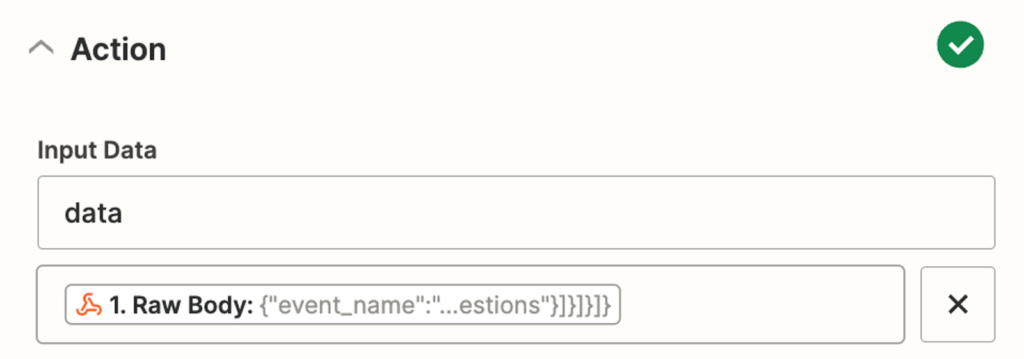
In the “Input Data” field, write “data” and on the “Insert Data” field, select “Raw Body”.
-
In the “Code” field, paste the code found here.
-
Click “Continue” and test the step.
-
Add another step to the Zap by clicking on the “+” button shown in the image below.
-
Search and select “PDF.co”.
-
Select PDF Merger as an event.
-
Sign in to your PDF.co account using your API key. You can find it by logging into your dashboard and click “Copy Key”.
-
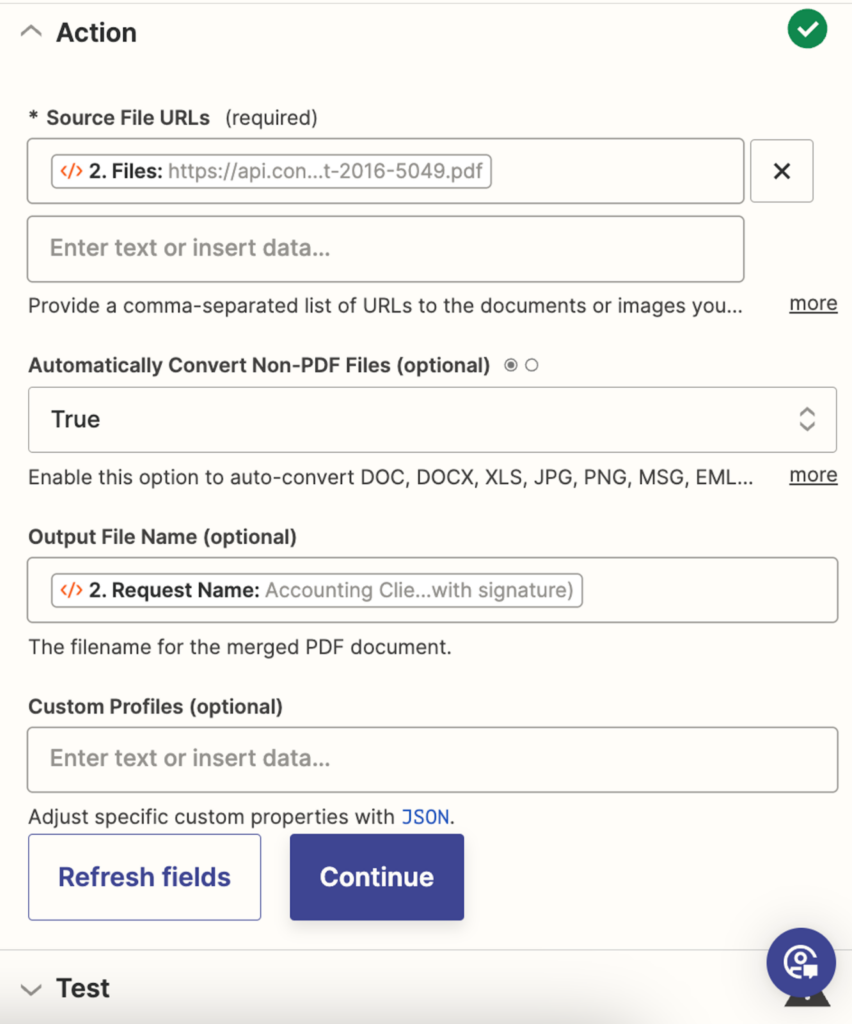
Map in your data.
- Source File URLs: Run Javascript in Code by Zapier: Files
- Automatically Convert Non-PDF Files (optional): True
- Output file name: (decide what you want the file name to be)
- Test the step.
-
Decide where you want the files uploaded, if you want to upload it on Google Drive, you can add another step on your Zap.
-
Connect your account and map your data
- Folder: Select which folder you’d like these PDFs to be uploaded to.
- File: Select “URL” from PDF Merger data.
- Convert to Document: False
- File Name: (blank)
- File Extension: (blank)
- Click on “Publish” and you’re done!