Upload your CSV
Open Clients, choose Import, and drop your CSV onto the page or browse for the file. Each row must include the client's full name and email address. Everything else, like company and phone, is optional. If you don't have a file yet, download the sample template from the import screen and fill it in.
Match your columns and import
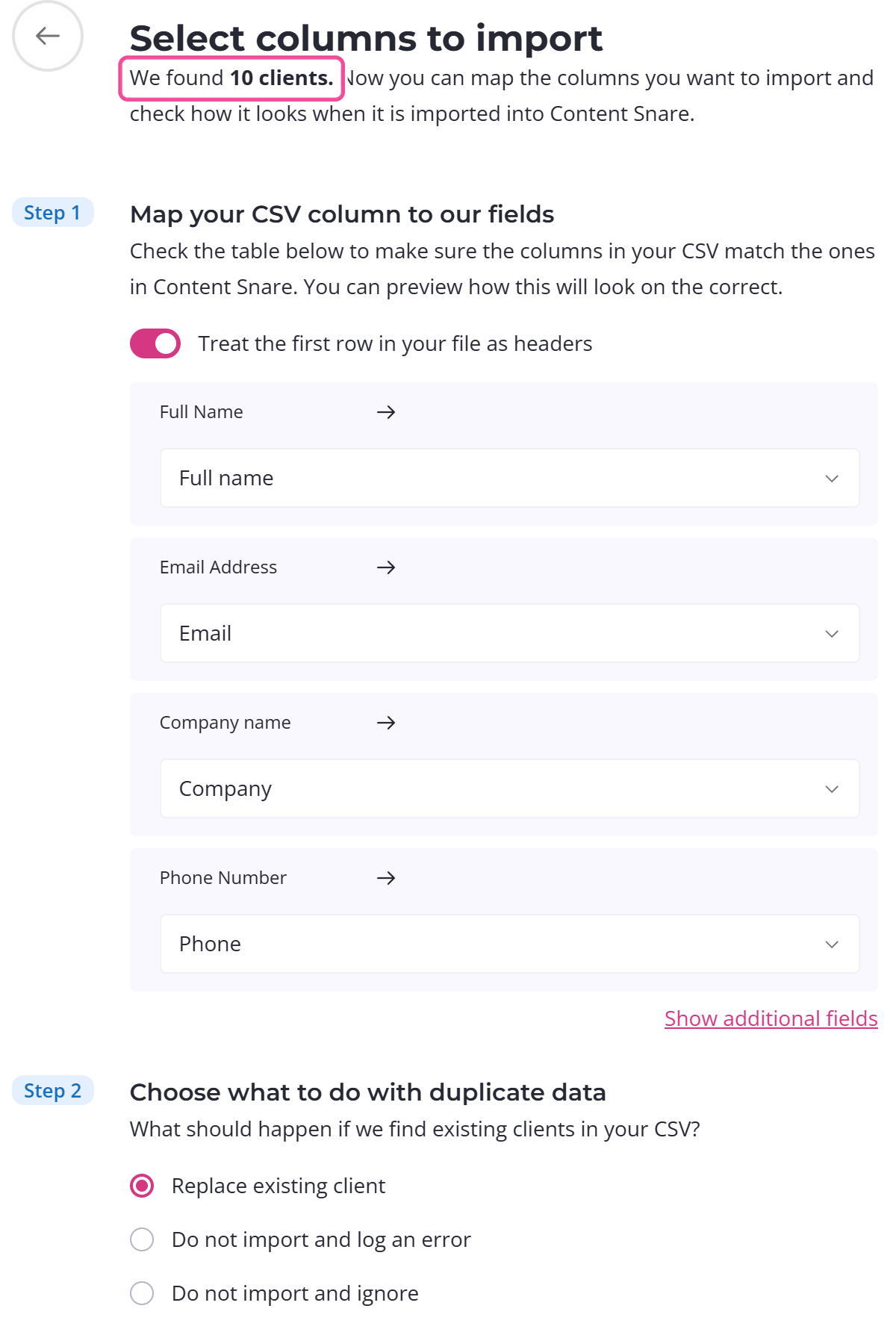
After you upload, you match the columns in your file to the client fields. On a wide screen you also get a preview panel to spot-check one row at a time. Check the whole list in your spreadsheet before you upload, because this screen only shows you a sample. When the mapping looks right, select Import clients. A large import runs in the background with a progress bar you can watch. A small one finishes straight away.
Clients you already have
If your file includes people who are already clients, you choose what happens to each match.
- Replace existing client, the default, which updates that client with the details from your file.
- Do not import and log an error.
- Do not import and ignore.
Re-running a list updates every matching client with the details from your file, because Replace existing client is selected by default. If you have edited any client in Content Snare since your last import, check this setting before importing.
How many clients you can import at once
One file takes up to 1,000 clients. If yours has more, only the first 1,000 are added, and a notice tells you the rest were skipped. Split a longer list into files of 1,000 or fewer.
Importing clients onto a recurring request uses a separate screen with its own limit of 500 per file. See Schedule and recur requests for that.
Clients from integrations
Clients brought in by the FYI and XPM integrations appear in your client list alongside the ones you add directly. To set either one up, see Connect FYI and Connect Xero Practice Manager.
If a client in your account matches one brought in by an integration on name, email, and company exactly, the system links them automatically.