What a client is
A client is anyone you send a request to. They don't have to be a client in the everyday sense. People use Content Snare to collect information from vendors, staff, drivers, or a speaker they need a bio from.
There's no limit on how many you can add.
Add a client
There are three ways to add a client.
- Open Clients from the main menu and choose New client at the end of the list.
- Choose New in the top bar, then Client.
- Add one as you send a request, from the client list on the Finalize step, using Create new client.
Whichever way you use, all you have to fill in is a name and an email.
Adding a client sends no email. Your client only hears from Content Snare when you send them a request, so you can build your list well ahead of time.
Adding clients one at a time works fine for a few. To bring in a whole list at once, import your clients from a spreadsheet.
What to fill in
Only a name and an email are required.
Everything else is optional. A few of these fields change what your client sees, so set them when they apply:
- Phone. Without a phone number, you can't send the client any SMS notifications.
- Time zone. Sets the local time reminder emails arrive. A 9am reminder reaches the client at their 9am, not yours.
- Application language. Changes the language the client sees while filling in the request. It doesn't change the wording of your reminder emails or your instructions.
- Date format. How dates appear to the client, both in the request and in reminder emails.
There's also a client image and a company name, both optional.
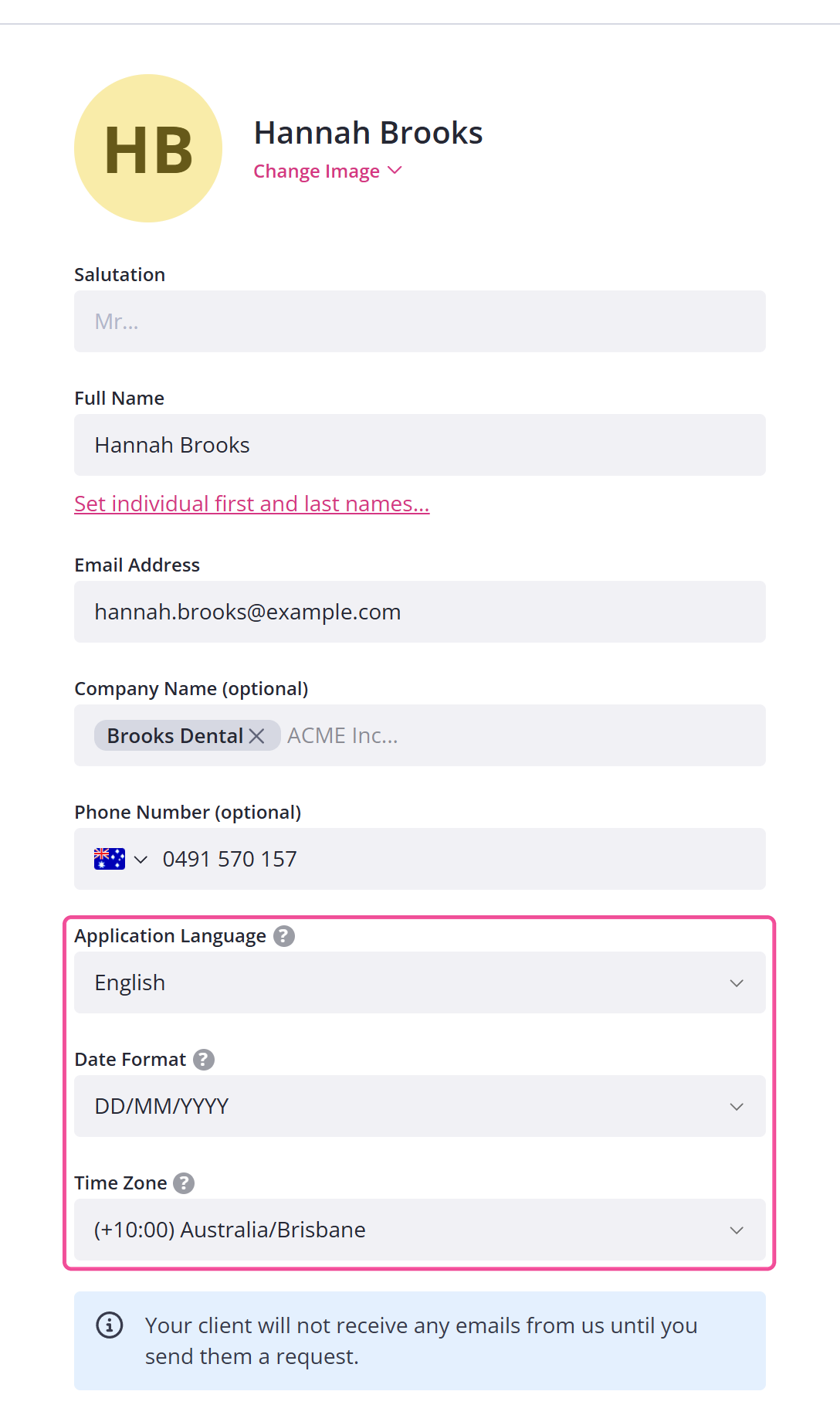
Add more than one company to a client
You can add more than one company to the same client. Type each company's name in the company field and press Enter after each one.
Clients from FYI and Xero Practice Manager
Clients imported from FYI and Xero Practice Manager appear in the same list as the ones you add yourself. To set either one up, see Connect FYI and Connect Xero Practice Manager.