You add questions in the request builder. Open Requests and choose Edit on the request or template you want to change.
A request has three levels:
- Pages group the sections.
- Sections group the fields.
- Fields are the questions and upload areas your client fills in.
See What's in a request for how the three work together.
Add a page or section
You add a page from the left-hand navigation and a section at the bottom of the page you're on. Both open the same short menu with three ways to start:
- Blank gives you an empty page or section to fill in yourself.
- From template adds a page or section you saved earlier, so you don't build it again. See reuse a page or section in another request.
- From AI prompt builds a set of questions for you with AI.
If your request doesn't need to be broken down further within a page, one section per page is fine. Name the section the same as its page to keep the structure clean.
Split a longer request across a few pages rather than putting every question on one. Your client moves through the request a page at a time, and one crammed page is harder to work through than a few shorter ones.
Add a field
Inside a section, click Add a field. That opens the Select a field type picker. Type what you need in the Search for a field type... box, or scroll the list, then click a type to add it. Each field is one question or one upload area. To learn what the different types do, see Field types.
You can't add a field to a section your client has already repeated.
Add several questions at once with AI
Choose From AI prompt when you add a page or section, or click Add fields from AI inside a section, and AI writes the questions from a description, a list you paste in or a PDF. See Add questions to a request with AI.
Edit an existing page, section or field
Every page, section and field has its own menu. What it offers depends on the level:
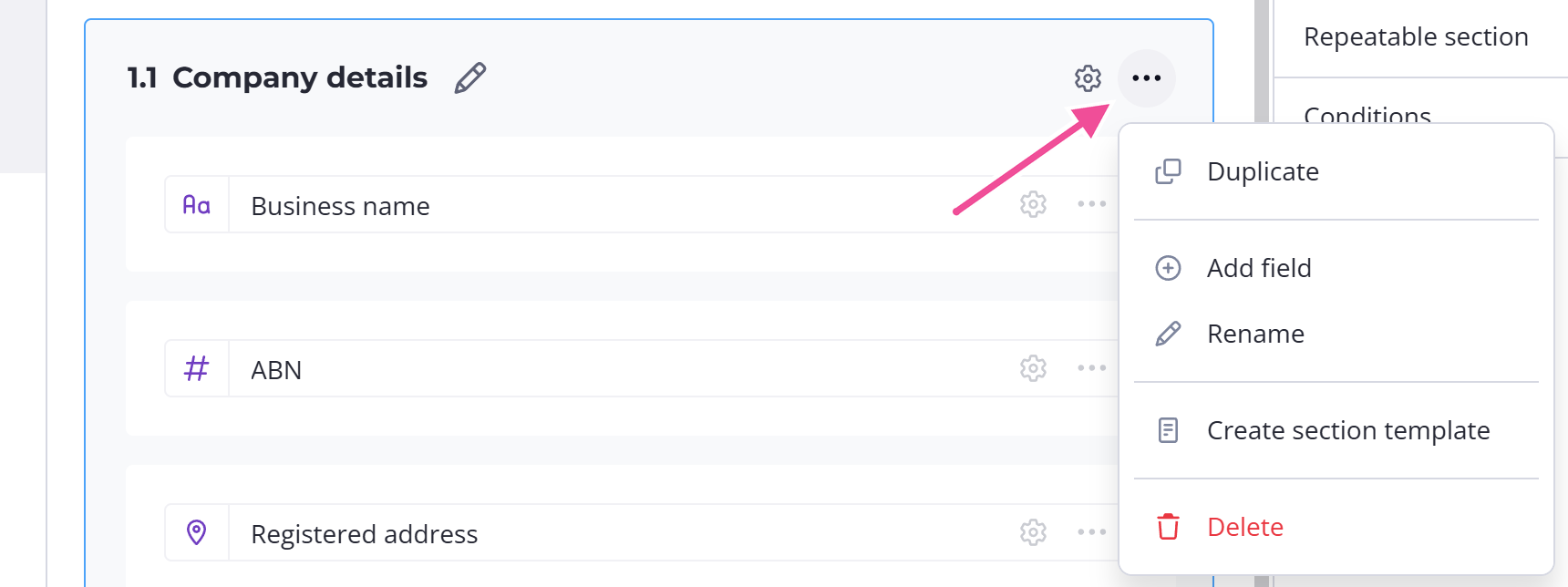
| Level | Menu options |
|---|---|
| Page | Duplicate, Rename, Add blank section, Add section from template, Create page template, Delete |
| Section | Duplicate, Add field, Rename, Create section template, Delete |
| Field | Duplicate, Rename, Delete |
Scroll sideways to see the whole table
Create page template and Create section template save that page or section so you can add it to other requests later. See reuse a page or section in another request.
You set instructions and conditional logic from an item's settings. See write instructions that get better answers and show and hide questions with conditions.
Reorder pages, sections and fields
Move any page, section or field by dragging the handle at its left edge to where you want it. To move an item onto a different page, drag it over that page in the left-hand navigation and hold there until the page opens, then drop it inside.
If dragging feels fiddly, open the request's own menu and switch on Show order arrows. Each page, section and field then shows Move up and Move down buttons, and the setting stays on for you until you switch it off again with Hide order arrows in the same menu.
The order arrows aren't shown on a phone-sized screen. If the control you need to move something isn't there, reorder the request on a computer.
Delete a page, section or field
Deleting a page, section or field is permanent, and Content Snare asks you to confirm first. Deleting a page or section takes everything inside it as well.
If you delete anything your client has already answered, their answers are deleted too. If conditions link other questions to the one you're deleting, Content Snare shows you what will change before you confirm.