How much file storage you have depends on your plan:
| Plan | Storage |
|---|---|
| Basic | 20 GB |
| Plus | 50 GB |
| Pro | 100 GB |
| Custom | 200 GB |
| Larger Custom plan | Unlimited |
Scroll sideways to see the whole table
Support can raise the limit on a single account without moving it to a different plan, so your own ceiling may be higher than the number above.
What counts toward your storage
Every file uploaded to your account counts toward one shared pool. It makes no difference which request a file belongs to, or whether that request is a draft, published, complete, or archived. Content Snare adds up the size of all of them.
This is why archiving or completing requests won't give you space back. Those files still count. Storage works differently from your active request limit, where completing or archiving a request does free up a slot. To recover storage you have to delete files or move to a bigger plan.
What happens when you run out
Once your storage is full, your team can't upload new files or publish a request until you delete some files or move to a bigger plan. Anyone who tries sees a message asking them to remove files or upgrade.
Your clients aren't affected the same way. A client who is already working on a request can keep uploading files to it, even while your account is over the limit. Because of that, storage can keep climbing past the limit until you clear space or upgrade.
How to free up space
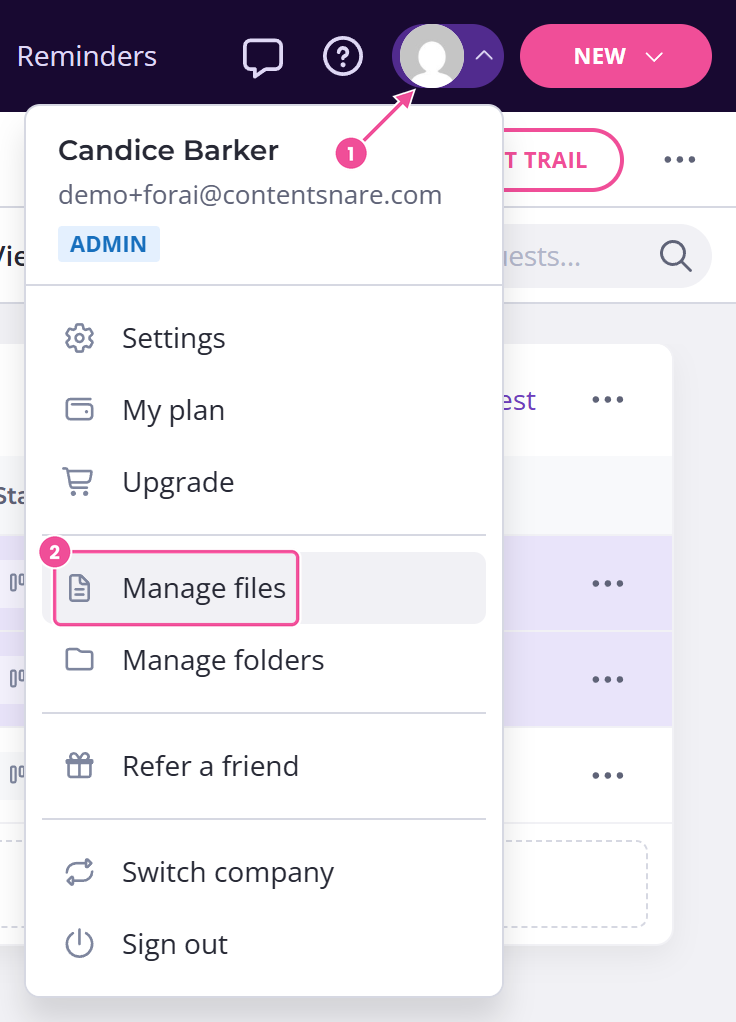
To recover storage, delete files you no longer need from the Manage files screen. Open it from the user menu. The screen lists every uploaded file with its size and the request it came from, so you can find and clear out the largest files first. If you might need a file later, download it before you delete it.
The other option is to upgrade to a plan with more storage. Only an administrator can do that. If you don't have admin access, the storage message won't include an upgrade link, so you'll need to ask an admin on your team or free up space instead.
When Content Snare warns you
Content Snare warns you before your storage runs out. A bar appears across the top of the app when less than 10% of your storage is left. When you're completely out, that bar turns red and can't be dismissed. You also get emails as your storage fills, sent at 80%, 90%, and 100% of your limit.
When a single file is too big
If a file won't upload because it's too big, that's a separate limit, not your storage running out. Each file has its own size cap, 4 GB on any paid plan and unlimited on a larger Custom plan we set up with you. On Plus and above you can ask support to raise it to 16 GB. Trials are capped at 20 MB per file. This limit is about the size of one file, not how much storage you have left, so freeing up space won't change it.