The calendar shows your requests and scheduled messages on a month, week or day grid, so you can see what's due and when messages go out.
Open the calendar
Open the calendar from the Calendar tab in the top navigation. If you don't see the tab, either your role doesn't include calendar access or your subscription isn't active.
What the calendar shows
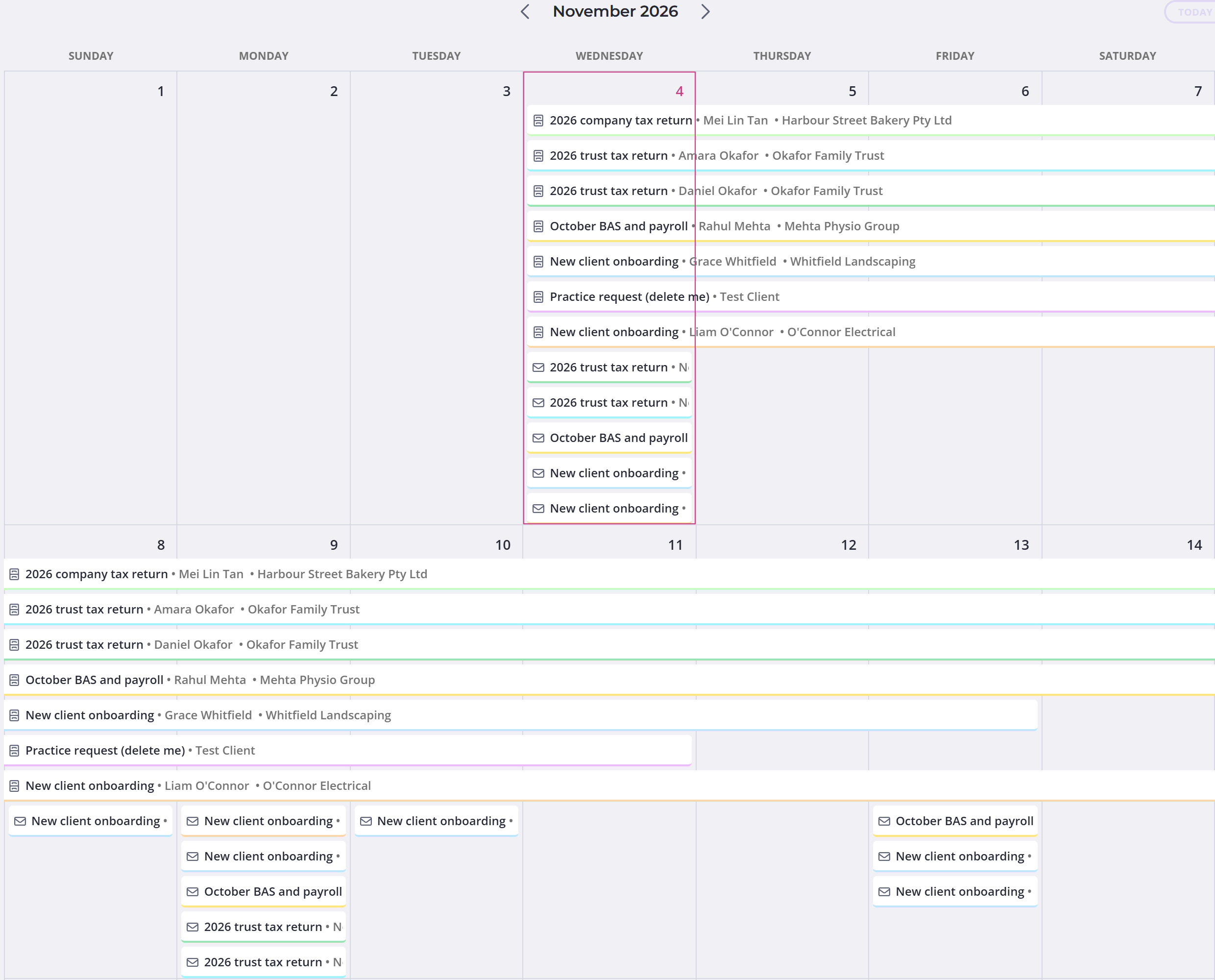
Every request appears as a horizontal bar covering the days between when it starts and when it's due.
Scheduled emails and scheduled SMS messages appear too. Each one shows up on the day it's set to go out. An icon on each item marks it as a request, an email or an SMS, so you can tell messages apart from the requests they belong to.
Open a request or preview a message
Click any request to open it, and click a scheduled email or SMS to preview the message. The preview is read-only, so you can check what will send without changing it. To open the request in a new browser tab instead, hold Ctrl as you click.
Point at a request without clicking to see the owner or client, the due date, how far along the answers are and the request's status.
Open the request to change its due date, or its scheduled publish date if it hasn't been published yet.
Change the view and filter
Use Month, Week or Day to set how much time you see at once. The arrows move you forward and back through the calendar, and Today jumps you to the current date.
Filter by request Owner or by client, and clear a filter to see everything again.
For a sortable list or board view, use grid, list and board views.