What a personal access token does
A personal access token lets a tool you set up yourself, such as Claude, a script or an automated workflow, work in your Content Snare account through the API. You generate the token in Content Snare and paste it into the tool.
The token acts as you. A tool using it can only do what both the token's permissions and your current role allow, so if your role changes, what the token can do changes with it.
Administrators can generate tokens, and Editors can too if an Administrator allows it. Team members and permissions explains the roles.
If you're connecting Claude, Connect Claude to Content Snare walks through the whole setup. If you're writing your own script, send the token as a Bearer token in the Authorization header. The API documentation lists every endpoint and the permission it needs.
Generate a token
API access has to be on for your account first. It stays off until you ask us, and Get started with the API shows how to ask.
- Click your avatar in the top right and choose Settings.
- Under Security, choose Personal Access Tokens.
- Click Generate access token, below your list of tokens.
- In Access token name, name the token after the tool, such as "Claude".
- In Expires after, choose how long the token lasts.
- Administrators can pick 30, 60, 90, 180, 365 or 730 days. 90 is selected to start with.
- Editors' tokens always last 90 days.
- Under Permissions, tick what the tool needs.
- Manage permissions don't include read access, so tick the matching Read permission too, such as Read clients with Manage clients.
- Editors don't see Manage team members or Manage webhooks. Only an Administrator's token can hold those two.
- Under Confirm access, enter your password. If you use 2FA, also enter the Authentication code from your authenticator app.
- Click Generate access token.
- Copy the token from the Your access token is ready popup and paste it into your tool.
- Tick I have saved this access token in a secure place. and click Done.
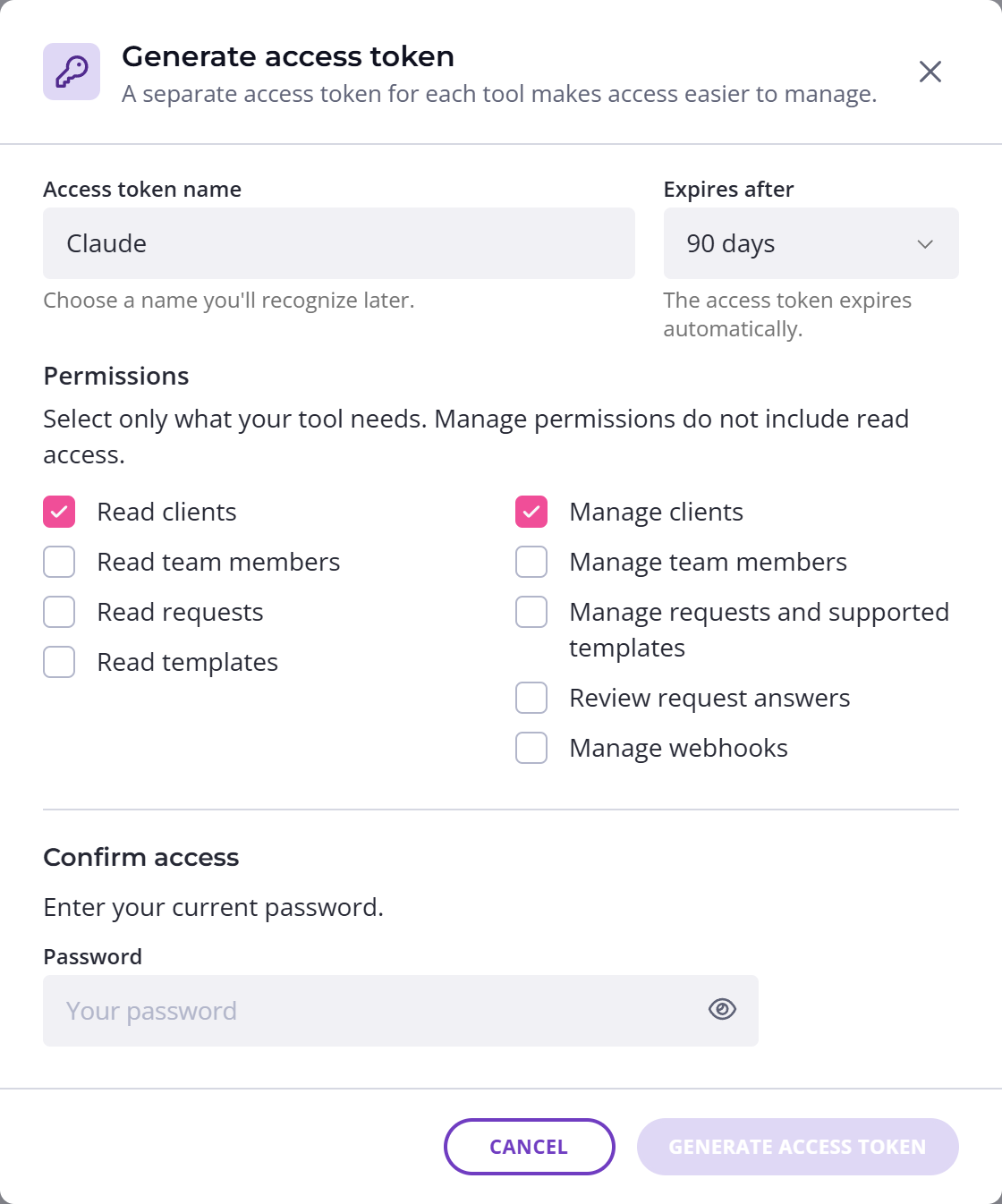
Anyone who has the token can act as you, so treat it like a password. Don't paste it into a chat or an email, or put it in code you share. Use a separate token for each tool, so you can revoke one without breaking the others.
If you can't generate a token
If something's missing, the Personal Access Tokens page shows a notice instead of Generate access token. You need the same things to rotate a token, regenerate one or change its permissions.
- If the notice says Turn on two-factor authentication, your organization requires 2FA and yours is off. Click Enable 2FA, set it up, then come back. Set up two-factor authentication has the steps.
- If you're an Editor and the notice says
Access token creation is restricted
, ask an Administrator. They can let Editors create tokens, or ask us to turn on API access if that's what's missing. - If you're an Administrator and the notice says
Access token creation is restricted
, API access isn't on for your account yet, so ask us to turn it on. On a free trial, you also need to add a payment method, and Move from a trial to a paid plan shows how.
How many tokens you can have
Each team member can have 10 active tokens at a time. Expired tokens don't count. Your count shows above your list of tokens, such as "3 of 10 active access tokens".
At 10, Generate access token is grayed out and the page shows Access token limit reached. Revoke a token you no longer need to make room. The Last used column shows roughly when a tool last used each token, which helps you spot the ones nobody needs. You can still rotate a token at the limit.
Change a token's name or permissions
- Click your avatar in the top right, choose Settings, then Personal Access Tokens.
- Click the token's row, or open the three-dot menu at the end of the row and choose Edit access token.
- Change the name, the permissions or both.
- If you changed the permissions, enter your password, and your authentication code if you use 2FA.
- Click Save changes.
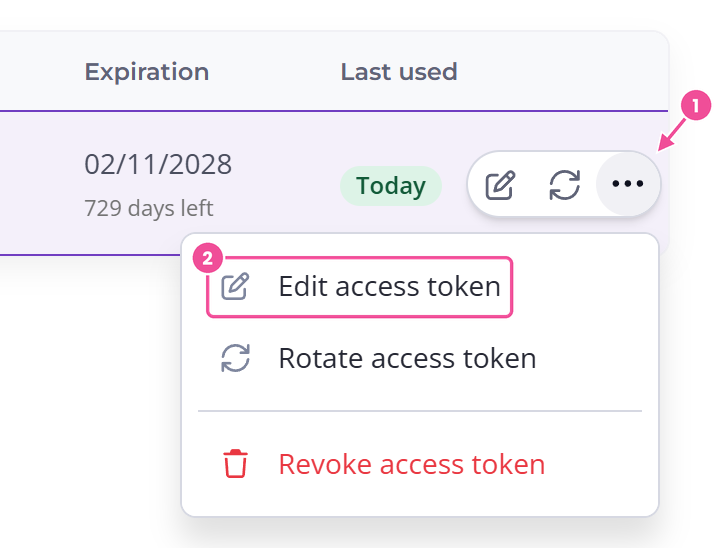
New permissions apply straight away to every tool using the token. The token and its expiry date stay the same, so there's nothing to update in the tool.
If the menu shows Rename access token instead, you can change only the name. That happens when the token has expired, or when you can't generate tokens right now. To change an expired token's permissions, regenerate it.
Rotate a token
Rotating gives you a new token with the same name, and its lifetime starts again from today. Rotate a token before it expires, if you've lost it, or if someone else may have seen it. If someone may have seen it and you can't rotate it, revoke it straight away.
The old token stops working the moment you rotate it, so each tool using it can't connect until you give it the new one.
- Click your avatar in the top right, choose Settings, then Personal Access Tokens.
- Open the three-dot menu at the end of the token's row and choose Rotate access token.
- Check the permissions and the lifetime, which start with the token's current settings. Editors' tokens always get 90 days.
- Enter your password, and your authentication code if you use 2FA, then click Rotate access token.
- Copy the token from the New access token ready popup and paste it into every tool that used the old one.
- Tick I have saved this access token in a secure place. and click Done.
When a token expires
About a day before a token expires, its owner gets a warning email with the expiry time in UTC. You can also check the Expiration column, which counts down the days left. Rotate the token before it expires to keep the tool connected.
Once a token expires, tools using it can't reach Content Snare. The token stays in your list marked Expired until you regenerate or revoke it.
To regenerate an expired token:
- Click your avatar in the top right, choose Settings, then Personal Access Tokens.
- Open the three-dot menu at the end of the expired token's row and choose Regenerate access token.
- Check the permissions and the lifetime.
- Enter your password, and your authentication code if you use 2FA, then click Regenerate access token.
- Copy the new token and paste it into every tool that used the old one.
- Tick I have saved this access token in a secure place. and click Done.
Regenerate access token is grayed out while you have 10 active tokens. Revoke one you don't need to make room.
Revoke a token
Revoking a token stops it working for good. Any tool using it loses access straight away, and you can't undo it.
- Click your avatar in the top right, choose Settings, then Personal Access Tokens.
- Open the three-dot menu at the end of the token's row and choose Revoke access token.
- Tick both boxes and click Revoke access token.
Why a token might stop working
These changes stop a token working without anyone revoking it by hand.
| Change | What happens to the token |
|---|---|
| The owner is archived or deleted | Revoked |
| The owner goes from Editor to Reviewer or Viewer | Every token they own is revoked |
| The owner goes from Administrator to Editor | Tokens holding Manage team members or Manage webhooks are revoked. The rest keep working. |
| Your organization starts requiring 2FA, and the owner hasn't turned it on | Stops working until they turn on 2FA |
| API access is switched off | Stops working until API access is switched back on |
Scroll sideways to see the whole table
If a token is revoked, you can't get it back, even by restoring the person or their old role. The owner usually gets an email when their token is revoked, and needs to generate a new one.
Require 2FA for your company covers the 2FA setting.
See and revoke your team's tokens
Administrators can see every personal access token in your organization, with its name, owner and expiry, and revoke any of them. Nobody can see the token itself after its owner has copied it.
- Click your avatar in the top right and choose Settings.
- Under Company, choose Security & Access.
- Open the Company access tokens tab.
The list shows every token, including expired ones and your own, with its Owner and Expiration. If you see Cannot create new access tokens under a name, that person can't generate a token right now.
Revoking someone's token stops every tool using it straight away, and you can't undo it. Only the owner can generate a new one.
To revoke a token:
- Open the three-dot menu at the end of its row and choose Revoke access token.
- Tick both boxes and confirm.
The owner gets an email. Only the owner can rename, edit or rotate their token.
Administrators also see token activity in the Audit Trail, such as who generated, rotated or revoked a token.
Choose who can create tokens
Only Administrators can generate tokens until an Administrator lets Editors do it too.
- Click your avatar in the top right and choose Settings.
- Under Company, choose Security & Access.
- Open the Company access tokens tab.
- Set Who can create access tokens? to Administrators and editors, and save.
Every Administrator gets an email when this setting changes.
Switching back to Administrators only doesn't revoke Editors' tokens. They keep working until they expire, and Editors can still rename or revoke them. Editors can't rotate them, regenerate them or change their permissions. To stop an Editor's tokens straight away, revoke them from the Company access tokens tab.