A bulk request sends one template to a whole list of clients and makes a separate request for each of them.
You build it in the same place as a recurring request and set it to run once. To send the same request over and over, see Schedule and recur requests.
Send one template to your whole client list
- From your dashboard, open New and choose Recurring/bulk request.
- On Templates, pick the template you want to send. Every client gets their own copy of it.
- On Essentials, name the bulk request, set the Generated request title each new request gets, and choose the owner and folder they're filed under. The generated title can include the client's name, so the requests are easy to tell apart in your list.
- On Clients, add the people who should receive it. Choose them one at a time, or import a CSV for a long list.
- On Schedule, choose whether it starts Immediately or On set date. Set it to stop after a Number of occurrences of 1, which is what makes it a single send rather than a repeat.
- On Finalize, check the settings and choose Save and Activate.
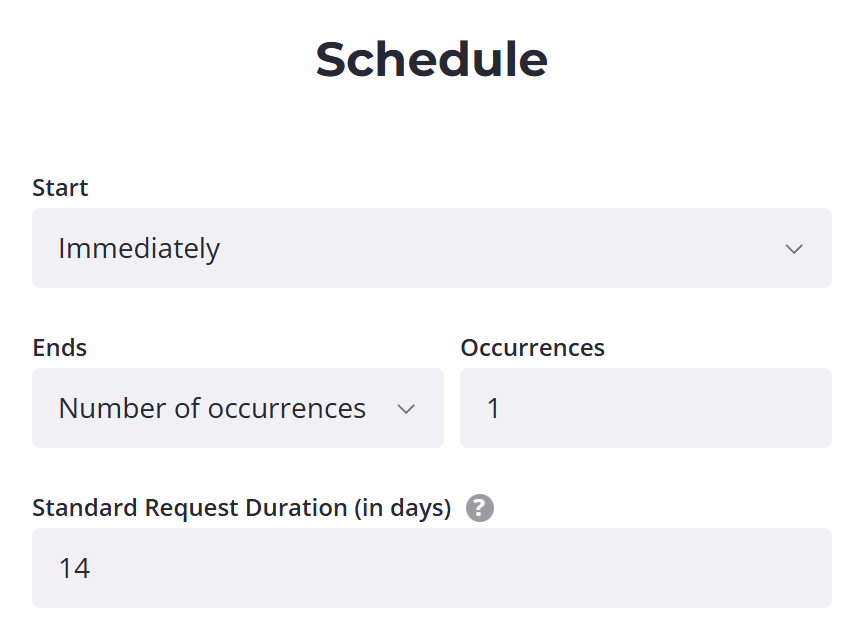
The schedule step always asks for a frequency. Pick any of them and let the occurrence count end it after the first run.
Add a long client list with a CSV
For a long list, choose Import Clients from CSV in the clients step and upload a spreadsheet.
The file needs two columns, Full Name and Email Address. Download the sample if you want the exact layout. One import takes up to 500 clients. Anything past row 500 is ignored rather than reported, so split a longer list into separate files.
Tick Create new clients if not found and anyone who isn't already in your account is added as the file imports.
Send it right away
To fire a bulk request without waiting for its start date:
- Open it from the Recurring/Bulk list.
- Choose Run now... from its menu.
- Confirm.
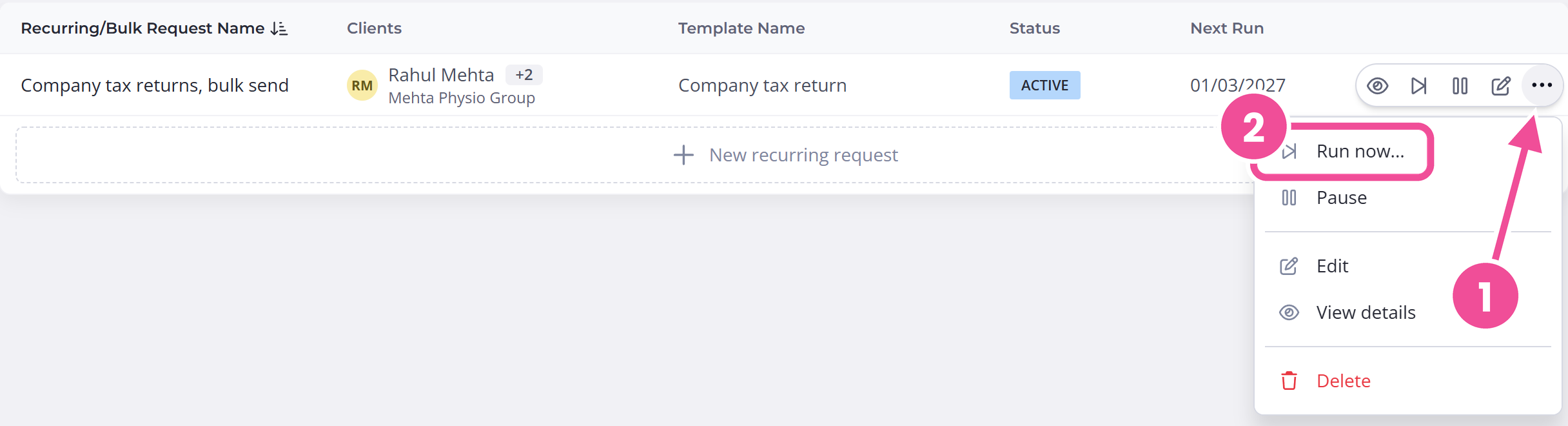
Content Snare tells you how many requests it's about to create, so check the count matches your client list before you go ahead.
What happens after it runs
Content Snare creates one request per client and publishes each one, unless you've set it to leave them as drafts. They show up in your list over a short period, not all at once, so a big batch arriving gradually is normal.
Each client is emailed their request when it's published, using the communication template you set on the bulk request. You can change what those emails say in Email and SMS templates.
If you turn the communication template off, the requests are still created, with nothing sent to anyone. You then share each client's link yourself, which Find and share the client link covers.
Create the requests as drafts
To look over each request before your client gets it, turn on Leave requests as drafts when created. It's under Request Settings on Finalize and it's off by default. It works whether the bulk request runs once or repeats.
With it on, Content Snare creates every request as a draft. Content Snare doesn't email a client until you publish their draft.
A draft keeps the due date it got when the batch ran, so check the due date on each draft's publish step before you publish it.
Check your active request limit first
Every request that's created by a bulk run counts toward your plan's active request limit once it's published. If publishing the batch would take you over that limit, Content Snare stops the run rather than creating part of it.
Free up slots by completing or archiving requests you no longer need, or move to a bigger plan, then run the batch again. I've hit my active request limit walks through freeing up room.
Drafts don't count toward the limit until you publish them, so with drafts on, the run creates every request even when you're at your limit. If you reach the limit part way through publishing, the drafts you haven't published yet stay as drafts until you free up slots.
Which plans include bulk requests?
Bulk requests are on every plan. Plans and limits shows what each plan covers.